The Vendor Group module is used to create and manage simpler and more flexible groupings of suppliers/vendors. Unlike Vendor Category, which has a hierarchical structure and accounting links, Vendor Group is typically used for reporting, filtering, or for applying specific business rules to a group of vendors.
1. Main View (Vendor Group List)
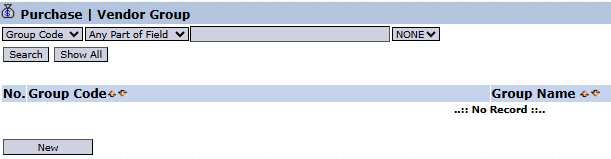
The main page of this module displays a list of all Vendor Groups that have been created.
View Explanation
This page is for viewing and managing all existing groups.
Filter: You can search for a specific group using the search bar based on the Group Code.
Group List: The table below will display a summary of each group, with columns for No., Group Code, and Group Name. In the example, there is one group "Lokal 1".
Button Functions
New: The primary button to create a new Vendor Group.
2. Steps to Create a New Vendor Group
Step 1: Create a New Group
From the Main View, click the New button to open the Add Vendor Group form.
Step 2: Fill in Group Details
On the form that appears, fill in the required details:
Group Code: Enter a unique code for your vendor group.
Group Name: Enter a descriptive name for the group.
Step 3: Save the New Group
Click the Save button to save the new group. The group will now appear in the Main View.
Tips & Important Notes
Use Vendor Groups for flexible segmentation, for example, to group "Local Vendors", "Import Vendors", or "Strategic Vendors".
After a group is created here, you can assign each vendor to the appropriate group in the vendor master data module.
This grouping will help you filter data in various purchasing and analysis reports.





No comments to display
No comments to display