The Budget Plan Inbox module is specifically designed for managers or leaders who have the authorization to review, approve, or reject Budget Plan submissions sent by various departments (Cost Centers). This module is the central hub for all budget approval actions.
1. Main View (Approval Inbox)
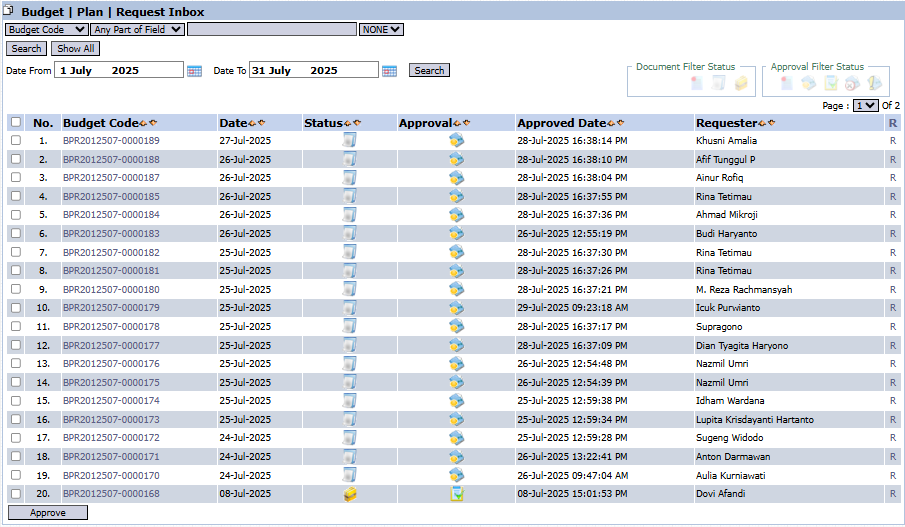
The main view of this module is an "inbox" that displays all Budget Plan documents requiring your action.
View Explanation
This page functions as a dashboard to monitor and manage all incoming budget requests.
Date Filter: You can filter documents based on a submission date range by filling in the Start Date and End Date, then clicking Search.
Request List: The table below displays the details of each budget request awaiting action.
Column Explanations
No.: Serial number.
Budget Code: The unique code from the submitted Budget Plan document.
Date: The date the document was created by the requester.
Status: An icon indicating the current document status. A document icon typically signifies that the document has been submitted and is ready for review.
Approval: An icon showing the approval status. An hourglass icon or yellow/orange color generally indicates "Awaiting Approval," while a checkmark icon or green color indicates "Approved."
Approval Date: A timestamp that records when the approval action (accepted/rejected) was taken. This column will be empty if no action has been taken.
Requester: The name of the employee who created and submitted the Budget Plan, for example, "Khusain Amalia," "Rina Tetimau," "Ahmad Milaroji."
Button Functions
Accept: The main action button to approve or accept one or more selected Budget Plan submissions.
2. Steps for the Budget Approval Process
The following is the standard workflow for an approver in this module.
Step 1: Access and Monitor the Inbox
Open the Budget Plan Inbox module periodically to see if any new submissions have arrived that require your attention.
Step 2: Review Budget Plan Details
To understand the details of a submission, click on one of the rows (for example, the row with the requester "Budi Haryanto"). This action will open the detailed document view, showing the breakdown of expense accounts and proposed amounts (similar to the Budget Plan entry form).
Step 3: Take Action (Approval)
After reviewing the details and ensuring the submission is appropriate:
Return to the main Inbox page.
Check the box on the left side of one or more submission rows you wish to approve.
Click the Accept button located in the bottom-left section of the page to process the approval.
Once this action is taken, the approval status will change, and the Approval Date will be recorded.
Note: Depending on the system configuration, there may be other buttons such as "Reject" or "Request Revision" within the detailed view of each submission.
3. Workflow & Integrated Business Process
This module is part of a larger, integrated budget approval workflow and is directly connected to the Budget Plan module.
Requester: An employee from a Cost Center (e.g., Idham Wardana) creates a submission in the Budget Plan module.
Submission: After the Requester clicks the Confirm button, the document is automatically sent and appears in the Budget Plan Inbox module of their superior or the party authorized to grant approval.
Approver: The superior or finance manager opens the Budget Plan Inbox module to view the request.
Action: The Approver reviews the submission and takes action (e.g., clicks Accept).
Status Update: The status on the original document, as seen by the Requester, will be updated in real-time, showing that their budget has been approved.



No comments to display
No comments to display