The Price List Report module is used to display and export the company's applicable product price lists. This report can be filtered by specific price groups or items and is useful as a reference for the sales team or for administrative purposes.
1. Report Parameters
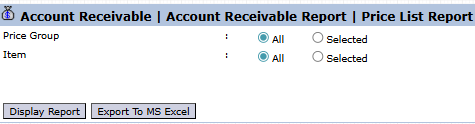
The main page of this module is a simple form containing several parameters to customize the report that will be generated.
Here is an explanation for each parameter:
Price Group:
Use this filter to display the price list.
All: Select this to display price lists from all existing price groups.
Selected: Select this to display the price list from a specific price group only (e.g., distributor price, retail price).
Item:
Use this filter to display the price list.
All: Select this to display prices for all products.
Selected: Select this to display the price for a specific product only.
2. Steps to Generate the Report
Step 1: Set Report Parameters
Define the scope of the report by selecting options in the Price Group and Item filters.
Step 2: Generate the Report
After the parameters are set, click one of the two buttons in the bottom-left section of the page:
Display Report: To preview the price list report directly on your screen.
Export To MS Excel: To download the report data in an Excel file format.
Tips & Important Notes
Use this report to print official price lists to be shared with the Sales team or customers.
To get an accurate report, ensure the price master data in the Sales Module (or related price-setting module) is up-to-date.
The Export To MS Excel feature is useful for further processing or analyzing price data.




No comments to display
No comments to display