The Consignment Sales Invoice module is the final stage of the consignment sales process. Its purpose is to create an official billing document or invoice for the customer (consignee) based on the sales report they have provided. The invoice created here will officially record revenue and generate a receivable in the general ledger.
1. Main View (Invoice List)
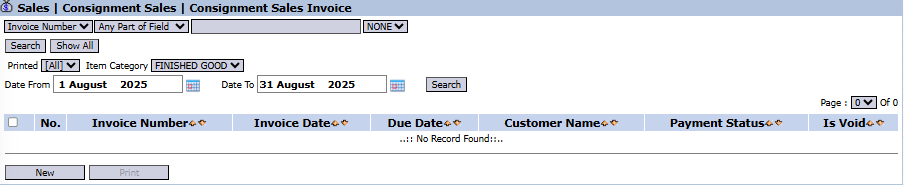
The main page of this module displays a list of all Consignment Sales Invoices that have been issued.
View Explanation & Filters
This page is for viewing and managing all consignment sales invoices.
Filters: You can search for a specific invoice by Invoice Number, Item Category, or a date range (Date From / Date To).
Invoice List: The table below will display all invoices that match the filters, with columns such as Invoice Number, Invoice Date, Due Date, Customer Name, and Payment Status.
Button Functions
New: The primary button to create a new Consignment Sales Invoice.
Print: To print a selected invoice.
2. Steps to Create a Consignment Sales Invoice
Step 1: Create a New Invoice
From the Main View, click the New button to open the Add Consignment Sales Invoice form.
Step 2: Select the Sales Report (CRE)
This is the most crucial step.
Select the Customer to be billed.
Select the CRE Number (Consignment Report Entry) from the dropdown. This is the reference number from the Consignment Sales Report Entry that you created previously.
Step 3: Verify Invoice Details
After the CRE Number is selected, the system will automatically pull all the item, quantity, and price details from that sales report document and populate them into the detail table at the bottom.
Double-check and ensure that important dates like the Invoice Date and Due Date are correct.
Step 4: Save and Confirm
After all data has been verified, use the buttons in the bottom-left section:
Save: To save the invoice as a draft.
Cancel: To cancel the entry.
Workflow & Integrated Business Process
This module is the final step in the consignment sales workflow.
This invoice is created based on data from the Consignment Sales Report Entry module.
After this invoice is confirmed, the transaction will create a receivable that can be viewed and managed in the Accounts Receivable Module.
Tips & Important Notes
Ensure you select the correct CRE Number to guarantee the issued invoice matches the sales report sent by the consignment partner.
The invoice created here is the official billing document and will become the basis for the AR (Account Receivable) team to carry out the collections process.






No comments to display
No comments to display