The Customer Statement of Account module is used to generate, print, and send a "Statement of Account" or billing letter to customers. This document summarizes a customer's total invoices, total payments, and the remaining outstanding balance as of a specific date. It is a primary communication tool for the collections process.
1. Main View (Customer Balance List)
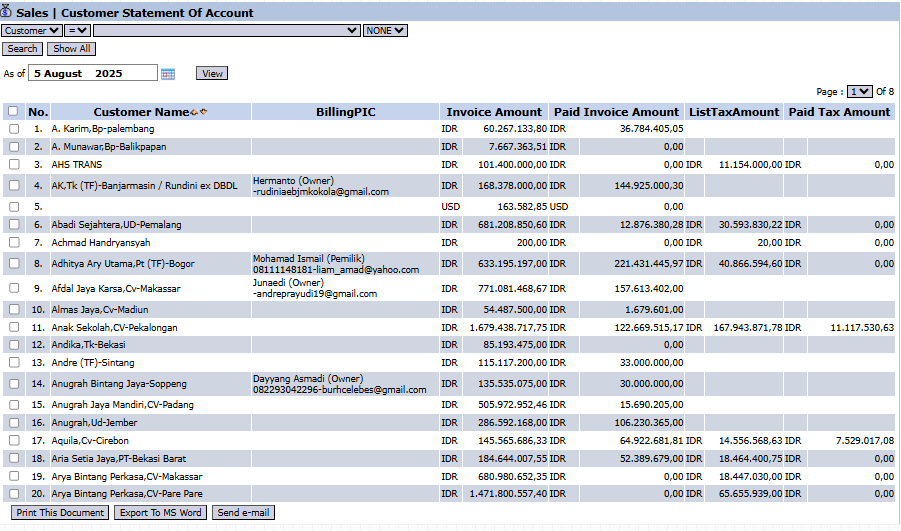
The main page of this module displays a list of all customers along with a summary of their receivable balances.
View Explanation & Filters
This page is the center for creating and sending statements of account.
Filters:
Customer: Use this search bar to find a specific customer.
As of: This is a key date filter. Select a date to display the customer's receivable balance as of that date (e.g., August 5, 2025), then click View.
Customer List: The table below displays a list of customers along with their financial summary.
Column Explanation
Customer Name: The name of the customer.
Billing PIC: The name and/or email of the contact person (Person-In-Charge) for billing matters.
Invoice Amount: The total value of all invoices issued to the customer.
Paid Amount: The total value of payments that have been received from the customer.
Button Functions
Print This Document: To print the statement of account for a selected customer.
Export To MS Excel: To download the customer balance list into an Excel format.
Send e-mail: To send the statement of account via email to the selected customer's billing PIC.
2. Steps to Send a Statement of Account
Step 1: Set the Report Date
Set the report date in the As of field and click View to display the current list of customer receivable balances.
Step 2: Select Customer(s)
Find and select one or more customers to whom you want to send a statement by checking the box in the leftmost column of the corresponding row(s).
Step 3: Print or Send Email
After the customer(s) are selected, use the action buttons in the bottom-left section of the page:
Click Print This Document to print a physical billing statement that is ready to be sent.
Click Send e-mail to automatically send the billing statement to the email address listed in the Billing PIC column.
Tips & Important Notes
This module is the primary tool for the Collection and Accounts Receivable (AR) teams to communicate with customers regarding outstanding balances.
To ensure the Send e-mail feature functions correctly, make sure the Billing PIC data (including the email address) in the customer master data is correct and filled in.
Sending a statement of account routinely (for example, at the beginning of each month) is a good practice to remind customers and maintain healthy cash flow.





No comments to display
No comments to display