The JobActivity report module is used to generate reports that summarize or detail all activities related to ongoing projects within the company. This report is used to monitor progress, trace transactions, and analyze the activities that occur within a project.
1. Report Parameters (Filter)
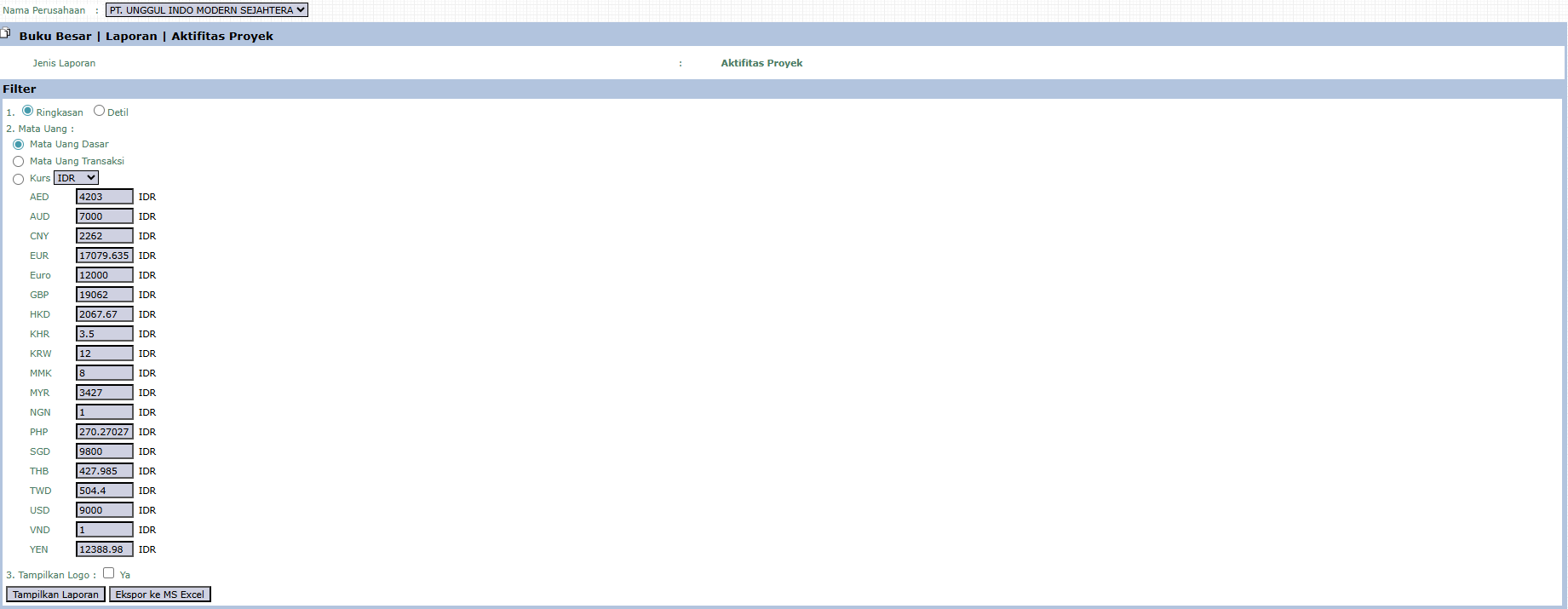
The main page of this module is a form containing several parameters to customize the report that will be generated.
Here is an explanation for each parameter:
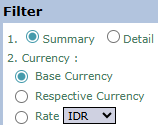
Summary / Detail Filter:
This is the main choice for your report format.
Summary: Generates a concise or summary report of project activities.
Detail: Generates a detailed report that displays each transaction or activity line by line.
Currency:
Choose how monetary values will be displayed in the report.
Base Currency: Converts all values to the company's base currency (e.g., IDR).
Transaction Currency: Displays values in the original currency of each transaction.
Show Logo:
Check Yes if you want to display the company logo on the generated report.
2. Steps to Generate the Report
Step 1: Set Report Parameters
Select all the parameters you need, especially making sure to define the report format you want by choosing between Summary or Detail. Note: After selecting parameters, additional filters such as Project selection or a date range may appear to narrow down the report results.
Step 2: Generate the Report
After all parameters are set, click one of the two buttons in the bottom-left section of the page:
Display Report: To preview the report directly on your screen.
Export to MS Excel: To download the report data in an Excel file format.
Tips & Important Notes
Start by selecting the Summary format to get a general overview of the main project activities.
Use the Detail format if you need to trace specific transactions related to a project activity.
This report is very useful for Project Managers and the Accounting team to monitor and review the progress and costs associated with the company's projects.


No comments to display
No comments to display