The Tax Return (SPT) module is a highly specific tax reporting tool. Its purpose is to pull and compile taxable transaction data from the ERP system into a format that is suitable for the purpose of reporting the Monthly VAT Return (SPT Masa PPN). This module is used to collect data for Outgoing Tax (from sales) and Incoming Tax (from purchases).
1. Report Parameters
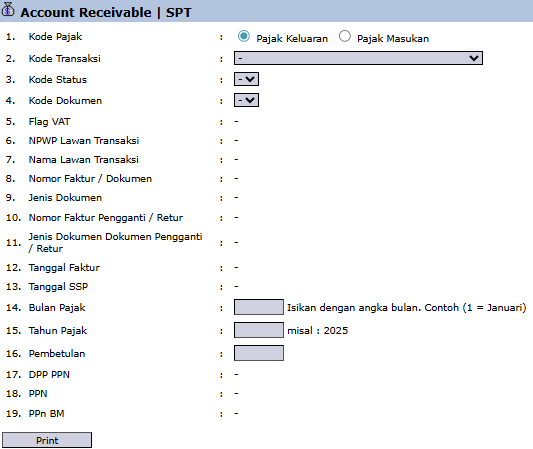
The main page of this module is a form containing various parameters to generate the SPT data.
Here is an explanation for each key parameter:
1. Tax Code:
This is the main selection to determine the type of data that will be pulled.
Outgoing Tax (Pajak Keluaran): Select this to generate the report of VAT collected from sales to customers.
Incoming Tax (Pajak Masukan): Select this to generate the report of VAT you have paid through purchases from vendors.
14. Tax Month:
Fill this in with the number of the month to be reported. For example, enter "1" for the month of January.
15. Tax Year:
Fill this in with the tax year to be reported, for example, "2025".
Other Filters (Transaction Code, Status Code, etc.):
Parameters 2, 3, 4, and others are additional filters to generate more specific reports if needed.
2. Steps to Generate SPT Data
Step 1: Set Report Parameters
Select the Tax Code you are reporting (Outgoing Tax or Incoming Tax).
Enter the Tax Month and Tax Year according to the reporting period.
Step 2: Generate the Report
After all parameters are set, click the Print button in the bottom-left section of the page to generate the report or data file.
Tips & Important Notes
This module is a key tool for the Tax and Customs team to prepare the monthly VAT reporting.
To ensure data accuracy, make sure all transactions containing VAT in the Sales and Purchasing modules have been recorded correctly before running this report.
The Print button will most likely generate a file (for example, in CSV format) that can be directly imported into the e-Faktur application from the Directorate General of Taxes.
You need to run this process twice: once for Outgoing Tax and once again for Incoming Tax to complete the data for the Monthly VAT Return.




No comments to display
No comments to display