The Tax Code Report module is used to display and export the master list of all tax codes that have been set up and are used within the ERP system. This report is useful for reviewing tax settings and serves as a reference for the Accounting and Tax teams when recording transactions.
1. Report Parameters (Tax Code Filter)
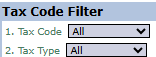
The main page of this module is a simple form containing filters to customize the list of tax codes you wish to display.
Here is an explanation for each parameter:
Tax Code:
Use this dropdown to search for and display a single, specific tax code. Leave it set to "All" to display all tax codes.
Tax Type:
Use this dropdown to filter tax codes by their type, for example, PPN (Value Added Tax), PPh (Income Tax), and others. Select "All" to display all types.
2. Steps to Generate the Report
Step 1: Set Report Parameters
Select the criteria you want in the Tax Code Filter section. You can leave the options set to "All" to get a complete list.
Step 2: Generate the Report
After the parameters are set, click one of the two buttons in the bottom-left section of the page:
Display Report: To preview the Tax Code list directly on your screen.
Export To MS Excel: To download the complete list in an Excel file format.
Tips & Important Notes
This report functions as the master list for all tax settings in the system.
Use the Tax Type filter to see all tax codes that belong to a specific category, for example, to review all registered PPh 23 (Article 23 Income Tax) codes.
This report is very useful for the Tax and Customs team and the Accounting team for verification purposes and as a reference when recording transactions involving taxes.



No comments to display
No comments to display