The User Member module serves as an administrative dashboard for viewing, searching, and creating reports on all users (employees) who have an account in the system. Unlike the "Employee Data" module, which focuses on managing individual details, this module is more oriented towards reporting, auditing, and bulk review of the system's user list.
1. Main View (List of User Members)
The main page displays a complete list of all employees registered as system users, along with several reporting options.
View Explanation
Filter:
Employee Code: Allows for a quick search for a specific user.
User Status: A dropdown to filter users based on their account status (e.g., Active or Resigned).
User List Table:
Employee Code: The unique ID or NIP of the employee.
Employee Name: The full name of the user.
Archive: This column contains a "View Report" link, which likely opens an activity history, access log, or another report specific to that user.
Main Action Buttons:
Show Print: A button to generate a user list report in a printer-ready format.
View via Excel: A button to export the displayed user list into an Excel file format for further analysis.
2. Print Report Page
When the "Show Print" button is clicked, the system generates a pop-up page containing a clean list of all users, suitable for printing or archiving as a document.
View Explanation
Report Header: Displays company information and the date the report was generated.
User List: A simple table containing the Employee No. and Employee Name, presenting the data in a neat and concise format.
Action Buttons: Print Close to print the report and close the pop-up window.
3. Steps for Use
Viewing the User List: Access the module to see all registered users. Use the filter to narrow down by status (e.g., to see all currently active users).
Viewing Individual Archives: To review a user's activity or history, find their name in the list and click the "View Report" link in the "Archive" column.
Creating Bulk Reports: For audit or reporting purposes, click the "Show Print" button for a printable version or "View via Excel" to get the raw data.
4. Integrated Workflow & Business Process
Security Audit Tool: This module is a primary tool for System Administrators, IT Security teams, or Internal Auditors. They can use this module to regularly review the list of individuals who have access to the system.
Reporting and Compliance: The export to Excel and print features are very useful for providing evidence or documentation during compliance audits (e.g., to ensure that only active employees have active accounts).
Complement to Authorization Modules: This module is read-only for reporting. It displays the results of settings made in the Employee Data module (account creation) and the User Data Groups / Function Authorization modules (granting of access rights).
2FA Login
Install Google Authenticator on your phone Android (https://play.google.com/store/apps/details?id=com.google.android.apps.authenticator2&hl=en&pli=1) or iphone (https://apps.apple.com/id/app/google-authenticator/id388497605?l=id)
Open ERP (https://opr.kokola.co.id) then login with current user password
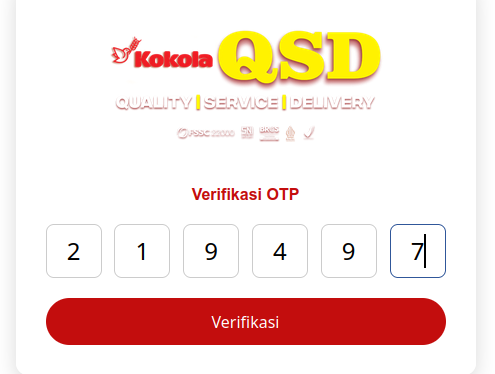
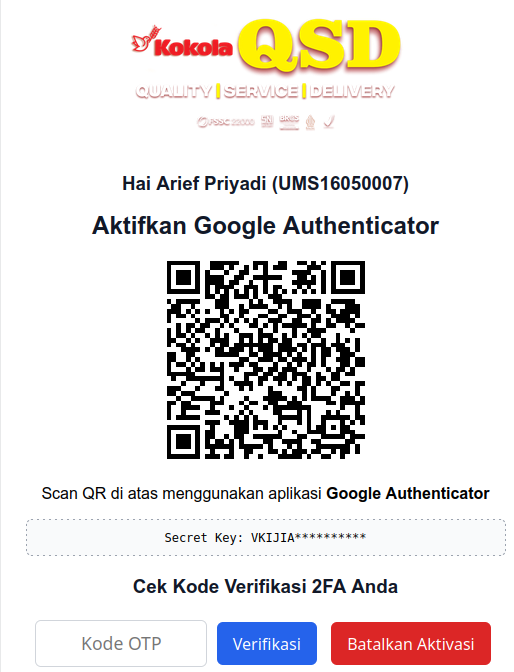
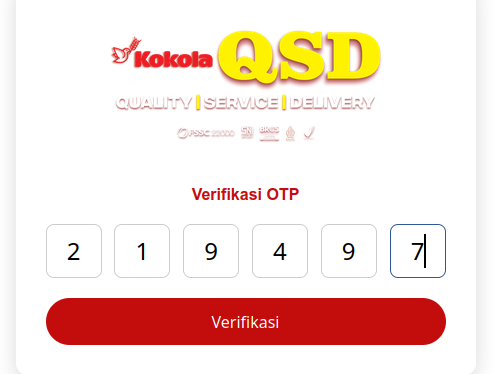
redirect to New Form. Scan Barcode , add to Google Authenticator then input number on ERP textbox input field
Press RELOGIN
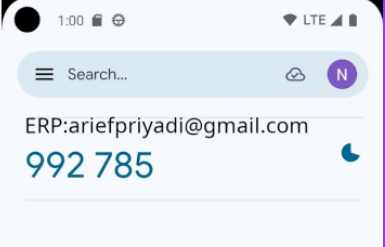
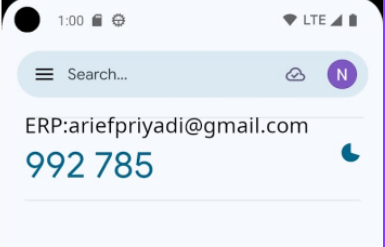
Every Login You Must Input Number on Google Authenticator Apps
5. Tips & Important Notes
Use this feature periodically (e.g., quarterly) to conduct a User Access Review, which is the process of verifying that all active accounts should indeed be active and correspond to the employee's current role.
The "View Report" link in the "Archive" column is a powerful feature for tracking a user's digital footprint. Understand what kind of information it presents for effective monitoring.
Access to this module, especially the ability to view archive reports, should be restricted to personnel with responsibilities in system administration and security, such as IT and audit teams.

No comments to display
No comments to display