Sales > Consignment Sales > Consignment Sales Order
Module Objective
The Consignment Sales Order module is used to create a command document for shipping goods on a consignment basis (placed for sale) to a customer. This document is not a sales transaction and does not create revenue or receivables. Its purpose is to record and authorize the movement of company-owned stock to a customer's location to be sold there.
1. Main View (Consignment Order List)
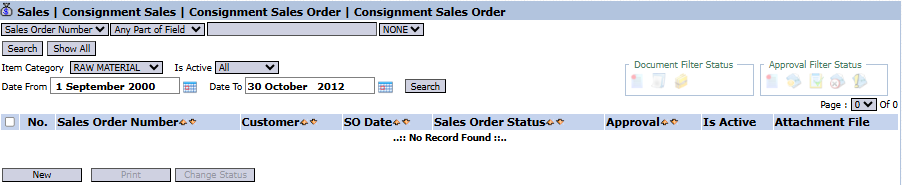
The main page of this module displays a list of all Consignment Sales Orders that have been created.
View Explanation & Filters
This page is for viewing and managing all consignment shipment commands.
Filters: You can search for a specific order by Sales Order Number, Item Category, Is Active, or a date range.
Order List: The table below will display all orders that match the filters, with columns such as Sales Order Number, Customer, SO Date, and Sales Order Status.
Button Functions
New: The primary button to create a new Consignment Sales Order.
Print: To print the details of a selected order.
Change Status: To change the status of a selected order.
2. Steps to Create a Consignment Sales Order
Step 1: Create a New Order
From the Main View, click the New button to open the New Consignment Sales Order form.
Step 2: Fill in Header Information
On the form that appears, fill in the general shipping information:
SO Date & Estimated Date: Enter the date the order is created and the estimated shipping date.
Customer: Select the customer (consignee) who will receive the consigned goods.
Step 3: Detail the Consignment Items
Click the [+] Multiple Item [-] link to add an item row.
Select the product from the List of Item that appears.
Return to the main form and fill in the Qty (quantity) column for each item that will be shipped on consignment.
Note that on this form there is no price information, as this is not a sales transaction.
Step 4: Save and Confirm
After all data is filled in, use the buttons in the bottom-left section:
Save: To save the document as a draft.
Confirm: To finalize the document and send it to the next workflow (e.g., approval or directly to the warehouse).
Cancel: To cancel the entry.
Tips & Important Notes
A Consignment Sales Order does not create receivables or revenue. Its purpose is purely to record the movement of stock to a customer's location.
This document will become the basis for the warehouse department to ship the consigned goods to the customer.
The actual sale and the billing process will be recorded in a subsequent module (for example, a Consignment Sales Report) after the customer reports that they have successfully sold the goods.






No comments to display
No comments to display