Finance > Cash Book Requisition> Cash Book Requisition
Module Objective
The Cash Book Request module serves as a formal channel for employees or departments to request funds (disbursements) or report the receipt of funds that are not directly related to sales or purchase invoices. This module is essential for managing operational cash transactions such as reimbursement claims, cash advances, or fund requests for departmental needs.
1. Main View (Cash Book Request List)
The main page of this module displays a list of all Cash Book Request documents that have been created.
View Explanation & Filters
This page is for viewing and managing all cash requests.
Filters: You can search for a specific request by Document Number or a date range (Start Date / End Date).
Request List: The table below displays all requests that match the filters, with columns such as Document Number, Description, Requested By, Payment Status, and Approval.
Button Functions
New: The primary button to create a new Cash Book Request.
Print: To print the details of a selected request.
Cancel: To cancel a request that has already been made.
2. Steps to Create a Cash Book Request
Step 1: Create a New Request
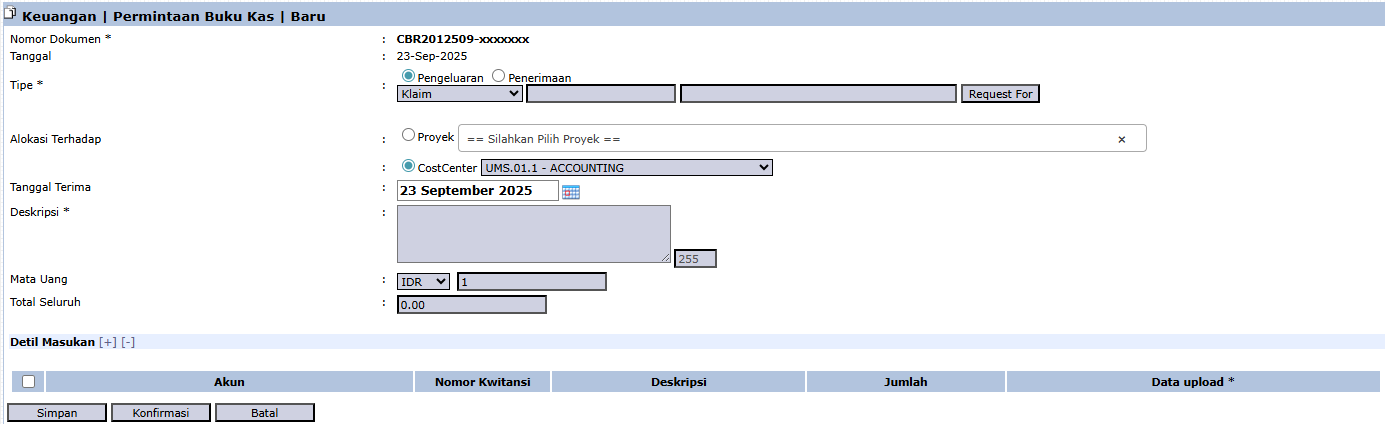
From the Main View, click the [New] button to open the request creation form.
Step 2: Fill in Header Information
On the form that appears, fill in the general request information:
Type: Select the request type: Disbursement (to request funds) or Receipt (to report received funds).
CostCenter: Allocate this request to the correct department or cost center (e.g., UMS.01.1 - ACCOUNTING).
Description: Provide a clear explanation of the purpose of the fund request.
Grand Total: Enter the total value of the money being requested or reported.
Step 3: Detail the Transaction
In the Detail Input table at the bottom:
Click the [+] icon to add a detail line.
Select the appropriate expense or revenue Account from the General Ledger.
Enter the Amount for that detail.
Important: Upload supporting evidence (receipts, notes, etc.) in the Data upload column.
Step 4: Save and Confirm
After all data is filled in, use the buttons in the bottom-left section:
[Save]: To save the request as a draft.
[Confirm]: To finalize the request and send it into the approval workflow.
Workflow & Integrated Business Process
A request that has been Confirmed will go to the Cash Book Request Inbox to be approved by a superior.
After approval, a Disbursement request will become the basis for the Treasury/Finance team to make a payment via the Cash Disbursement or Bank Disbursement modules.
Tips & Important Notes
This is the standard and documented way to manage petty cash requests or reimbursements.
Always attach valid supporting evidence via Data upload to speed up the approval process.


No comments to display
No comments to display