The Linked Account Report module is used to display the mapping or "linking" between each customer and their specific accounts in the General Ledger. This report is a crucial verification tool for the accounting team to ensure that every customer has been connected to the correct GL accounts for various transaction types, such as Receivables, Down Payments, and Deposits.
1. Report Parameters (Filter)
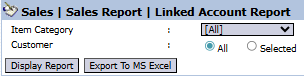
The main page of this module is a simple form containing several parameters to customize the report that will be generated.
Here is an explanation for each parameter:
Item Category:
Use this dropdown to filter customers based on the product category they purchase.
Customer:
Filter the report by All customers or a Selected customer.
2. Steps to Generate the Report
Step 1: Set Report Parameters
Select the parameters you need to focus the report.
Step 2: Generate the Report
After the parameters are set, click one of the two buttons in the bottom-left section of the page:
Display Report: To preview the linked account report directly on your screen.
Export To MS Excel: To download the report data in an Excel file format.
3. Example of the Report View
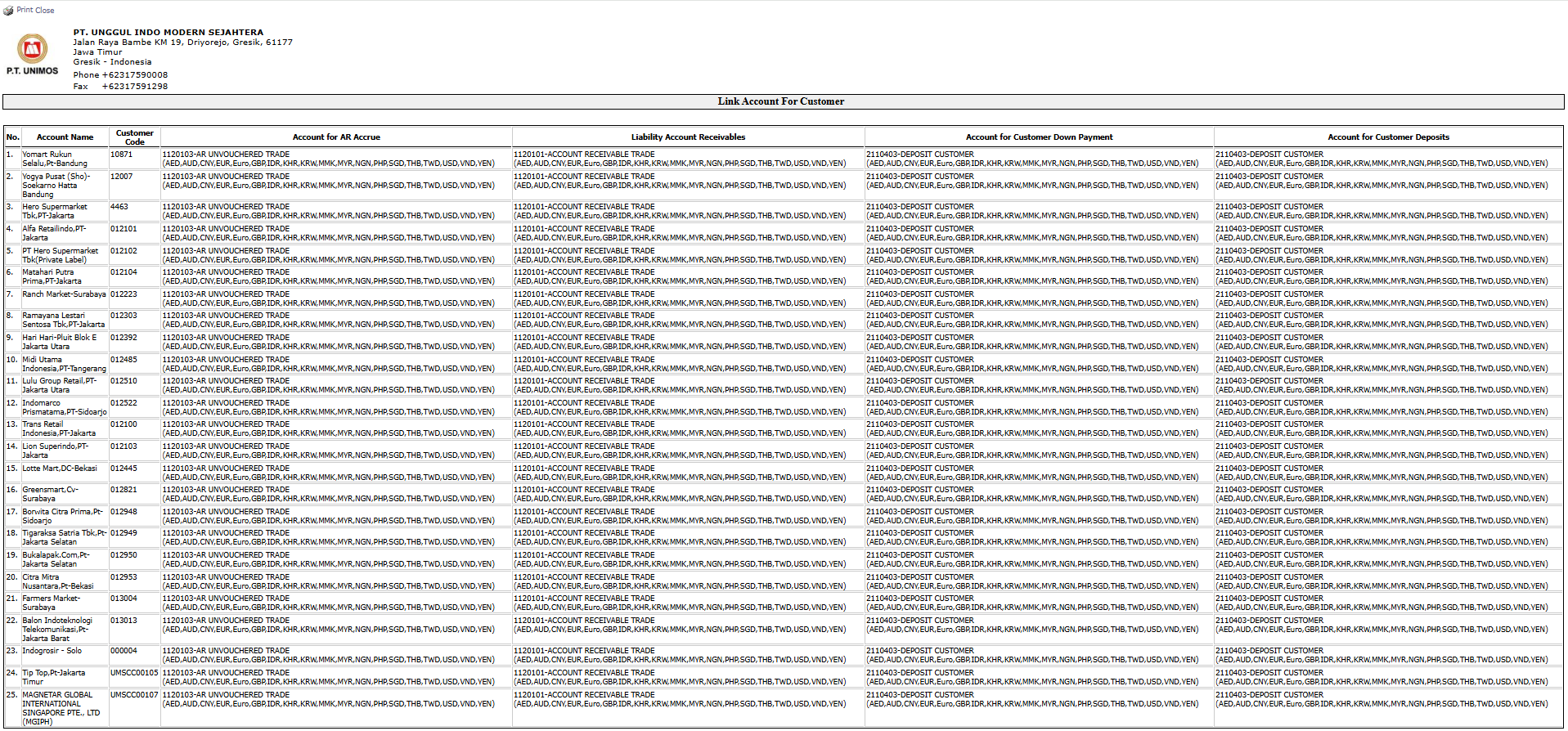
After you click, the system will generate a detailed report in a matrix format as follows:
Report Explanation: This report displays a matrix of the account links for each customer.
Rows: Each row represents one customer (Account Name).
Columns: The main columns, such as Account for AR Invoiced, Account for Customer Down Payment, and Account for Customer Deposit, show the transaction types. Under each main column, there are details of the GL account used per currency.
Workflow & Integrated Business process
This report is a reflection of the settings configured in the Sales > Customer > Customer Category module.
The Accounting team should use this report periodically to verify that all customers are linked to the correct GL accounts to ensure the integrity of the financial statements.
Tips & Important Notes
If you find a customer whose 'Account Link' is incorrect or empty in this report, immediately correct the settings in the Customer Category module or the customer master data.
This report is an important audit tool to ensure the automated journaling process is functioning correctly.



No comments to display
No comments to display