The Chart of Account Report module is used to display and export the complete list of all financial accounts (Chart of Accounts) used by the company. This report serves as the master list of the entire accounting structure and is the basis for all transaction journaling.
1. Report Parameters (Chart of Account Filter)
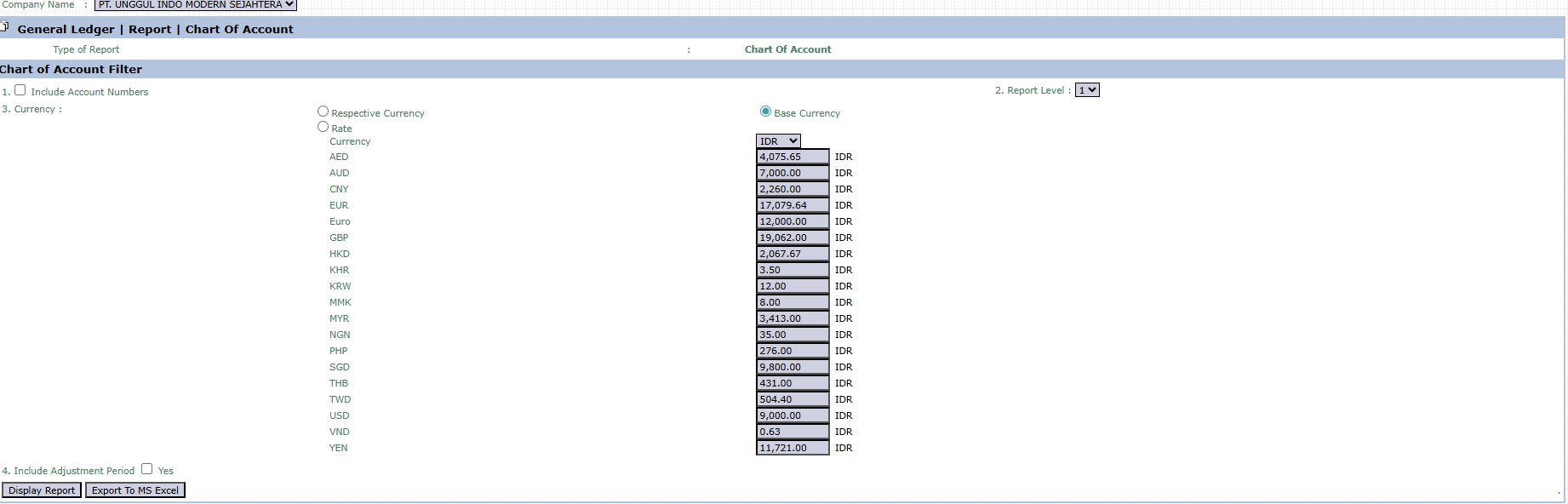
The main page of this module is a form containing various parameters to customize the report that will be generated.
Here is an explanation for each parameter:
Include Account Numbers:
Check this box to display account codes next to account names on the generated report.
Report Level:
This dropdown is used to set the depth or hierarchy of the accounts you want to display.
Currency:
Choose how currency values will be displayed if the report includes balances.
Respective Currency: Displays values in their original currency.
Base Currency: Converts all values to the company's base currency (e.g., IDR).
Include Adjustment Period:
Check Yes if you want to include adjusting entries in the balance calculations (if displayed).
2. Steps to Generate the Report
Step 1: Set Report Parameters
Fill in or select all the parameters you need in the Chart of Account Filter section.
Step 2: Generate the Report
After all parameters are set, click one of the two buttons in the bottom-left section of the page:
Display Report: To preview the Chart of Accounts list directly on your screen.
Export To MS Excel: To download the complete list in an Excel file format.
Tips & Important Notes
This report is not a financial performance report (like a Profit & Loss or Balance Sheet), but rather a master list of all accounts in the system.
This report is very useful for the Accounting team when they need to review the account structure or as a reference when creating a General Journal.
Use the Export To MS Excel feature to get a complete list of accounts that can be used for analysis, documentation, or sharing with other departments.



No comments to display
No comments to display