The Sales Order module within Direct Selling is used to create and manage sales orders that originate from direct selling activities. Although its function is similar to the Sales Order in the regular Sales module, this module is specifically designed for the direct selling workflow.
1. Main View (Sales Order List)
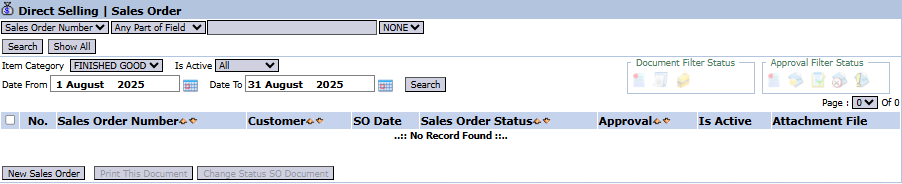
The main page of this module displays a list of all Direct Selling Sales Orders that have been created.
View Explanation & Filters
This page is for viewing and managing all SOs from the direct selling channel.
Filters: You can search for a specific SO by Sales Order Number, Item Category, Is Active, or a date range.
SO List: The table below will display all SOs that match the filters, with columns such as Sales Order Number, Customer, SO Date, and Sales Order Status.
Button Functions
New Sales Order: The primary button to create a new Direct Selling Sales Order.
Print This Document: To print the details of a selected SO.
Change Status SO Document: To change the status of a selected SO.
2. Steps to Create a Direct Selling Sales Order
Step 1: Create a New Order
From the Main View, click the New Sales Order button to open the Add Sales Order form.
Step 2: Fill in Header Information
On the form that appears, fill in the general order information:
SO Date & Estimated Date: Enter the date the order is created and the estimated shipping date.
Customer: Select the customer who is placing the order.
Payment Type, Payment Schedule, Term Of Payment: Set up the payment terms for this transaction.
Step 3: Detail the Order Items
In the detail table, click [+] Multiple Item [-] to add a row.
Select a product from the List of Item that appears, then return to the main form.
Fill in the Qty (Quantity), Unit Price, and Discount (%) columns if any.
Step 4: Set Up Payment Terms (If Needed)
Use the Term Of Payment table at the bottom to schedule payments if this transaction uses credit terms.
Step 5: Save and Confirm
After all data is filled in, use the buttons in the bottom-left section:
Save: To save the SO as a draft.
Confirm: To finalize and send the SO into the approval workflow.
Cancel: To cancel the entry.
Tips & Important Notes
This module is specifically designed for the direct selling workflow, which may differ in terms of order fulfillment and billing compared to regular sales.
An SO that has been Confirmed will go into the next approval workflow, which is in the Direct Selling Sales Order Inbox.



No comments to display
No comments to display