The Direct Selling Payment Entry module is used to record and apply payments received from customers against their outstanding direct selling invoices or receipts. This module is the primary tool for managing the settlement process of receivables from the direct selling channel.
1. Main View (Invoice List)
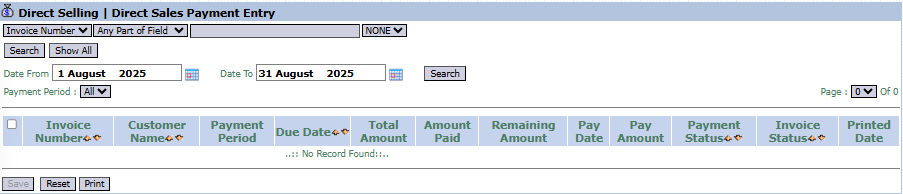
The main page of this module displays a list of direct selling invoices for which you can process payments.
View Explanation & Filters
This page is for finding the invoice to be paid and recording its payment.
Filters: You can search for a specific invoice by Invoice Number or a date range (Date From / Date To).
Invoice List: The table below will display all invoices that match the filters.
Column Explanation
Invoice Number, Customer Name: Invoice and customer details.
Total Amount: The total value of the invoice.
Amount Paid: The amount that has been previously paid.
Remaining Amount: The outstanding balance.
Pay Date: The column to input the payment date.
Pay Amount: The column to input the amount being paid.
Payment Status: The payment status (e.g., Paid, Unpaid).
Button Functions
Save: The main action button to save the payment data you have input.
Reset: To clear the input.
Print: To print proof of payment.
2. Steps to Record a Payment
Step 1: Find the Invoice
Use the available filters, especially the Invoice Number search bar, to find the invoice that is being paid by the customer.
Step 2: Enter Payment Details
After the correct invoice appears in the list, focus on that row and fill in the following columns:
In the Pay Date column, enter the date the payment was received.
In the Pay Amount column, enter the amount of money paid by the customer.
Step 3: Save the Payment
Check the box in the leftmost column of the corresponding row.
Click the Save button in the bottom-left section of the page.
The system will process the payment, updating the Amount Paid, Remaining Amount, and Payment Status columns.
Tips & Important Notes
This is the main work tool for the Direct Selling Admin or AR team to record the settlement of receivables from the direct selling channel.
To maintain data accuracy, ensure the Pay Amount and Pay Date entered match the customer's proof of payment.
Payments recorded here will be automatically linked to the next financial module, Direct Selling Bank Receipt.



No comments to display
No comments to display