The Transaction Journal module is a very comprehensive reporting and drill-down center. Its purpose is to display all transaction details from every module in the ERP system in a single, integrated view. Although it is located within the Accounts Receivable menu, this module has the ability to pull data from all areas such as Sales, Purchasing, Inventory, and others.
1. Main View (Transaction Report Center)
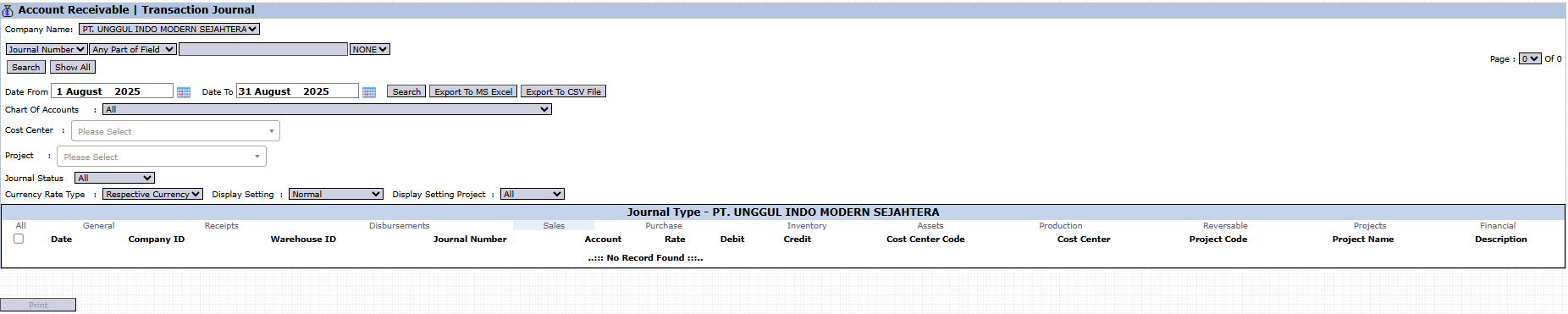
The main page of this module is an interactive report equipped with various filtering tools to help you find specific data.
Advanced Filter Functions
The top section of the page provides various filters to sift through very large amounts of data:
Date From / To: Specify a date range to limit the transaction period.
Chart Of Accounts: Filter transactions that only affect a specific account (e.g., the Accounts Receivable account).
Cost Center & Project: Filter transactions that are only allocated to a specific department or project.
Journal Status: Choose to display journals with a specific status (e.g., already approved).
Table Column Explanation
The main table will display the details of each journal line, including Journal Number, Account, Debit, Credit, Cost Center, and columns that mark its source module (such as Sales, Purchase, etc.).
Main Button Functions
Search: To apply the filters you have selected.
Export To MS Excel / Export To CSV File: An important feature to download the displayed data for further processing outside the system.
Print: To print the displayed report.
2. Usage Example (Case Study)
Case: The AR team wants to see all transactions (invoices, payments, credit notes) for the Accounts Receivable account during the month of August 2025.
Steps:
Open the Transaction Journal module.
Set the Date From to August 1, 2025, and the Date To to August 31, 2025.
In the Chart Of Accounts filter, search for and select the "Accounts Receivable" account.
Click the Search button.
The system will display all debit and credit movements on the Accounts Receivable account during August. The results can be exported to Excel to create a reconciliation report.
Tips & Important Notes
This module is read-only. You cannot create or modify transactions here.
Take advantage of the Export to MS Excel feature for more in-depth data analysis, such as creating customer reconciliation reports or tracing payment statuses.
Although located in the Accounts Receivable menu, this report can display transactions from all other modules by using the appropriate filters. It is a very useful tool for the Accounting, Finance, and Internal Audit teams.




No comments to display
No comments to display