The Settlement module is used to perform the settlement process, which is to apply or use funds from a customer's deposit/down payment (recorded as a Guarantee) to pay off an outstanding sales invoice. This is the formal accounting process for "using" a down payment to pay a bill.
1. Main View (Settlement List)
The main page of this module displays a list of all Settlement documents that have been created.
View Explanation & Filters
This page is for viewing the history of settlement transactions that have been performed.
Filters: You can search for a specific document by Settlement Number or a date range (Start Date / End Date).
Settlement List: The table below will display all documents that match the filters, with columns such as Settlement Number, Account Name, Settlement Date, and Amount.
Button Functions
[New]: The primary button to create a new Settlement document.
[Print]: To print the details of a selected settlement.
[Cancel]: To cancel a settlement document that has already been created.
2. Steps to Perform a Settlement
Step 1: Create a New Settlement Document
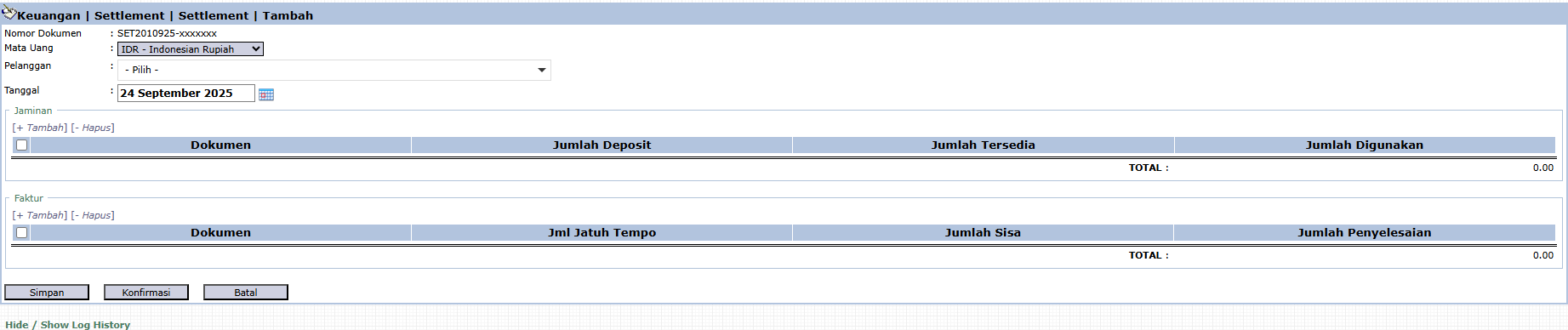
From the Main View, click the [New] button to open the Add Settlement form.
Step 2: Select the Customer
On the form that appears, select the Customer from the dropdown. This will filter the available deposit and invoice documents for that customer only.
Step 3: Select the Deposit to be Used
In the Guarantee section, click [+ Add] then select the deposit or down payment document that will be used for payment. Enter the amount to be used in the Amount Used column.
Step 4: Select the Invoice(s) to be Paid
In the Invoice section, click [+ Add] then select one or more invoices that will be paid using that deposit. Enter the payment amount in the Settlement Amount column.
Step 5: Save and Confirm
Ensure the total Amount Used equals the total Settlement Amount.
After all data is filled in, click [Save] to save as a draft or [Confirm] to finalize the transaction.
Workflow & Integrated Business Process
Accounting Impact: After confirmation, this transaction will create a journal to reduce the down payment liability balance and simultaneously reduce the accounts receivable asset balance.
Function: This is an important accounting step to officially 'use' a customer's down payment to settle their bill.
Tips & Important Notes
This is a primary work tool for the AR (Account Receivable) team.
This process ensures that the customer's down payment and receivable balances are always up-to-date and accurate.


No comments to display
No comments to display