
Budget Vs Actual
Report Module Guide: Budget VS Actual (Matrix View)
Module Location
General Ledger > Report > Budget VS Actual
Module Objective
The Budget VS Actual report module is used to generate a comparative report between the Budget and the Actual realization in a Matrix format. The matrix view is highly effective for analyzing and comparing the performance of multiple departments (Cost Centers) simultaneously within a single period, both on a yearly and monthly basis.
1. Report Parameters (Matrix Budget)
The main page of this module is a form containing various parameters to customize the comparison report that will be generated.
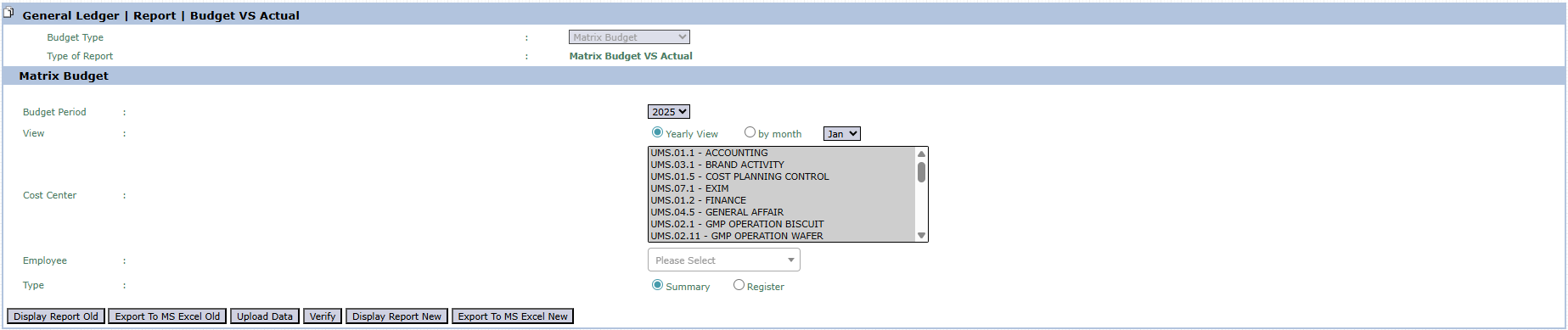
Here is an explanation for each parameter:
-
Budget Period:
-
Select the budget year to be analyzed from the dropdown (e.g., 2025).
-
-
View:
-
Choose the time scope of the report.
-
Yearly View: To display a comparison of accumulated data for the entire year.
-
by month: To display a comparison of data for a specific selected month.
-
-
Cost Center:
-
Use this list box to select one or more departments (Cost Centers) that you want to include in the report. You can select multiple departments at once.
-
-
Employee:
-
This dropdown is likely used to filter budgets related to a specific employee.
-
-
Type:
-
Select the report's level of detail.
-
Summary: Displays the report in a summary format.
-
Register: Displays the report as a detailed list of transactions.
-
2. Steps to Generate the Report
Step 1: Set Report Parameters
Fill in or select all the parameters you need in the Matrix Budget section to ensure the generated report matches the scope of your analysis.
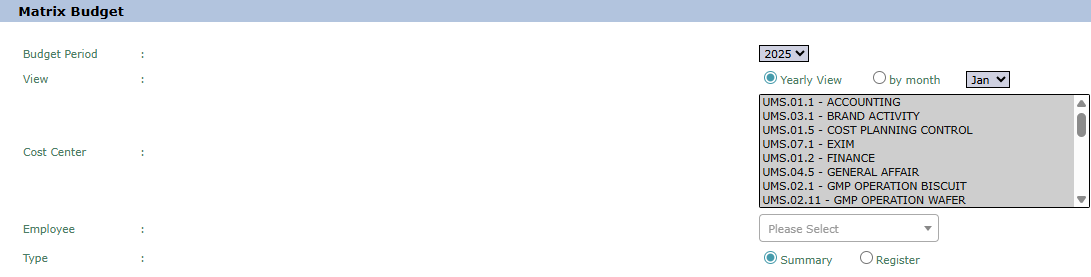
Step 2: Generate the Report
After all parameters are set, click one of the buttons in the bottom-left section of the page to generate the report in a new format:
-
Display Report New: To preview the comparison report directly on your screen.

-
Export To MS Excel New: To download the report data in an Excel file format.

Additional Button Functions
This module also has several buttons with advanced functions:
-
Upload Data: This button is likely used to upload budget data in a matrix format (e.g., from an Excel file) directly into the system.

-
Verify: This button is likely used to verify or ratify the uploaded budget data before it can be used in reports.

Tips & Important Notes
-
Use the by month view for in-depth monthly analysis or the Yearly View for an overview of annual performance.
-
The matrix view is highly effective for comparing the performance of several Cost Centers side-by-side in a single report.
-
The Upload Data and Verify functions indicate that this module may also be a tool for managing matrix budget data. Please coordinate with the Cost Planning Control team before using these features.
No comments to display
No comments to display