The Purchasing Progress Report module is used to generate a report that tracks the end-to-end progress of the procurement process. This report allows users to trace a request from the Purchase Requisition (PR) stage, on to the Purchase Order (PO), and through to the Goods Receipt (Receipt Report) stage.
1. Report Parameters (Filter)
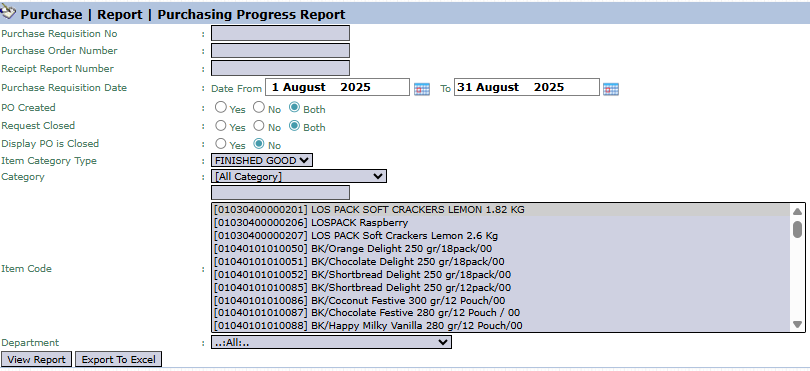
The main page of this module is a form containing various parameters to customize the report that will be generated.
Here is an explanation for each key parameter:
Document Number Filter:
You can search by a specific number such as Purchase Requisition No, Purchase Order Number, or Receipt Report Number.
Purchase Requisition Date:
Specify the creation date range (Date From and To) of the Purchase Requisitions you wish to see the progress of.
Status Filter:
PO Created: Filter based on whether a PR has had a PO created for it or not.
Request Closed: Filter based on whether a PR has been closed or is still open.
Other Filters:
Comprehensive filters such as Item Code, Department, and others are available to narrow down the search results.
2. Steps to Generate the Report
Step 1: Set Report Parameters
Select all the parameters you need to focus the report on the data you wish to analyze.
Step 2: Generate the Report
After all parameters are set, click one of the two buttons at the bottom:
View Report: To preview the purchasing progress report directly on your screen.
Export To Excel: To download the report data in an Excel file format.
3. Example of the Report View
After you click, the system will generate a detailed report like the following, which details every stage in the procurement process.
Report Explanation: This report presents purchasing progress data in a table format that tracks each stage from left to right.
Document Flow Structure:
Requisition: This section displays all details from the initial Purchase Requisition, including the Requested Quantity.
Purchase Order: Displays the details of the PO created based on the requisition, including the PO Qty.
Receipt Report Number: Displays the goods receipt document number if it has been received at the warehouse, along with the Receive Date and RR Qty (Received Quantity).
Analysis Columns: Pay attention to the Requested Quantity, PO Qy, and RR Qty columns to compare the quantities that were requested, ordered, and received. The Remaining column shows the balance yet to be received.
Tips & Important Notes
Use this report to get a complete overview of the status of every purchase request.
This report is very useful for the requesting department to track the status of their requests and for the Procurement team to monitor orders that are pending receipt.
If the Receipt Report Number column is still empty, it means the goods from the related PO have not yet been received at the warehouse.




No comments to display
No comments to display