The Purchase Requisition (PR) module is the starting point of the entire procurement workflow for goods or services. This module is used by any department in the company to formally submit a purchase request. An approved PR document becomes the basis for the Purchasing (Procurement) department to follow up on the procurement process.
1. Main View (Purchase Requisition List)
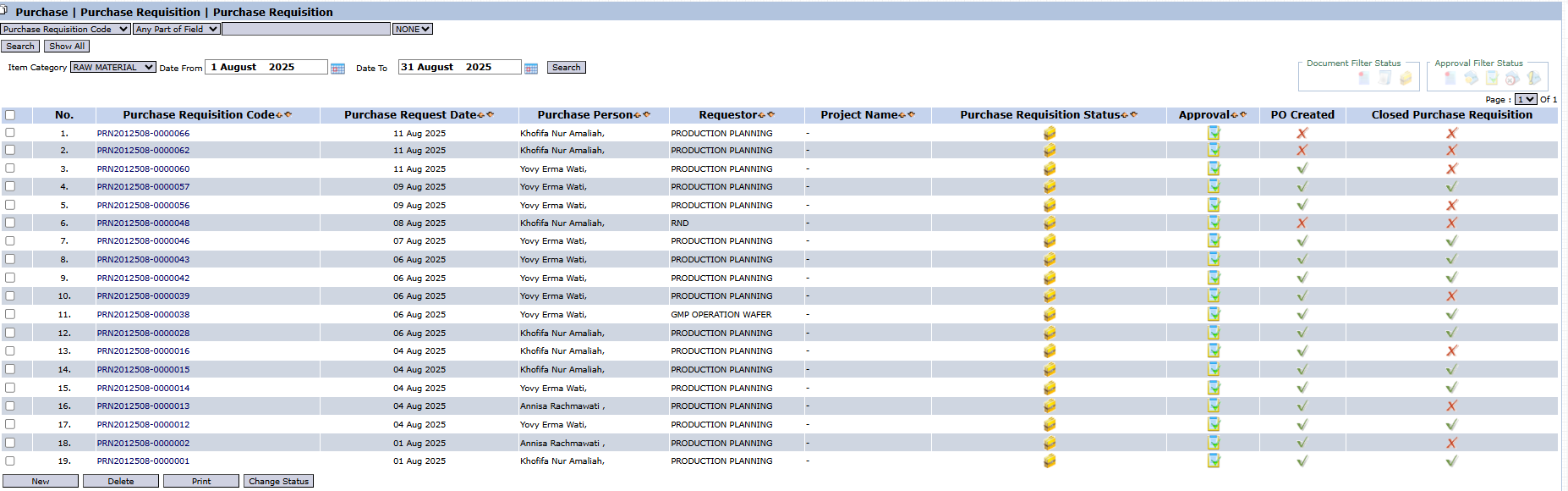
The main page of this module displays a list of all Purchase Requisition (PR) documents that have been created.
View Explanation & Filters
This page is for viewing and managing all existing PRs.
Filters: You can search for a specific PR by Purchase Requisition Code, Item Category, or a date range (Date To / Date From).
PR List: The table below will display all PRs that match the filters, with columns such as Purchase Requisition Code, Requestor, Purchase Requisition Status, Approval, and PO Created (Whether a PO has been created).
Button Functions
New: The primary button to create a new Purchase Requisition.
Delete: To delete a selected PR.
Print: To print the details of a selected PR.
Change Status: To change the status of a selected PR.
2. Steps to Create a Purchase Requisition
Step 1: Create a New Requisition
From the Main View, click the New button to open the Add Purchase Requisition form.
Step 2: Fill in Header Information
On the form that appears, fill in the general request information:
Purchase Request Date: Enter the date you are making the request.
Notes: Provide a general note or explanation regarding this request.
Creator Department: Select your department as the requestor (e.g., ACCOUNTING).
Step 3: Detail the Required Items
In the detail table at the bottom:
Click the [+] icon to add an item row.
Enter the Item Code and Qty (Quantity) that you need.
Fill in the Reason column to explain why the item is needed and the ETA (Estimated Time of Arrival) if there is a specific date.
Step 4: Save and Confirm
After all data is filled in, use the buttons in the bottom-left section:
Save: To save the PR as a draft.
Confirm: To finalize the PR and send it into the approval workflow.
Cancel: To cancel the entry.
Workflow & Integrated Business Process
A PR that has been Confirmed will go to the Purchase Requisition Inbox to be approved by a superior or authorized party.
After approval, this PR becomes the basis for the Procurement team to create a Purchase RFQ (if sourcing for quotations is needed) or to directly create a Purchase Order.
Tips & Important Notes
Always fill in the Reason column clearly so the approver understands the urgency and need for the purchase.
Monitor the PO Created column on the main page to track whether your request has been actioned by the Procurement team.








No comments to display
No comments to display