The Daily Shipping Instruction Schedule report module is used to generate a daily or periodic shipping schedule. This report is a primary operational work tool for the logistics and warehouse teams to plan, monitor, and execute all goods shipment activities to customers based on Shipping Instruction documents.
1. Report Parameters (Filter)
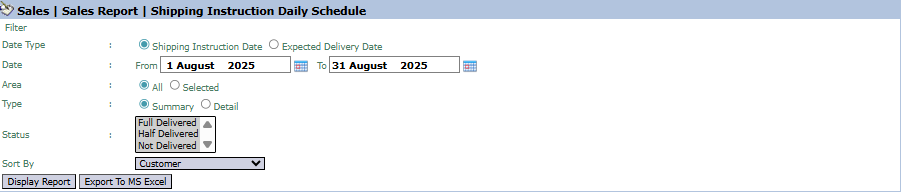
The main page of this module is a form containing various parameters to customize the schedule that will be generated.
Here is an explanation for each parameter:
Date Type:
A key filter to determine the basis for pulling the data:
Shipping Instruction Date: Displays the schedule based on the date the instruction document was created.
Expected Delivery Date: Displays the schedule based on the estimated date the goods will arrive at the customer.
Date:
Specify the From and To date range to define the schedule's period (e.g., August 1, 2025, to August 31, 2025).
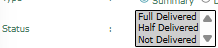
Status:
Use this list box to filter by shipping status, such as Full Delivered, Half Delivered, or Not Delivered.
Type / Sort By:
Select the report's level of detail (Summary or Detail) and sort the results by a specific criterion (e.g., Customer).
2. Steps to Generate the Report
Step 1: Set Report Parameters
Select all the parameters you need, especially defining the Date Type, the Date range, and the Status to get the relevant schedule.
Step 2: Generate the Report
After all parameters are set, click one of the two buttons in the bottom-left section of the page:
Display Report: To preview the shipping schedule directly on your screen.
Export To MS Excel: To download the schedule data in an Excel file format.
3. Example of the Report View
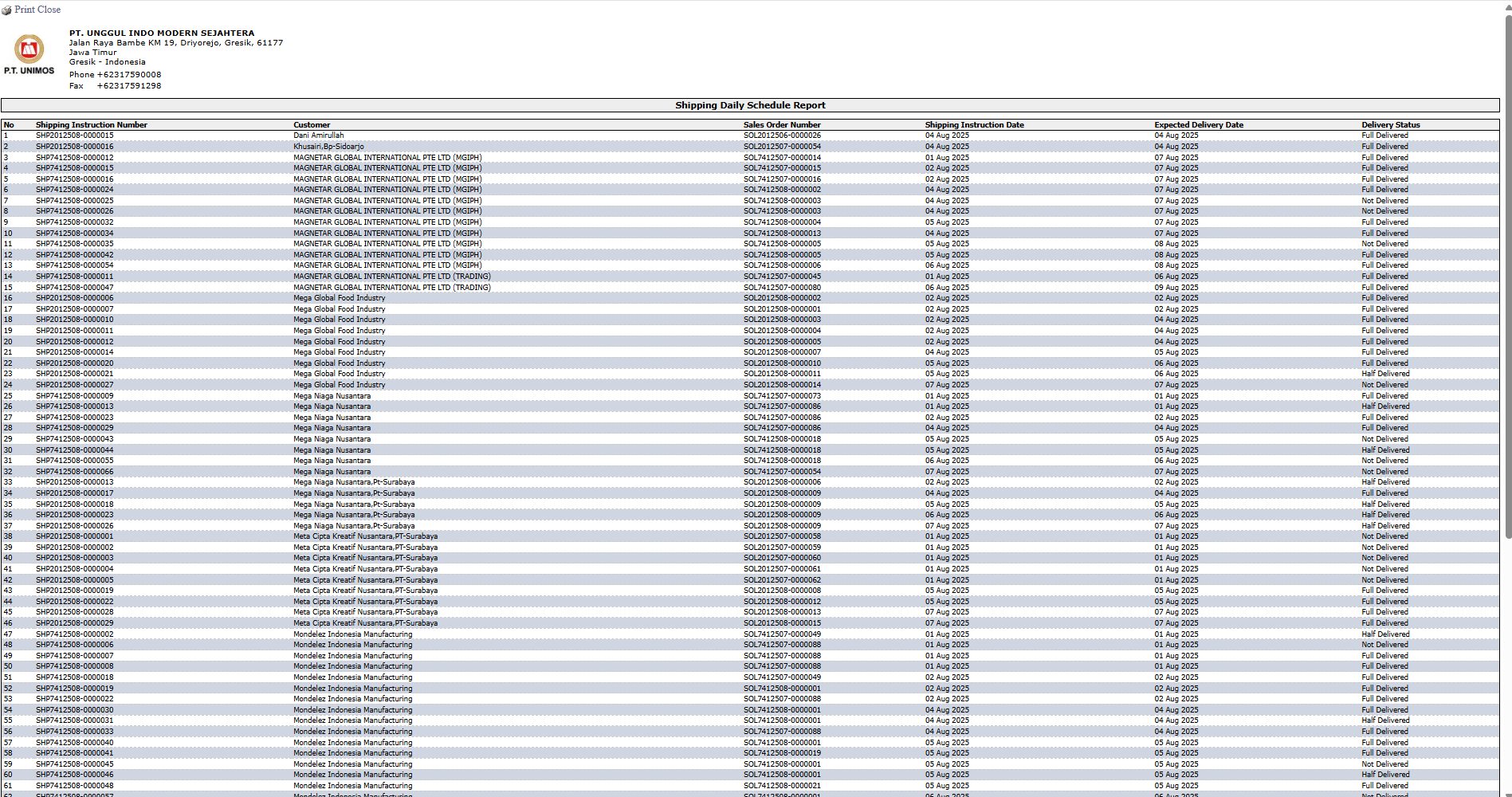
After you click, the system will generate a detailed report like the following, which functions as a shipping work schedule.
Report Explanation: This report displays a detailed list of all shipping instructions that match your filters.
Key Columns:
Shipping Instruction Number: The instruction's reference number.
Customer: The destination customer.
Shipping Instruction Date: The date the instruction was created.
Expected Delivery Date: The estimated arrival date of the goods.
Delivery Status: The current shipping status.
Tips & Important Notes
Use this report every day to create a shipping worklist for the Warehouse and Logistics teams.
The Date Type filter is very useful. Select Shipping Instruction Date to see what needs to be prepared today, and select Expected Delivery Date to monitor shipments that are supposed to arrive at the customer's location.
Filtering by Status with the 'Not Delivered' option will effectively give you a to-do list of pending shipments.




No comments to display
No comments to display