General Ledger > Reports > Budget Vs Actual Customer
Module Objective
The Budget Vs Actual Customer module is used to generate a report that compares the Sales Budget/Target per customer with the Actual sales to that customer. This report is a crucial tool for sales teams and management to monitor performance and the achievement of sales targets for each customer.
1. Report Parameters (Budget Filter)
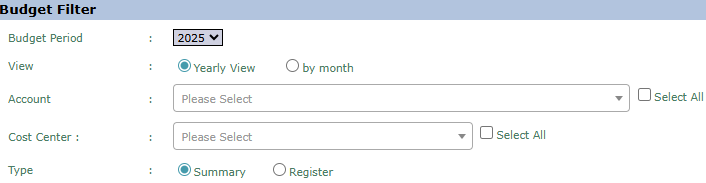
The main page of this module is a form containing various parameters to customize the comparison report that will be generated.
Here is an explanation for each parameter:
Budget Period:
Select the budget year to be analyzed from the dropdown (e.g., 2025).
View:
Choose the time scope of the report.
Yearly View: To display a comparison of accumulated data for the entire year.
by month: To display a comparison of data for a specific month.
Account:
This dropdown is likely used to filter the report by a specific revenue account.
Cost Center:
This dropdown is likely used to filter the report by a sales department or Cost Center.
Type:
Select the report's level of detail.
Summary: Displays the report in a summary format.
Register: Displays the report as a detailed list of sales transactions.
2. Steps to Generate the Report
Step 1: Set Report Parameters
Fill in or select all the parameters you need in the Budget Filter section to ensure the generated report matches the scope of your analysis.
Step 2: Generate the Report
After all parameters are set, click the Display Report button in the bottom-left section of the page to preview the comparison report.
Additional Button Functions
This module also has several buttons with advanced functions:
Upload Data: This button is likely used to upload sales targets or budgets per customer (e.g., from an Excel file) into the system.
Verify: This button is likely used to verify or ratify the uploaded customer budget data before it can be used in reports.
Tips & Important Notes
This report is very important for the Sales team to monitor the achievement of sales targets per customer or customer group.
To obtain an accurate comparison report, ensure that the sales target/budget per customer has been uploaded and verified via the Upload Data and Verify buttons.
Use the 'by month' View to track and evaluate customer sales performance on a monthly basis.




No comments to display
No comments to display