The Transaction Journal module within Purchasing is a comprehensive reporting and drill-down center for all transactions related to the procurement cycle. Its purpose is to display all the details of accounting journal entries that originate from purchasing activities, goods receipts, and supplier invoices in a single, integrated view.
1. Main View (Transaction Report Center)
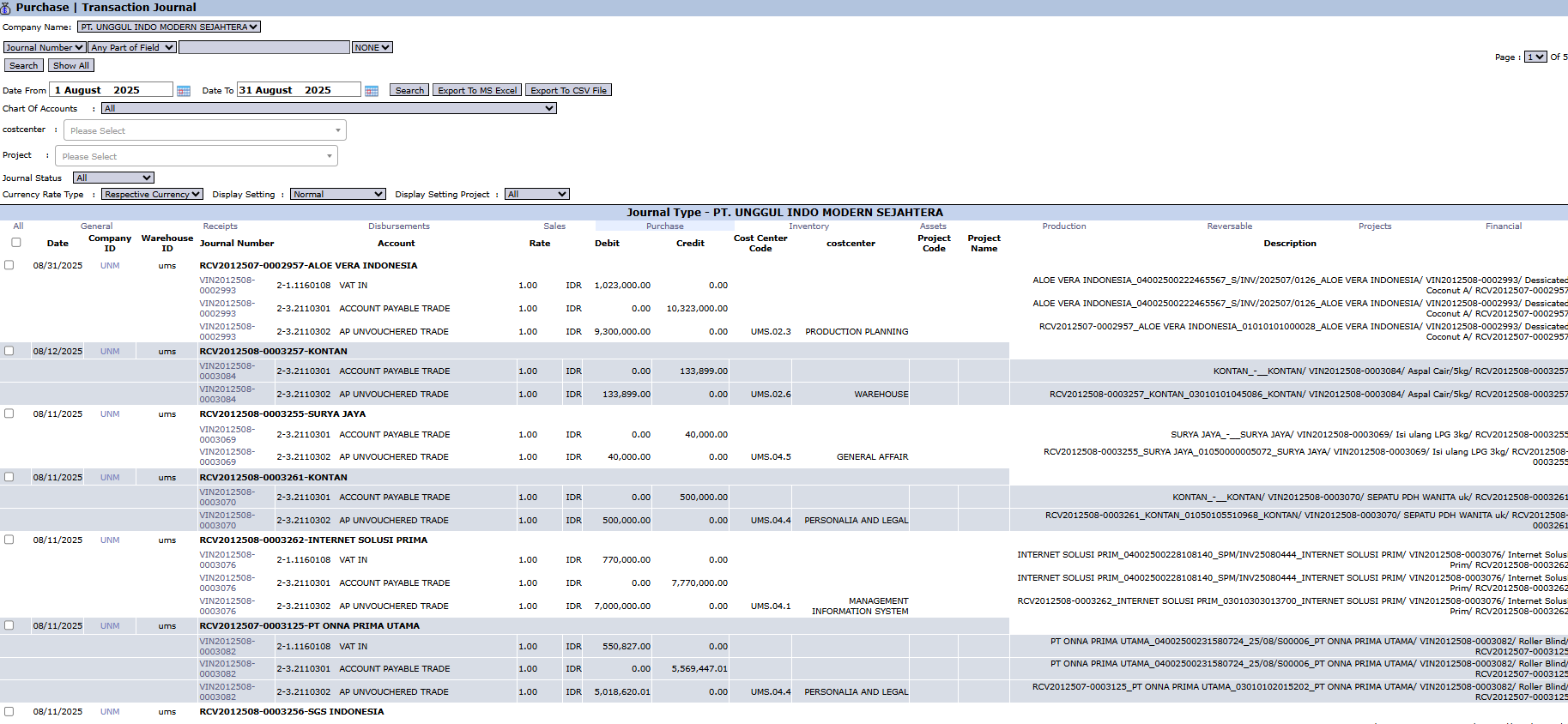
The main page of this module is an interactive report equipped with various filtering tools to help you find specific transaction data.
Advanced Filter Functions
The top section of the page provides various filters to screen the data:
Journal Number: To search by a specific journal or source document number.
Date From / To: Specify a date range to limit the transaction period.
Chart Of Accounts: Filter transactions that only affect a specific account (e.g., the Accounts Payable account).
costcenter / Project: Filter transactions that are only allocated to a specific department or project.
Table Column Explanation
The main table will display the details of each journal line, including Journal Number, Account, Debit, Credit, Cost Center, Project Name, and a very detailed Description that links to source documents like Purchase Invoices (VIN) and Goods Receipts (RCI).
Main Button Functions
Search / Show All: To apply the filters or display all data again.
Export To MS Excel / Export To CSV File: An important feature to download the displayed data for further processing outside the system.
Print: To print the displayed report.
2. Usage Example (Case Study)
Case: The Purchasing team wants to see the complete journaling details of a Purchase Invoice.
Steps:
Open the Transaction Journal (Purchasing) module.
Set the Date range to the known transaction date.
Enter the invoice number in the Journal Number search bar (if known) or filter by costcenter or Project.
Click Search.
The result will display all journal lines for that invoice, such as VAT IN (Input VAT), ACCOUNT PAYABLE TRADE, and AP UNVOUCHERED TRADE (Temporary/Unvouchered Payable).
Tips & Important Notes
This module is read-only. You cannot create or modify transactions here.
This is a very useful tool for the Purchasing and Accounting (AP) teams to perform reconciliations and to trace purchase transaction histories in detail.
Use the Export to MS Excel feature for more in-depth analysis of purchasing data.




No comments to display
No comments to display