The Cash Flow Sub Setup module serves as the master data tool for creating and managing the sub-categories that will be used in the Statement of Cash Flows. These sub-categories are the details of the three main cash flow activities (Operating, Investing, and Financing). The setup created here becomes the foundation for the main Cash Flow Setup module.
1. Main View (Sub-Category List)
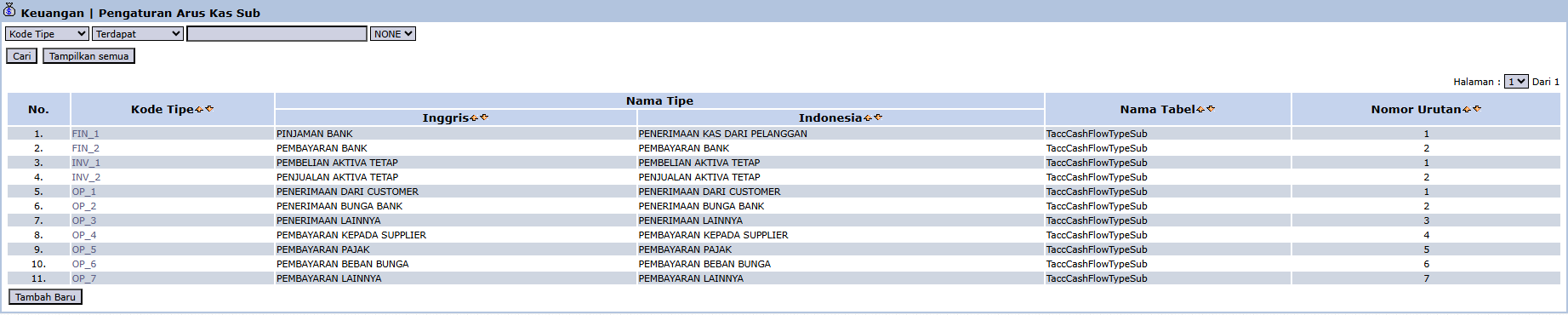
The main page of this module displays all the cash flow sub-categories that have been defined in the system.
View Explanation
This page is for viewing and managing all existing sub-categories.
Filter: You can search for a specific sub-category using the search bar based on the Type Code.
Sub-Category List: The table below displays all existing sub-categories, such as "CASH RECEIPTS FROM CUSTOMERS" and "PAYMENT TO SUPPLIER".
Button Functions
[Add New]: The primary button to create a new cash flow sub-category.
2. Steps to Create a New Sub-Category
Step 1: Create a New Sub-Category
From the Main View, click the [Add New] button to open the New Cash Flow Sub Setup form.
Step 2: Fill in Details
On the form that appears, fill in the required details:
Parent: Select the main parent category from the dropdown. The options will be the three main cash flow activities (Operating, Investing, Financing).
Cash Flow Sub Setup Type: Enter the name for your new sub-category in English and Indonesian.
Step 3: Save
After all data is filled in, click the [Save] button to save the new sub-category.
Workflow & Integrated Business Process
This module is the first and fundamental step in configuring the Statement of Cash Flows.
After the sub-categories are created here, you can use them in the Cash Flow Setup module to map the accounts from the General Ledger to these sub-categories.
Tips & Important Notes
The sub-category structure you create here will directly determine the detail and appearance of your Statement of Cash Flows.
This is an advanced accounting setup that should be managed by the Chief Accountant or Finance Manager.

No comments to display
No comments to display