The Miscellaneous Charge module within Purchasing serves as the master data hub for creating and managing types of additional costs associated with purchase transactions. Besides defining the name of the cost (such as Shipping Cost, Insurance Cost), this module is also crucial for setting up the accounting link (GL Linking), which determines the debit and credit accounts that will be used automatically when the cost is recorded.
1. Main View (Charge List)
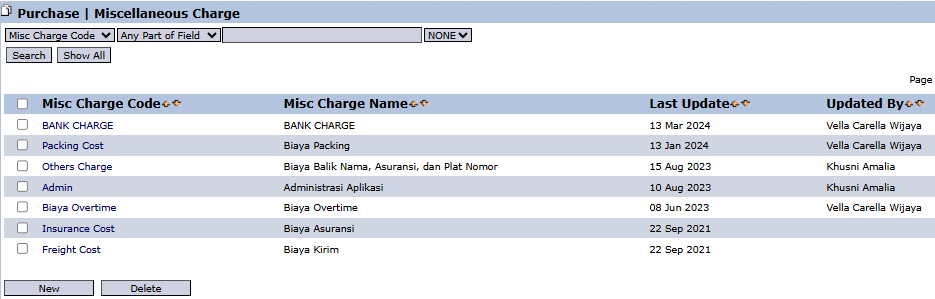
The main page of this module displays a list of all purchase-related additional charge types that have been created.
View Explanation
This page is for viewing and managing all existing types of additional charges.
Filter: You can search for a specific charge using the search bar based on the Misc Charge Code.
Charge List: The table below displays a summary of each charge type, with columns for Misc Charge Code and Misc Charge Name. Existing examples are "BANK CHARGE", "Packing Cost", and "Freight Cost".
Button Functions
New: The primary button to create a new charge type.
Delete: To delete a selected charge type.
2. Steps to Create a New Charge
Step 1: Create a New Charge
From the Main View, click the New button to open the Add Miscellaneous Charge form.
Step 2: Fill in Charge Details
On the form that appears, fill in the required details:
Misc Charge Code: Enter a unique code for this charge.
Misc Charge Name: Enter a descriptive name for this charge.
Step 3: Set Up Allocation & Accounts
This is the most crucial step to ensure the integration with accounting functions correctly:
Allocate Cost To: Define how this cost will be allocated, for example, charged to the Item (increasing the inventory value).
Debit Type: Select the account from the dropdown that will be debited (for example, the Inventory account for 'Account for tracking good inventory').
Credit Type: Select the account from the dropdown that will be credited (for example, a CASH or Accounts Payable account).
Step 4: Save the Data
After all data is filled in, click the Save button to save the new charge type.
Tips & Important Notes
The Debit Type and Credit Type settings must be coordinated with the Accounting team to ensure the automated journaling that occurs in the system is correct.
The charges you define here will become options that can be added to purchasing documents like Purchase Invoices to record additional costs (landed cost) related to the procurement of goods.








No comments to display
No comments to display