The Customer Sales Detail report module is used to generate a highly detailed report of all sales transactions. This report displays sales data down to the item line level per invoice or shipment, making it suitable for in-depth analysis and data tracing.
1. Report Parameters (Filter)
The main page of this module is a form containing various parameters to customize the report that will be generated.
Here is an explanation for each parameter:
Customer:
Select the customer scope for the report: All, Category (by Category), or Selected (for a specific Customer).
Customer Date:
Specify the From and To date range to define the period of sales transactions to be displayed (e.g., August 1, 2025, to August 31, 2025).
2. Steps to Generate the Report
Step 1: Set Report Parameters
Select all the parameters you need, especially defining the Customer Date range and the Customer scope.
Step 2: Generate the Report
After all parameters are set, click one of the two buttons in the bottom-left section of the page:
Display Report: To preview the detail report directly on your screen.
Export To MS Excel: To download the report data in an Excel file format.
3. Example of the Report View
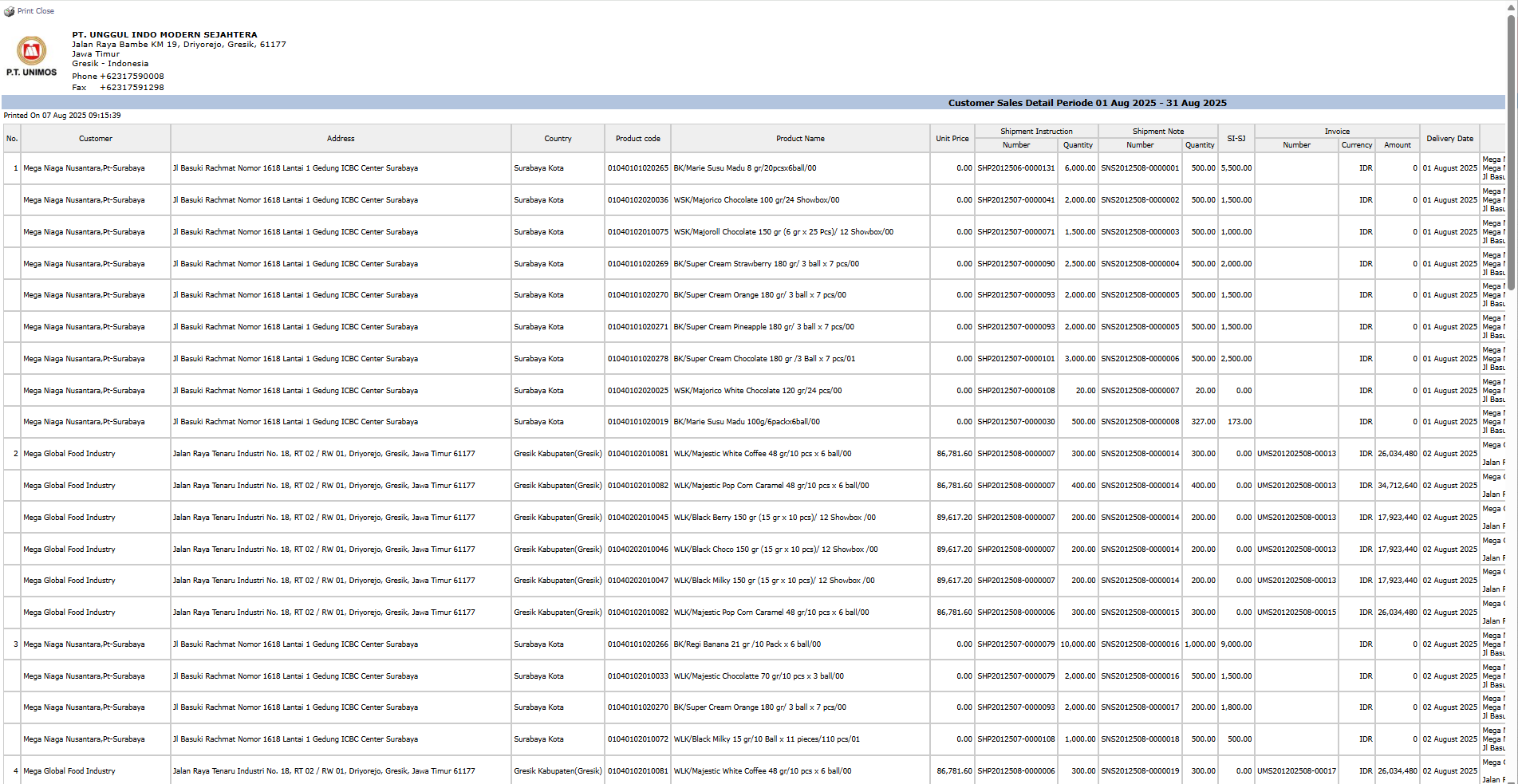
After you click, the system will generate a detailed report like the following, which details every product purchased by each customer in every transaction.
Report Explanation: This report displays a very detailed list of each sales transaction line, not a summary.
Key Columns:
Customer, Address: Customer details.
Product code, Product name: Details of the product sold.
Unit price, Quantity, Amount: Transaction value details per line.
Shipment Number, Invoice Number: Reference document numbers for tracing.
Tips & Important Notes
Use this report when you need the most detailed and un-aggregated (non-summary) sales data.
The Export to MS Excel feature is very useful for this report, as it allows you to process the raw data into summaries, charts, or Pivot Tables according to your analysis needs.
This report is very suitable for audit purposes or for very in-depth sales data reconciliation.





No comments to display
No comments to display