The Credit Notes module within Accounts Receivable is the opposite of Debit Notes. This module is used to create and manage Credit Note documents which function to reduce the amount of a receivable or a bill to a customer. The most common reason for issuing a Credit Note is for a sales return, but it can also be used to provide an additional discount or to correct an invoice that was over-billed.
1. Main View (Credit Note List)
The main page of this module displays a list of all Credit Notes that have been issued.
View Explanation & Filters
This page is the center for managing all existing Credit Notes.
Filters: You can search for a specific Credit Note by its document number (No.) or a date range (Date From / Date To).
Credit Note List: The table below will display all documents that match the filters, with columns such as Document Number, Account Name (Customer Name), Total Amount, Status, and Approval.
Button Functions
New: The primary button to create a new Credit Note.
Print: To print a selected Credit Note.
Void: To cancel a Credit Note that has already been issued.
2. Steps to Create a Credit Note
The following is the complete workflow for creating a new Credit Note.
Step 1: Create a New Credit Note
From the Main View, click the New button to open the New Credit Notes form.
Step 2: Fill in Header Information
Fill in all the general information at the top of the form:
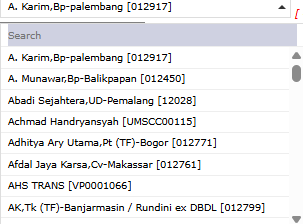
Customer: Select the customer who will be given the Credit Note from the dropdown.
Date: Enter the document date; it will default to today's date (August 2, 2025).
Document Type: Select the appropriate document type, for example, "Sales Return" for a goods return.
Memo: Provide a clear explanation for the reason the Credit Note is being issued.
Step 3: Detail the Credited Items
In the detail table at the bottom, list the products or services whose value will be credited:
Click the [+] Multiple Item [-] button to add or remove rows.
Enter the Item Code, Qty (Quantity), and Item Price. The system will calculate the subtotal in the Amount column.
Step 4: Calculate Total and Save
After all items have been entered, click the Calculate button to update the Grand Total value in the bottom-right section.
Use the buttons in the bottom-left section to finish:
Save: To save the Credit Note as a draft.
Confirm: To finalize the Credit Note.
Cancel: To cancel the entry.
Tips & Important Notes
Credit Notes are used to decrease a customer's receivable amount, the opposite of Debit Notes.
Ensure you select the correct Document Type, for example, "Sales Return", for accurate transaction classification.
A confirmed Credit Note will reduce the customer's receivable balance and can be used to be deducted from a subsequent invoice payment or be refunded.










No comments to display
No comments to display