The Account Receivable Card report module is used to generate an "AR Card" or a detailed transaction report for each customer. This report is very flexible and can be customized for various purposes, from creating a statement of account to a collections worklist, thanks to the numerous available filter options.
1. Report Parameters
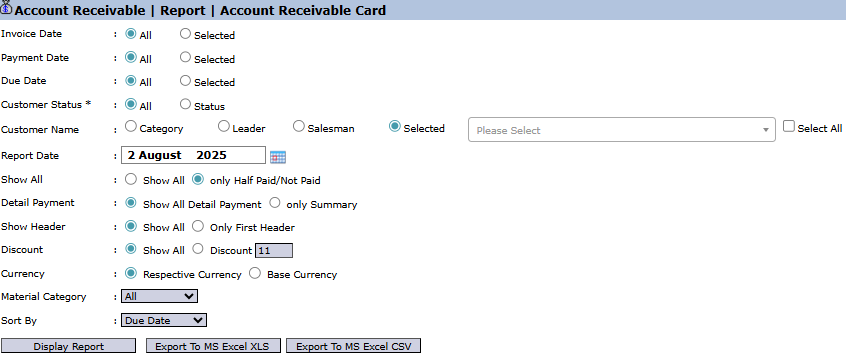
The main page of this module is a form containing various parameters to customize the report that will be generated.
Here is an explanation for each key parameter:
Customer Name:
Filter data by customer in various ways: Category, Leader, Salesman, or Selected (to choose one specific customer).
Report Date:
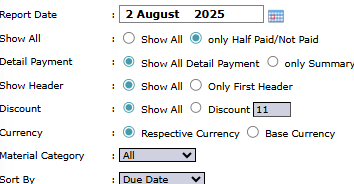
Specify the end date or "cut-off" date for the report. The system will pull data up to this date (e.g., August 2, 2025).
Show All:
Filter based on the invoice payment status. Select only Half Paid/Not Paid to display only unpaid invoices.
Detail Payment:
Select Show All Detail Payment to display the details of each payment, or only Summary to display only the total payment.
Sort By:
Choose the criteria for sorting the data on the report, for example, by Due Date to prioritize collections.
Other Filters:
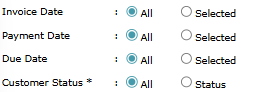
Many other filters are available such as Invoice Date, Payment Date, Due Date, Currency, and Material Category to further narrow down the report results.
2. Steps to Generate the Report
Step 1: Set Report Parameters
Select all the combinations of parameters you need to generate a specific report. For example, to create a collections list, select a specific Customer Name, set Show All to only Half Paid/Not Paid, and set Sort By to Due Date.
Step 2: Generate the Report
After all parameters are set, click one of the three buttons in the bottom-left section of the page:
Display Report: To preview the report directly on your screen.
Export To MS Excel XLS: To download the report data in an Excel file format (.xls).
Export To MS Excel CSV: To download the data in a CSV format.
Tips & Important Notes
This report is a more detailed and flexible version compared to the Account Receivable Mutation report.
Use the Show All filter with the only Half Paid/Not Paid option to create a daily or weekly collections worklist for the collections team.
The Sort By Due Date feature is very useful for prioritizing collections based on the most overdue invoices.
This is an essential report for the Accounts Receivable (AR) and Credit Control teams.





No comments to display
No comments to display