The Balance Sheet module is a reporting tool that generates the Balance Sheet financial statement. This report presents a snapshot of the company's financial position—showing total Assets, Liabilities, and Equity—at a specific point in time. This module is not used for inputting data, but rather for configuring and displaying the report based on existing data in the general ledger.
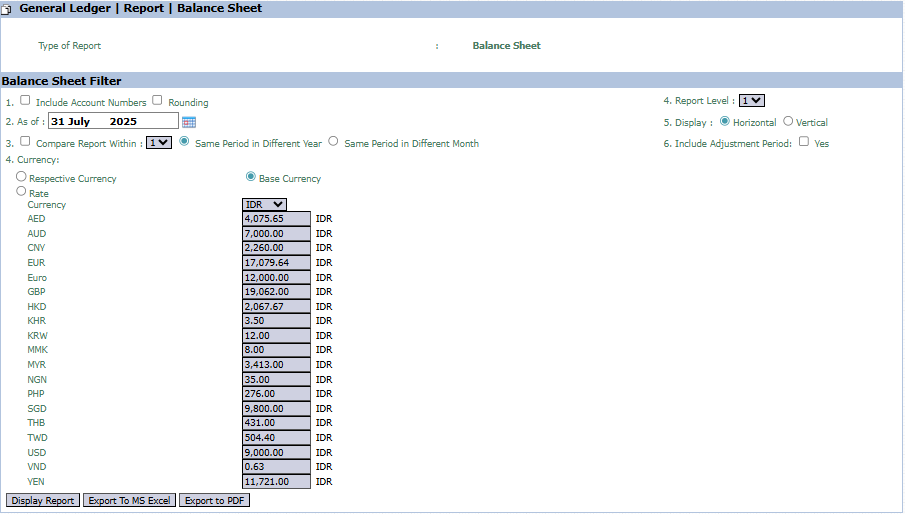
The main page of this module is a form containing various parameters or filters to customize the Balance Sheet report according to your needs.
Here is an explanation for each parameter:
Include Account Number / Rounding:
Check Include Account Number to display account codes next to account names on the report.
Check Rounding to round the figures on the report.
As of:
This is the most important parameter. Select the end-of-period date for which you want to see the financial position. The Balance Sheet will display balances as of this date (e.g., July 31, 2025).
Compare report within a period:
Use this feature to create a comparative report. You can choose to compare it with the same period in the previous year or with a different month's period.
Currency:
Transaction Currency: Displays the report in the original transaction currencies.
Base Currency: Displays the report in the company's base currency (e.g., IDR) by converting all foreign currencies using the recorded exchange rates.
Report Level:
This dropdown is used to set the report's depth or level of detail (e.g., a summary by account group or detail down to the lowest sub-account).
Display:
Choose the report layout format, either Horizontal or Vertical.
Include Adjustment Period:
Check Yes if you want to include adjusting entries in the calculation of the balance sheet accounts.
2. Steps to Generate the Report
The process to create a Balance Sheet report is very simple:
Step 1: Set Report Parameters
Fill in or select all the parameters you need in the Balance Sheet Filters section to ensure the resulting report meets your requirements.
Step 2: Generate the Report
After all parameters are set, click one of the three buttons in the bottom-left section of the page:
Display Report: To preview the report directly on your screen.
Export to MS Excel: To download the report data in an Excel file format, which can be processed further.
Export to PDF: To download the report in a PDF format that is ready to be printed or shared.
Tips & Important Notes
The Balance Sheet is a report of financial position at a single point in time. Ensure the As of date you select is correct for the desired period-end.
For performance analysis, the Compare report within a period feature is very useful for seeing growth or changes from previous periods.
Use Export to MS Excel if you need to perform custom calculations or create custom charts from the balance sheet data for presentations or internal reports.




No comments to display
No comments to display