The Activity module functions as a calendar and work agenda for the sales team. Its purpose is to plan, view, and manage all customer-related activities, such as meeting schedules, phone calls, tasks, and follow-ups. Using this module effectively helps ensure all prospects and customers are handled properly and on time.
1. Main View (Activity Calendar)
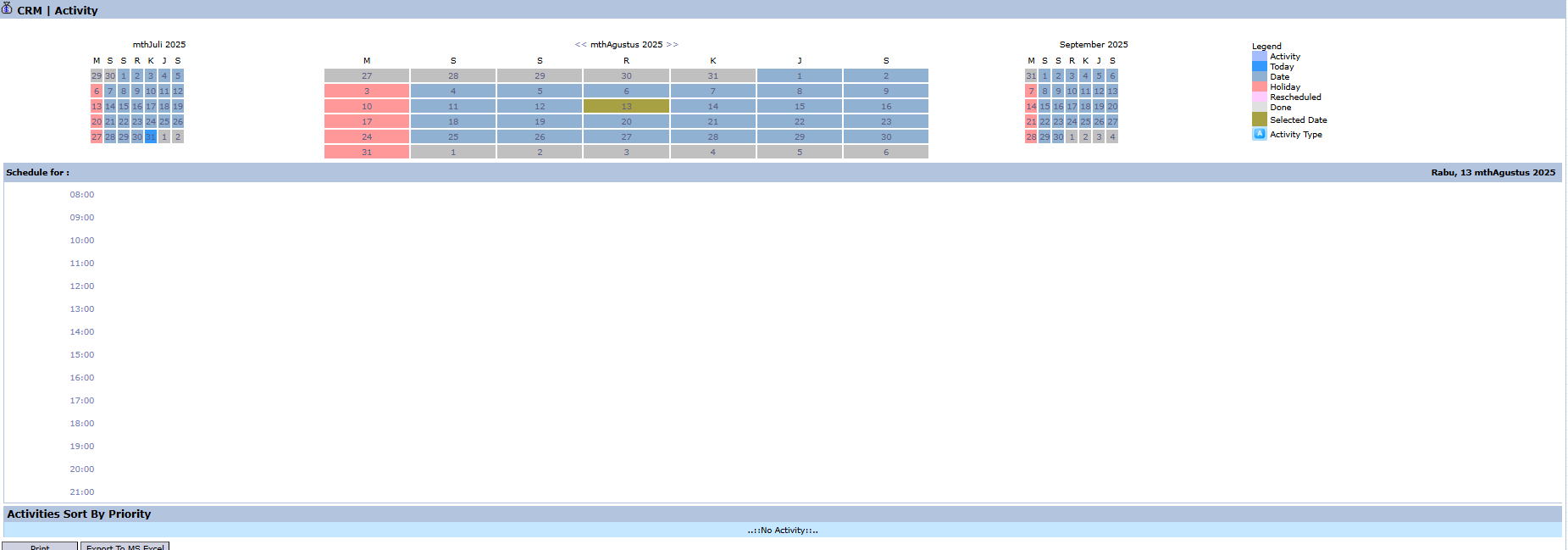
The main page of this module is an interactive calendar view that provides a visual overview of your activity schedule.
View Explanation
Monthly Calendar View: Displays the schedule in a monthly format, complete with color codes corresponding to the Legend on the right side.
Daily Schedule (Schedule for): Displays a detailed hourly schedule for the selected date.
Activity List (Activities Sort by Priority): Displays a list of activities for the selected day.
Understanding the Legend
Pay attention to the Legend box on the upper-right side to understand the meaning of each color on the calendar:
Activity: There is a scheduled activity.
Today: Marker for the current day.
Holiday: A public holiday.
Rescheduled: A rescheduled activity.
Done: An activity that has been completed.
2. Steps to Manage Activities
The following is the complete workflow for creating and managing an Activity.
Step 1: Create a New Activity
To add a new activity, double-click on the desired time slot in the Schedule for section or directly on a date in the calendar. This action will open the Add Activity form.
Step 2: Fill in Activity Details (Add Activity Form)
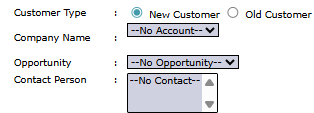
Fill in all the relevant information on the form that appears. Fields marked with (*) are mandatory.
Customer Type, Company Name, Opportunity, Contact Person: Link this activity to the relevant customer or sales opportunity. This is important for tracking interaction history.
Activity Type: Choose the type of activity from the dropdown (e.g., Meeting, Call, Email).
From / To: Set the start and end date and time for the activity.
Reminder: Set a reminder if needed so you don't miss the schedule.
Description: Fill in a detailed description or the purpose of this activity.
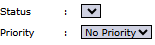
Priority & Status: Set the priority (e.g., High, Normal, Low) and the initial status of the activity.
Step 3: Save the Activity
After all mandatory fields have been completed, click the Save button at the bottom to save the new activity. The activity will now appear as a colored block on your Activity Calendar.
Step 4: Update Activity Status
After an activity has been completed, reopen the activity from the calendar and change its status to "Done". This will change the activity's color on the calendar according to the Legend.
Tips & Important Notes
Use this module every morning to plan your work and ensure you don't miss any important appointments or tasks.
By always linking activities to the relevant Opportunity, you can build a complete interaction history for each potential sale.
The Export To MS Excel feature can be used to create your weekly or monthly activity reports for reporting purposes to your superior.







No comments to display
No comments to display