The Account Receivable Mutation report module is used to generate a report that shows the movement or mutation of receivables for a specific customer within a single period. This report will detail the beginning balance, all additions (from sales invoices/debit notes), all reductions (from payments/credit notes), to arrive at the ending balance. This is a primary tool for customer account reconciliation and for creating a Statement of Account.
1. Report Parameters (Filter)
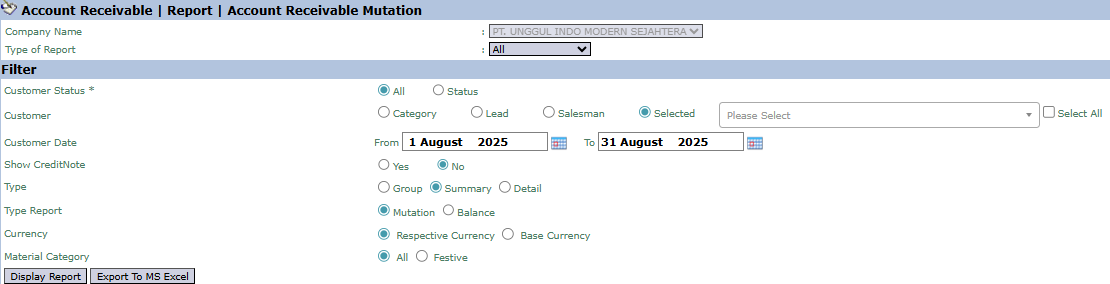
The main page of this module is a form containing various parameters to customize the mutation report that will be generated.
Here is an explanation for each parameter:
Customer:
Filter data by customer in various ways: All, Category, Lead, Salesman, or Selected (Specific Customer).
Customer Date:
Specify the From and To date range to define the mutation period to be displayed (e.g., August 1, 2025, to August 31, 2025).
Show CreditNote:
Select Yes or No to determine whether to include Credit Note transactions in the report.
Type:
Select the report's level of detail: Group, Summary, or Detail.
Type Report:
This is a key filter that determines the type of report:
Mutation: Displays the complete movement report (beginning balance, transactions, ending balance).
Balance: Only displays the final receivable balance.
Currency / Material Category:
Additional filters to screen by currency or material category.
2. Steps to Generate the Report
Step 1: Set Report Parameters
Select all the parameters you need in the Filter section. The most common combination is selecting a specific Selected Customer, defining a Customer Date range, and choosing the MutationType Report.
Step 2: Generate the Report
After all parameters are set, click one of the two buttons in the bottom-left section of the page:
Display Report: To preview the mutation report directly on your screen.
Export To MS Excel: To download the report data in an Excel file format.
Tips & Important Notes
This report is the primary tool for the Accounts Receivable (AR) team to create a Statement of Account to be sent to customers.
Use Type Report 'Mutation' and Type 'Detail' to trace every transaction that occurred on a customer's account during a period.
To see a summary of the final receivable balance per customer on a specific date, use Type Report 'Balance'.
This report is very useful for monitoring customer payment activity and following up on unpaid invoices.



No comments to display
No comments to display