The Commission module is used to calculate, manage, and track sales commission payments to the sales team. This process is typically based on invoices that have been fully paid by customers, to ensure that commission is given for sales that have been successfully collected.
1. Main View (Commission List)
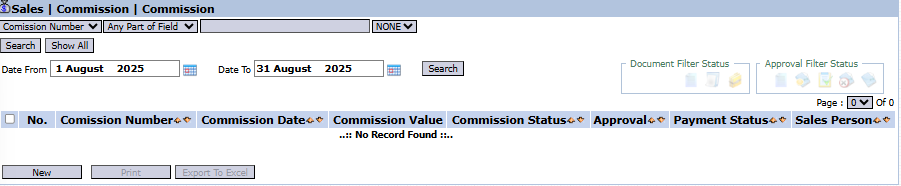
The main page of this module displays a list of all commission calculation documents that have been created.
View Explanation & Filters
This page is for viewing and managing all commission documents.
Filters: You can search for a specific commission document by Commission Number or a date range (Date From / Date To).
Commission List: The table below will display all commission documents that match the filters, with columns such as Commission Number, Commission Date, Commission Value, Payment Status, and Sales Person.
Button Functions
New: The primary button to create a new commission calculation.
Print: To print the details of a selected commission document.
Export To Excel: To download the commission list into an Excel format.
2. Steps to Calculate Commission
Step 1: Create a New Commission Document
From the Main View, click the New button to open the New Commission form.
Step 2: Fill in Basic Information
On the form that appears, fill in the general information:
Sales Person: Select the salesperson whose commission will be calculated from the dropdown.
Tax Code: Select the appropriate tax code (e.g., PPH23) for the tax withholding on the commission to be paid.
Commission Date: Enter the date of the commission calculation.
Remarks: Provide notes if needed (e.g., "Sales Commission for July 2025").
Step 3: Select the Paid Invoices
Click the [+] Multiple Invoice [-] link to open a list of paid invoices under that salesperson.
Select one or more invoices to be included in the commission calculation. The selected invoices will appear in the detail table.
Step 4: Calculate the Commission
In the detail table that has been populated with invoice data:
The system will display the Paid Invoice Amount (exclude PPN).
Enter the commission percentage in the Percentage column.
The system will automatically calculate the Sales Commission value. Do this for each invoice row.
The Grand Total value in the bottom-right corner will sum up the total commission to be paid.
Step 5: Save and Confirm
After all calculations are complete, use the buttons in the bottom-left section:
Save: To save the calculation as a draft.
Confirm: To finalize the commission calculation and send it into the approval workflow.
Cancel: To cancel the entry.
Tips & Important Notes
This module ensures transparent and data-driven commission calculations, based on invoices that have actually been paid.
Ensure you select the correct Tax Code, as this will affect the income tax calculation on the commission paid to the salesperson.
A commission document that has been Confirmed will likely go to a Commission Inbox to be approved by a manager before being processed for payment by the Finance team.








No comments to display
No comments to display