The Purchase Order Report module is used to generate a comprehensive and highly filterable report for all Purchase Order (PO) activities. This report is a primary monitoring tool for tracking the PO lifecycle, from its approval status, goods receipt status, to its invoice status.
1. Report Parameters (Filter)
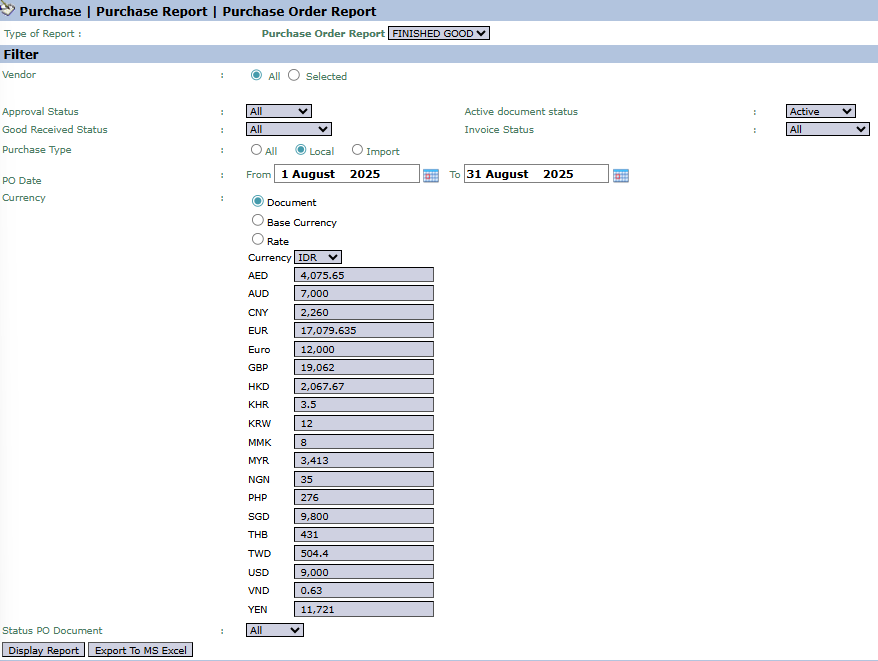
The main page of this module is a form containing various parameters to customize the report that will be generated.
Here is an explanation for each key parameter:
Vendor:
Filter the report by All vendors or a Selected vendor.
Advanced Status Filter:
Approval Status: Filter POs by their approval status (e.g., still pending or already approved).
Good Received Status: Filter POs by the status of goods receipt at the warehouse.
Invoice Status: Filter POs by the status of the invoice from the vendor.
PO Date:
Specify the creation date range of the POs to be displayed (e.g., August 1, 2025, to August 31, 2025).
2. Steps to Generate the Report
Step 1: Set Report Parameters
Select all the parameters you need from the comprehensive list to focus the report on the data you wish to analyze.
Step 2: Generate the Report
After all parameters are set, click one of the two buttons at the bottom:
Display Report: To preview the purchase order report directly on your screen.
Export To MS Excel: To download the report data in an Excel file format.
3. Example of the Report View
After you click, the system will generate a detailed report like the following, which details every item in every PO.
Report Explanation: The report will display a detailed list of each item line on every Purchase Order.
Key Columns:
Purchase Order Number and PO Date: Basic information of each order.
Vendor Name: The name of the supplier.
Item Code, Item Description: Details of the goods or services ordered.
Qty, Price, Total Amount: The quantity and value of each ordered item.
Tips & Important Notes
Use this report to monitor the complete lifecycle of each purchase order.
For the Warehouse team, the Good Received Status filter is very useful for tracking which orders are expected to arrive from suppliers.
For the Accounting (AP) team, the Invoice Status filter is very useful for tracking POs that do not yet have a billing invoice from the vendor.




No comments to display
No comments to display