The Document Flow Report module for Purchasing is used to generate a report that tracks the entire end-to-end document flow of the procurement process. This report visually links one document to the next, starting from the Purchase Requisition, to the Purchase Order, Goods Receipt, Purchase Invoice, and finally to the Payment (Cash Book).
1. Report Parameters (Filter)
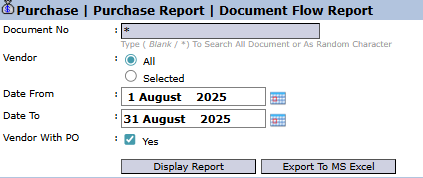
The main page of this module is a form containing various parameters to customize the report that will be generated.
Here is an explanation for each parameter:
Document No:
Use this field to search for and trace the flow of one specific document number (for example, a Requisition number or a PO number).
Vendor:
Filter the report by All vendors or a Selected vendor.
Date From / To:
Specify the date range of the documents whose flow you want to see.
2. Steps to Generate the Report
Step 1: Set Report Parameters
Select all the parameters you need to focus the report on the transaction(s) you wish to trace.
Step 2: Generate the Report
After the parameters are set, click one of the two buttons at the bottom:
Display Report: To preview the document flow report directly on your screen.
Export To MS Excel: To download the report data in an Excel file format.
3. Reading the Document Flow Report
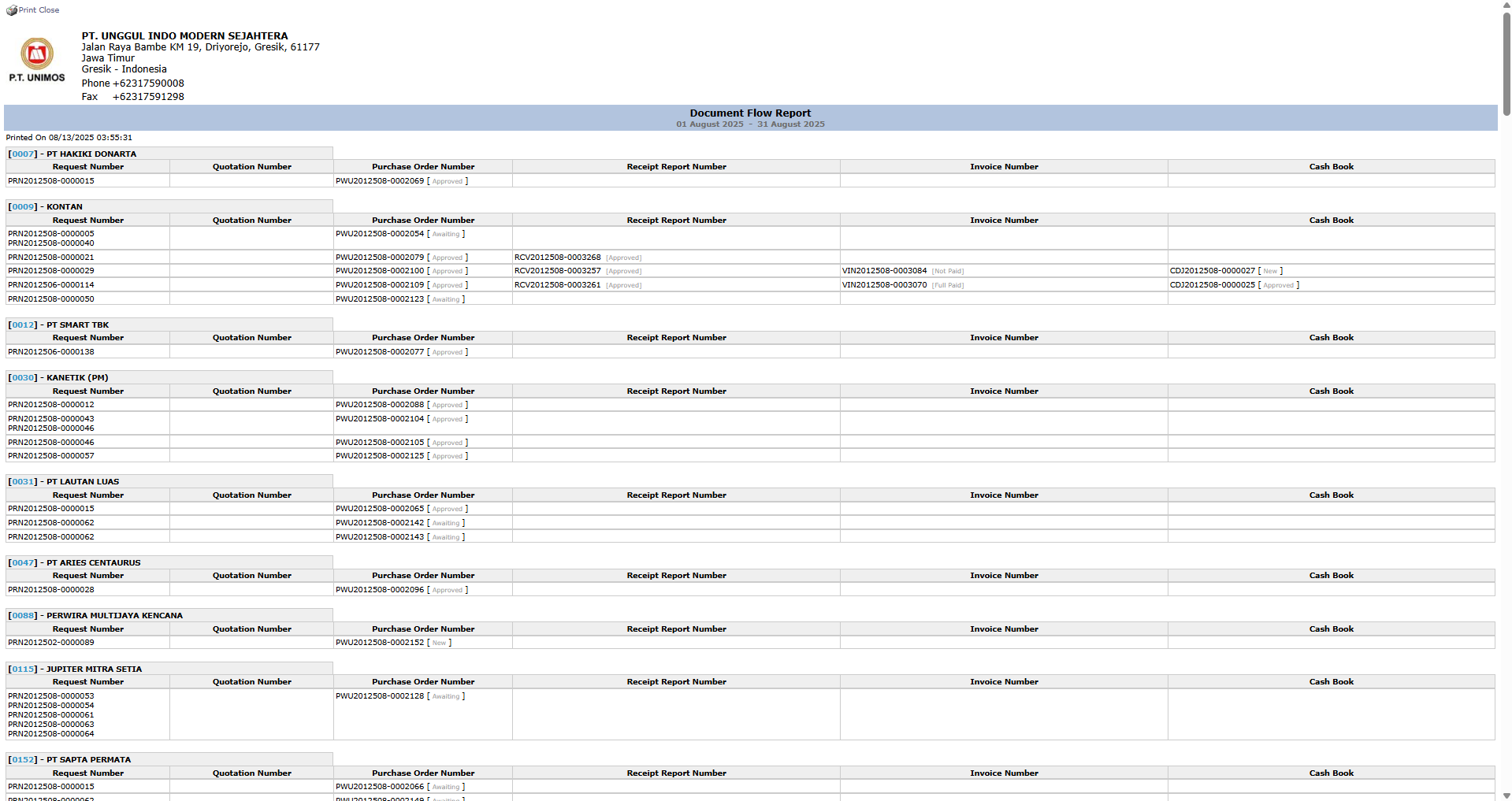
The generated report will display the interlinked document flow for each purchase request.
Report Explanation: This report displays the purchasing document flow, grouped by Vendor.
Document Flow Structure: This report shows the complete flow from left to right:
Request Number: The initial stage (Purchase Requisition).
Purchase Order Number: The official order to the vendor.
Receipt Report Number: Proof of goods receipt at the warehouse.
Invoice Number: The bill from the vendor.
Cash Book: Proof of payment to the vendor.
Document Status: Pay attention to the status next to each document number (e.g., [approved], Not Paid) to know its progress at each stage.
Tips & Important Notes
Use this report to get a complete picture of a purchase order's lifecycle, from the initial request until it is paid in full.
This report is very useful for the Procurement and AP (Account Payable) teams to track document status and identify bottlenecks in the process.
If the Invoice Number or Cash Book columns are still empty, it indicates that the process has not yet been completed up to the billing or payment stage.



No comments to display
No comments to display