The VAT (Value Added Tax) report module is used to generate a report that details all transactions related to Value Added Tax (VAT). This report can separate Input VAT (VAT In, from purchases) and Output VAT (VAT Out, from sales), and it serves as the primary data source for the preparation and reporting of the monthly VAT Return (SPT Masa PPN).
1. Report Parameters (Filter)
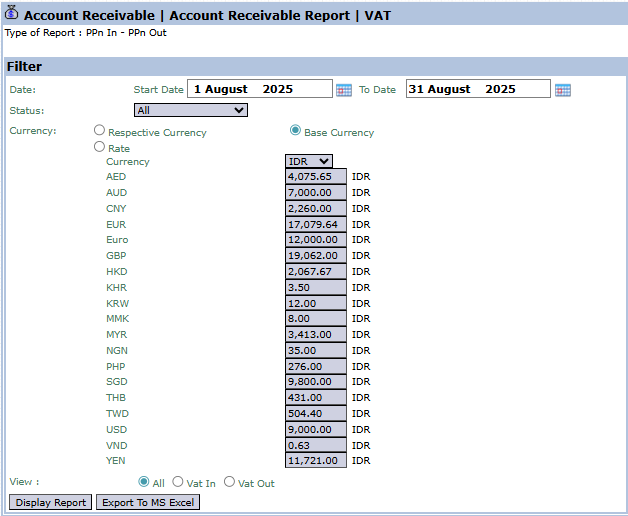
The main page of this module is a form containing various parameters to customize the VAT report that will be generated.
Here is an explanation for each parameter:
Date:
Specify the Start Date and To Date range to define the tax period to be reported (e.g., August 1, 2025, to August 31, 2025).
Status:
Use this dropdown to filter transactions by their status.
Currency:
Choose how currency values will be displayed in the report.
View:
This is the key filter to determine the type of VAT report you want to see:
All: To display all VAT transactions, both Input and Output.
Vat In: To display a report specifically for Input VAT (from purchases).
Vat Out: To display a report specifically for Output VAT (from sales).
2. Steps to Generate the Report
Step 1: Set Report Parameters
Select all the parameters you need, especially defining the Date range and the type of report in the View section.
Step 2: Generate the Report
After all parameters are set, click one of the two buttons in the bottom-left section of the page:
Display Report: To preview the VAT report directly on your screen.
Export To MS Excel: To download the report data in an Excel file format.
Tips & Important Notes
This report is the primary data source for the Tax and Customs team to prepare the monthly VAT return.
Run this report separately for Vat In and Vat Out to get the summaries needed for filling out the tax return forms.
To ensure the accuracy of this report, make sure all sales and purchase invoices that include VAT have been recorded correctly in the system.




No comments to display
No comments to display