The Customer module is the master data hub for all of the company's customers. This is where you can create new customer data, view, edit, and manage their complete information, ranging from address and contact details to tax information and sales terms. Accurate data in this module is crucial for the smooth operation of the entire sales, delivery, and billing process.
1. Main View (Customer List)
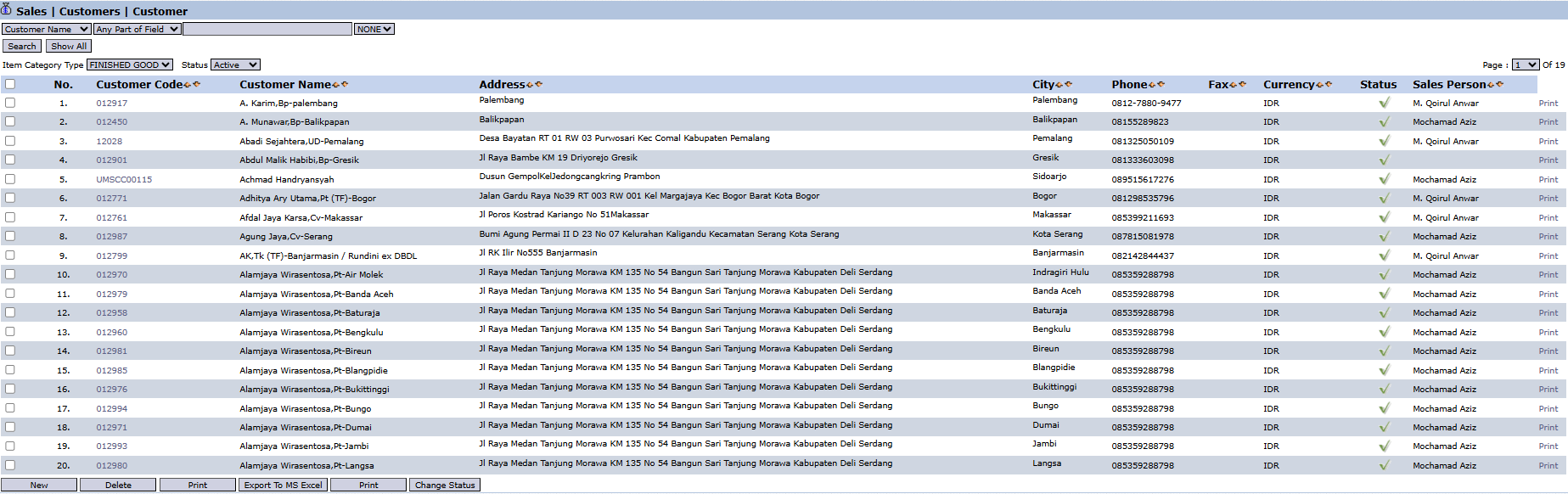
The main page of this module displays a list of all customers registered in the system.
View Explanation & Filters
This page is for viewing and managing all customer master data.
Filters: You can search for a specific customer using the search bar at the top or filter the list by Item Category and Status.
Customer List: The table below displays a summary of each customer, with columns such as Customer Code, Customer Name, Address, City, Phone, and the responsible Sales Person.
Button Functions
New: The primary button to create new customer data.
Delete: To delete selected customer data.
Print: To print the details of selected customer data.
Export To MS Excel: To download the customer list into an Excel format.
Change Status: To change the status of a selected customer (e.g., from active to inactive).
2. Steps to Manage Customer Data
The following is the complete workflow for registering a new customer.
Step 1: Create a New Customer
From the Main View, click the New button to open the New Customer form.
Step 2: Fill in Main Customer Details
Fill in all the relevant information on the form that appears. Fields marked with (*) are mandatory.
General Information: Fill in the Customer Code (if not automatic), Name (Customer Name), and select the appropriate Customer Category.
Tax & Bank Information: Complete important data such as Tax File Number, NPWP (Tax ID Number), Bank Account, and Account Name.
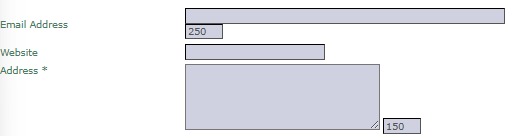
Contact Information: Enter the Email Address, Website, Address, City, and Phone.
Sales Information: Set terms such as Default Price Group and Allowed Tolerance Difference.
Step 3: Add a Contact Person
Every customer company has a contact person. To add them:
While filling out the new customer form, click the Add Contact button at the bottom to open the Add Contact form.
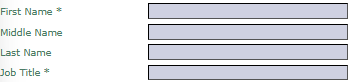
Fill in the contact person's details such as First Name, Last Name, Job Title, and Email Address.
Important: Check the Billing PIC (Person In Charge) box if this person is responsible for billing matters.
Click Save to save the contact and return to the main customer form.
Step 4: Save the Customer Data
After all the data on the main customer form and for the contact person has been filled in, click the 'Save' or 'Confirm' button at the bottom of the main form to register the new customer into the system.
Tips & Important Notes
Ensure you fill in the Customer Category correctly as this will affect the default accounting settings for that customer.
Filling in the contact person data, especially marking the Billing PIC, will greatly simplify the communication and collection process for the AR team.
The Change Status button on the main page is used to change a customer's status, for example, from 'Potential' to 'Active' or vice versa.









No comments to display
No comments to display