The Sales Invoice module is the final stage in the sales cycle, where you create the official billing document to be sent to the customer. Invoices created here will be automatically recorded as receivables in the Accounts Receivable Module. This system provides two ways to create an invoice: Regular (based on shipment) and Direct.
1. Main View (Sales Invoice List)
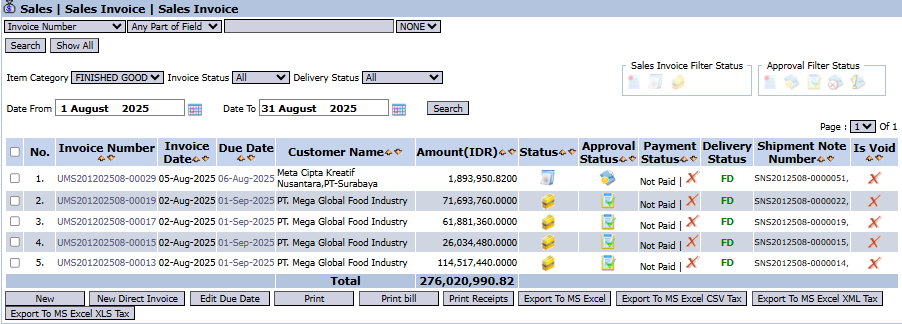
The main page of this module displays a list of all Sales Invoices that have been created.
View Explanation & Filters
This page is for viewing and managing all sales invoices.
Filters: You can search for a specific invoice by Invoice Number, Item Category, Invoice Status, Delivery Status, or a date range.
Invoice List: The table below displays all invoices that match the filters, with important columns such as Invoice Number, Due Date, Customer Name, Amount, and Payment Status.
Button Functions
New: To create a Regular Sales Invoice (based on shipment).
New Direct Invoice: To create a Direct Sales Invoice (without a goods shipment, e.g., for services).
Print bill: To print the selected bill/invoice.
Export To MS Excel: To download the list of invoices into an Excel format.
2. Steps to Create a Sales Invoice
A. Creating a Regular Sales Invoice (Based on Shipment)
This is the most commonly used method for the sale of goods.
From the Main View, click the New button.
On the Add Sales Invoice form, select the Customer. The system will display a list of Shipment Note Numbers (from Shipping Instructions) that are ready to be billed for that customer.
Select one or more Shipment Notes to be combined into a single invoice, then click Get Detail.
The system will automatically populate the item detail table below according to the shipping data.
Double-check all details, especially the dates (Invoice Date, Due Date) and the total value.
Click Confirm to finalize the invoice.
B. Creating a Direct Sales Invoice
This method is used for the sale of services or other transactions that do not go through the goods shipment process from the warehouse.
From the Main View, click the New Direct Invoice button.
On the Add - Direct form, select the Customer and fill in header information such as Invoice Date and Due Date.
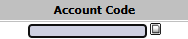
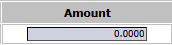
In the Transaction table, enter the journaling details manually. You need to select an Account Code (for example, a Service Revenue account) and enter the Amount.
You can also add additional charges in the Extra Cost table.
Click Confirm to finalize the invoice.
Tips & Important Notes
Creating an invoice from a Shipping Instruction (the regular way) is the best practice to ensure you only bill for what has actually been shipped.
A Direct Invoice is generally used for non-inventory sales, such as the sale of services or assets.
An invoice that has been Confirmed will automatically create a receivable record in the Accounts Receivable Module and is ready for the collections process.







No comments to display
No comments to display