The Customer Discount module is the settings center for creating and managing various discount schemes that apply to specific customer categories. The settings you define here will be automatically applied by the system during sales transactions, such as when creating a Sales Order or Invoice.
1. Main View (Customer Category List)
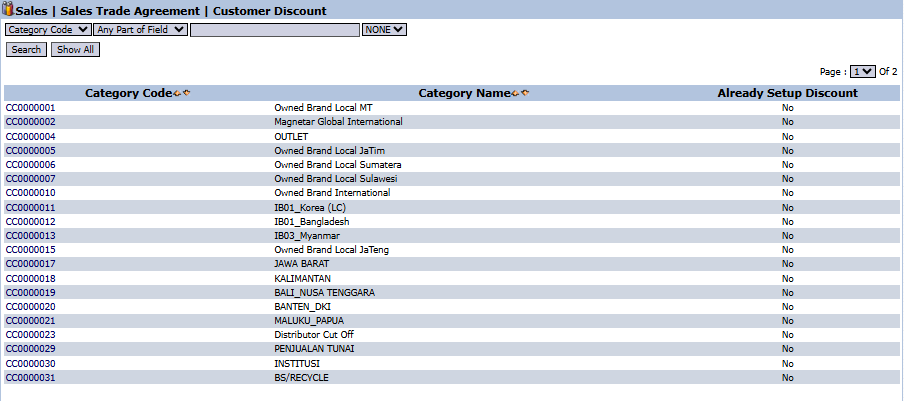
The main page of this module displays a list of all customer categories in the system, along with the status of the discount settings for each category.
View Explanation
This page is the starting point for setting up discounts per customer category.
Filter: You can search for a specific category using the search bar based on the Category Code.
Category List: The table below displays all registered customer categories.
Already Setup Discount Column: A status indicating whether a discount scheme has been set up for the category. "No" means no discount settings exist yet.
2. Steps to Set Up a Discount
Step 1: Select a Customer Category
From the Main View, select and click on the Category Name row for which you want to set up a discount scheme (e.g., 'Owned Brand Local MT'). This action will open the Edit Customer Discount form.
Step 2: Add Items for the Discount
On the Edit form, you can set up discounts for each product specifically.
Click the [+] Multiple Item [-] link to add a new row to the detail table.
Repeat this step for every product to be included in the discount scheme.
Step 3: Fill in Discount Details per Item
In each row of the detail table, fill in the following information:
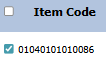
Item Code: Enter the code of the product that will be given a discount.
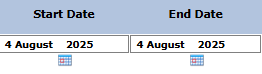
Start Date / End Date: Define the validity period of the discount for this product.
Min Qty: Fill in the minimum purchase quantity (if any) to get the discount.
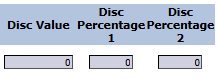
Disc Value / Disc Percentage 1 / Disc Percentage 2: Fill in one of these columns to define the size of the discount.
Disc Value: For a nominal price reduction (e.g., 5000).
Disc Percentage 1: For a percentage-based discount (e.g., 10 for 10%).
Step 4: Save the Settings
After all discount details for all items have been set up, click the Update button in the bottom-left section to save the discount scheme for that customer category.
Tips & Important Notes
This module allows you to apply different discount schemes to different customer segments (for example, discounts for distributors can be different from those for retail customers).
Use the Apply All button at the top to apply a single value (e.g., Min Qty or Disc Percentage 1) to all items in the list simultaneously to speed up the input process.
The discount settings created here will be automatically calculated when creating Sales Orders and Sales Invoices for customers in the corresponding category.




No comments to display
No comments to display