The Bank Payment module is the primary transactional module for recording all money disbursed from the company's bank accounts. Its main function is to apply payments to suppliers (vendors) against one or more outstanding purchase invoices, thereby settling the accounts payable. This module can also be used to record other bank expenditures.
1. Main View (Bank Payment Entry Form)
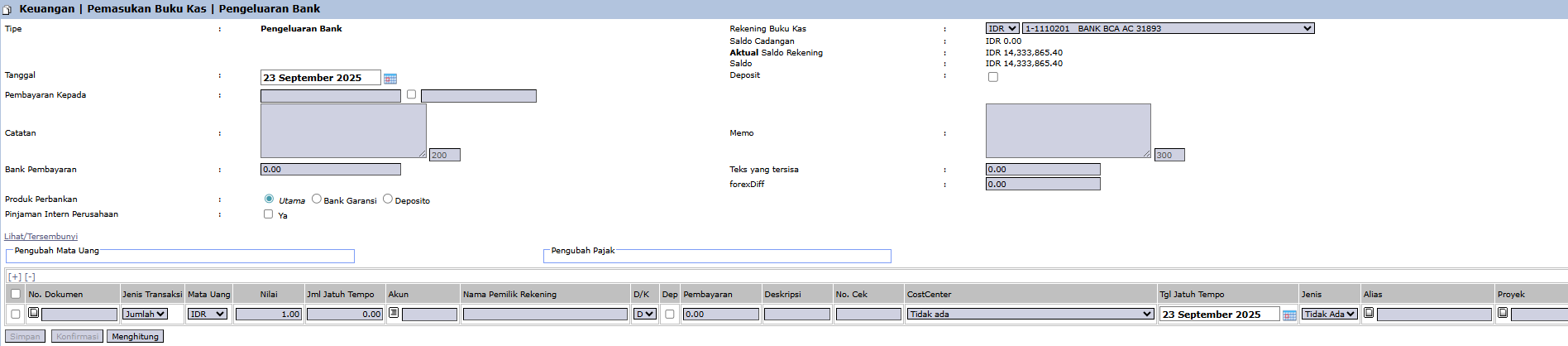
The main page of this module is a form for inputting the details of a fund disbursement. The process begins by creating a new document which will then be displayed in the Cash/Bank Outflow List module.
2. Steps to Record a Bank Disbursement
Step 1: Fill in Header Information
At the top of the form, fill in the main payment details:
Type: Select the type of expenditure, in this case, Bank Disbursement.
Date: Enter the date the payment was made (e.g., September 18, 2025).
Bank Payment: Enter the total amount of money paid.
Cash Book Account: Important! Select the company's bank account that is being used for the payment from the dropdown. The account balance will be displayed next to it.
Notes / Memo: Provide any relevant descriptions or notes.
Step 2: Allocate the Payment to Invoices
In the detail table at the bottom, you will detail which invoices are being settled by this payment:
Click the + icon to add a new row.
In the Document No. column, find and select one or more purchase invoice numbers to be settled. The invoices that appear here are those you have previously selected in the Invoice Payment Selection module.
Once selected, the system will automatically fill in details like Pay to (vendor name) and Value (invoice bill amount).
Ensure the total Payment in the detail table equals the Bank Payment amount in the header.
Step 3: Verify and Confirm
After all data is filled in and the allocation is correct, use the buttons in the bottom-left section:
Save: To save the transaction as a draft.
Confirm: To finalize and post the payment transaction into the system.
Workflow & Integrated Business Process
This module is the follow-up to the Invoice Payment Selection module.
A transaction that has been Confirmed will officially settle the accounts payable originating from Purchase Invoices.
After being confirmed, this document will appear in the Cash/Bank Outflow List and will automatically create an accounting journal entry (e.g., a Debit to the Accounts Payable account and a Credit to the Bank account).
Tips & Important Notes
This module is a daily work tool for the AP (Account Payable) and Treasury teams.
You can allocate one bank payment to settle multiple invoices at once by adding several rows in the detail table.
To make the reconciliation process with the bank statement easier, always ensure you select the correct Cash Book Account.

No comments to display
No comments to display