The Service Recording module functions as a system to document and manage all service activities provided to customers. This can include repair services, maintenance, or other after-sales services. This module helps track the entire process, from receiving the item from the customer, through the work process, to returning the item after the service is complete.
1. Main View (Service Recording List)
The main page of this module displays a list of all Service Recording documents that have been created.
View Explanation
This page is the center for viewing and managing all service records that are ongoing or have been completed.
Filters: You can search for a specific service record by Service Recording Number or a Start Date and End Date range.
Service List: The table below displays a summary of each service, with columns such as Service Recording Number, Start Date, Customer, Status, and Approval.
Button Functions
New: The primary button to create a new service record.
2. Steps to Record a New Service
The following is the complete workflow for recording a new service.
Step 1: Create a New Service Record
From the Main View, click the New button to open the Add Service Recording form.
Step 2: Fill in General Service Information
Fill in all the general information at the top of the form:
Official Record Date & Customer: Select the date and the name of the customer receiving the service.
Complaint Number: If this service is a follow-up to a recorded complaint, link it with the relevant Complaint Number.
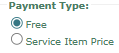
Service Fee & Payment Type: Determine the service fee and select its type, whether it is Free or Service Item Price (Paid).
Description must be filled: Describe in detail the service to be provided or the problem being handled.
Step 3: Detail the Related Goods/Services
Use the tables in the bottom section to detail the items involved in the service process:
Goods/Services to be Received: List the items you receive from the customer to be repaired or serviced.
Service Item/Part Code: Specify the type of service or spare parts used during the service process.
Goods/Services to be Sent: List the items that will be returned to the customer after the service is complete.
Step 4: Save the Service Record
After all data is filled in, use the buttons in the bottom-left section:
Save: To save the service record as a draft.
Confirm: To finalize the service record and move it into the next workflow.
Cancel: To cancel the entry.
Tips & Important Notes
Use this module to document all after-sales service activities to have a clear history for each customer.
Linking a service record with a Complaint Number provides an integrated and easily traceable problem-resolution flow from start to finish.
This module is very important for the Customer Service team and the technical/service team to ensure all service jobs are recorded and handled properly.












No comments to display
No comments to display