Tracking
Tracking Module Guide
Module Location:
soApp > Tracking
The Tracking Module is used to monitor the status of Sales Orders and view product details for each order. The information displayed includes the customer, Sales Order number, order status, estimated shipping date, total value, total quantity, and item details for the Sales Order.
-
Tracking Main Screen
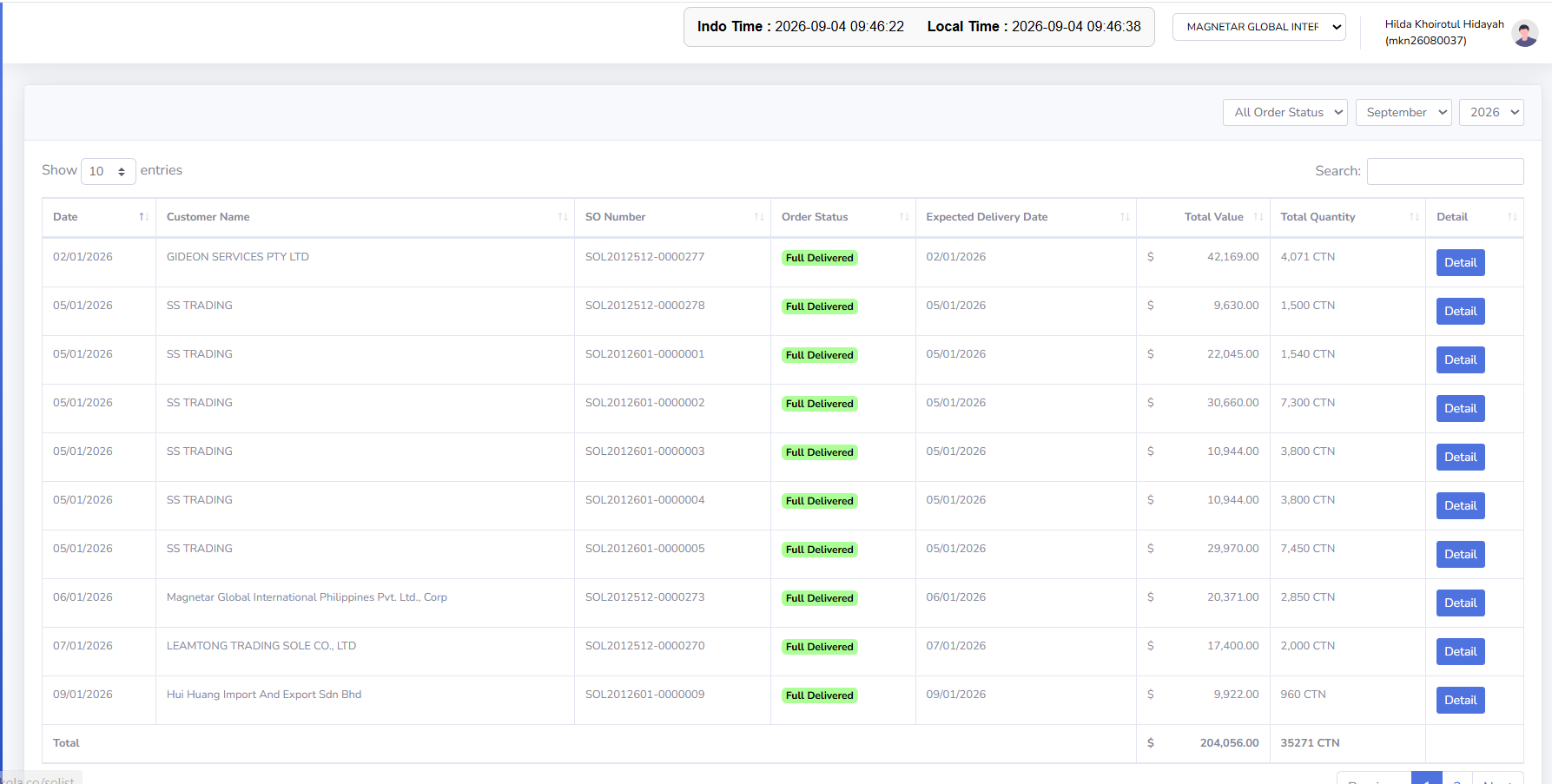
The main Tracking page displays a list of Sales Orders along with their status and shipping information. This page is used to search for and monitor Sales Orders based on Order Status, month, and year. Each Sales Order is displayed in a table format so that the order status, shipping date, transaction value, and quantity can be viewed at a glance.
- filter tracking
In the upper-right corner of the page, there are several filters to narrow down the displayed data.
-
Order Status: The Order Status filter is used to display Sales Orders based on a specific status.
-
Month: The Month filter is used to select the month for the Sales Order data to be displayed.
- Year: The Year filter is used to specify the year of the Sales Orders to be displayed.
-
- filter tracking
-
Table Explanation
Date displays the date recorded on the Sales Order. Customer Name Customer Name displays the name of the customer associated with the Sales Order. So Number SO Number displays the Sales Order number as the identifier for each order. Order Status Order Status displays the current status of the Sales Order. Expected Delivery Date Expected Delivery Date displays the planned or expected delivery date for the Sales Order. Total value
Total Value displays the total transaction value of the Sales Order. The value is displayed in the currency corresponding to the currently active company.Total Quantity
Total Quantity displays the total quantity of products included in the Sales Order. In the screenshot, the quantity is displayed in CTN units.Details The Detail button is used to open the Sales Order details. Click the Detail button to view the list of items, quantities, and values for the selected order.
-
Tips & Important Notes
-
Use the Order Status, Month, and Year filters to narrow down the Sales Order data you want to monitor.
-
Check the Order Status to see the current status of the Sales Order’s shipping process.
-
Check the Expected Delivery Date to see the scheduled delivery date.
-
Check the Total Value and Total Quantity to see the value and quantity of products for each order.
-
Click Details to view the product details included in the Sales Order.
-
Use Search to find specific Sales Orders or customers more quickly.
-
Check the Total row to view the total quantity and value of the displayed data.
-
No comments to display
No comments to display