
Sales Forecast
Sales Forecast Module Guide
Module Location:
Sales Forecast > sales forecast
The Sales Forecast module is used to create and manage sales forecasts based on the selected period and warehouse. The Sales Forecast serves as sales planning data that can later be used as a reference in the sales process. Each Sales Forecast created will have a document number (SF Number), period information, warehouse, document status, approval status, document creator, and creation date. In addition to creating Sales Forecasts, the module also provides Sales Forecast details to add or modify forecast data and monitor the approval process through the Sales Forecast Inbox menu.
-
Home Page View
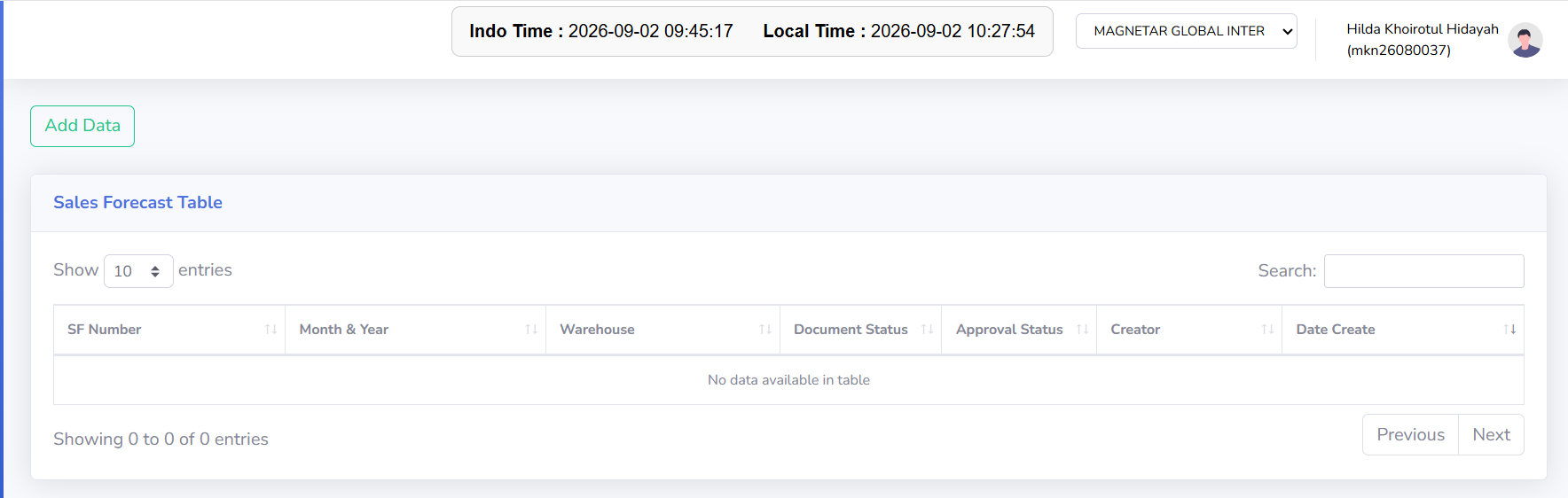
The Sales Forecast home page displays all sales forecast data created for the currently active company.
View Description
This page is used to view a list of sales forecasts, create new sales forecasts, search for data, and view sales forecast details by SF Number.
-
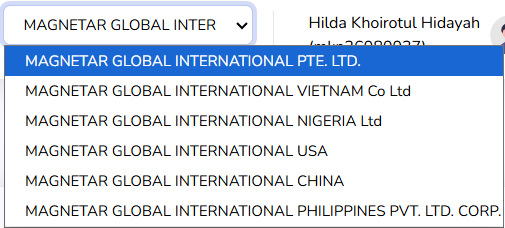
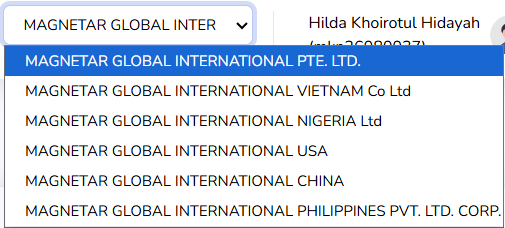
Current Company: Displays the currently active company. The company can be changed using the dropdown at the top of the page. The Sales Forecast data displayed will adjust according to the selected company.
-
Show Entries: Sets the number of records displayed in the table per page.
-
Search: Used to search for Sales Forecast data in the table.
-
Previous / Next: Used to navigate between pages when the amount of data exceeds the limit displayed per page.
-
-
Steps to Create a New Sales Forecast:
The following is the workflow for creating a sales forecast, from adding data to filling in the forecast details.
-
Verify the Current Company: Before creating a sales forecast, ensure that the Current Company matches the company to be processed.
-
Adding a New Sales Forecast
From the Sales Forecast main page, click the Add Data button located in the upper-left corner.
After clicking the “Add Data” button, the system will check the Sales Forecast approval configuration. If the check is successful, the Sales Forecast creation form will appear. If the check fails, the data entry process cannot continue, and the system will display an informational message.
-
Filling Out the Sales Forecast Form: Fill in all required information on the Add Sales Forecast form. Ensure that the selected information matches the Sales Forecast you are creating.
-
Once all data has been entered:
-
Double-check the data you have entered.
-
Click the Submit/Save button as indicated on the form.
-
The system will validate the entered data.
-
If all data is valid, the Sales Forecast will be saved.
-
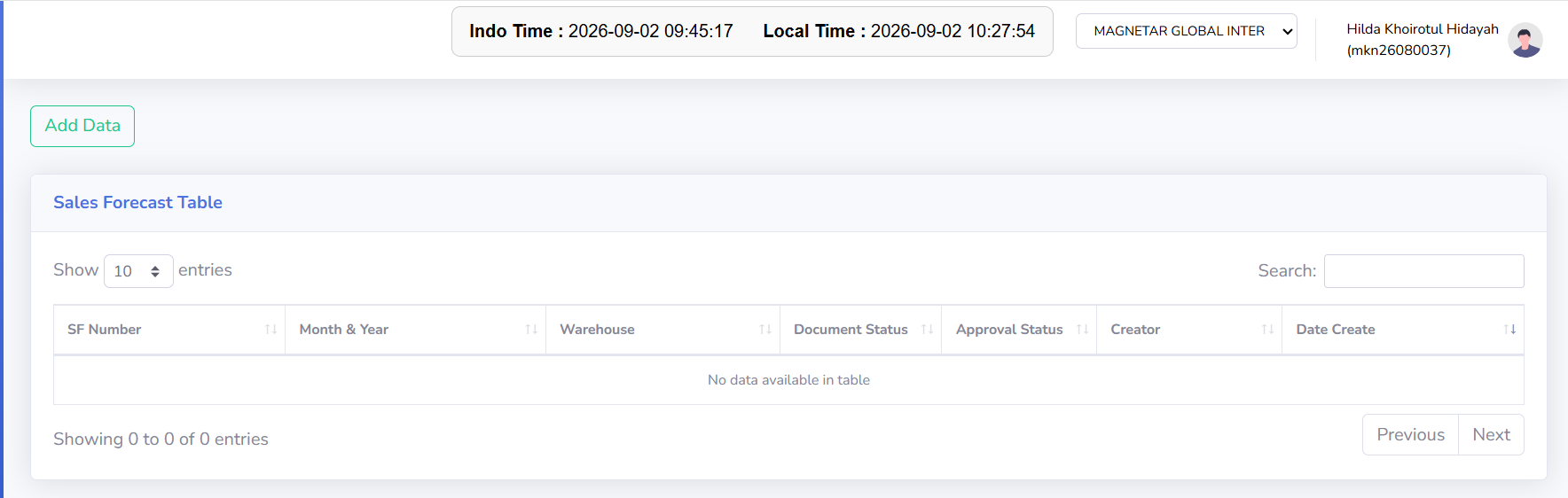
The successfully saved data will appear in the Sales Forecast Table
-
-
-
Tips & Important Notes
-
Make sure the Current Company matches the company to be processed before creating a Sales Forecast.
-
Make sure the selected period matches the Sales Forecast period you are creating.
-
Make sure the selected Warehouse matches the warehouse used in sales planning.
-
Double-check the data before saving the Sales Forecast.
-
Use the SF Number to view the details of a Sales Forecast you have created.
-
Ensure that the Sales Forecast details have been filled out according to the sales forecast requirements.
-
Check the Document Status to determine the status of the Sales Forecast document.
-
Check the Approval Status to track the progress of the Sales Forecast approval process.
-
Use the Sales Forecast Inbox to view and process Sales Forecasts that require approval.
-
If the Add Data process cannot continue and the system displays an information message, check the Sales Forecast approval configuration.
-
Use Search to find specific Sales Forecast data more quickly.
-
Use Show Entries to set the number of records displayed in the table.
-
Use Previous / Next to navigate between pages if there is a large amount of data.
-
Ensure the Sales Forecast data is correct before proceeding with the approval process.
-
No comments to display
No comments to display