
Sales Order
Sales Order Module Guide
Module Location:
soApp > Sales Order
-
Main Page View
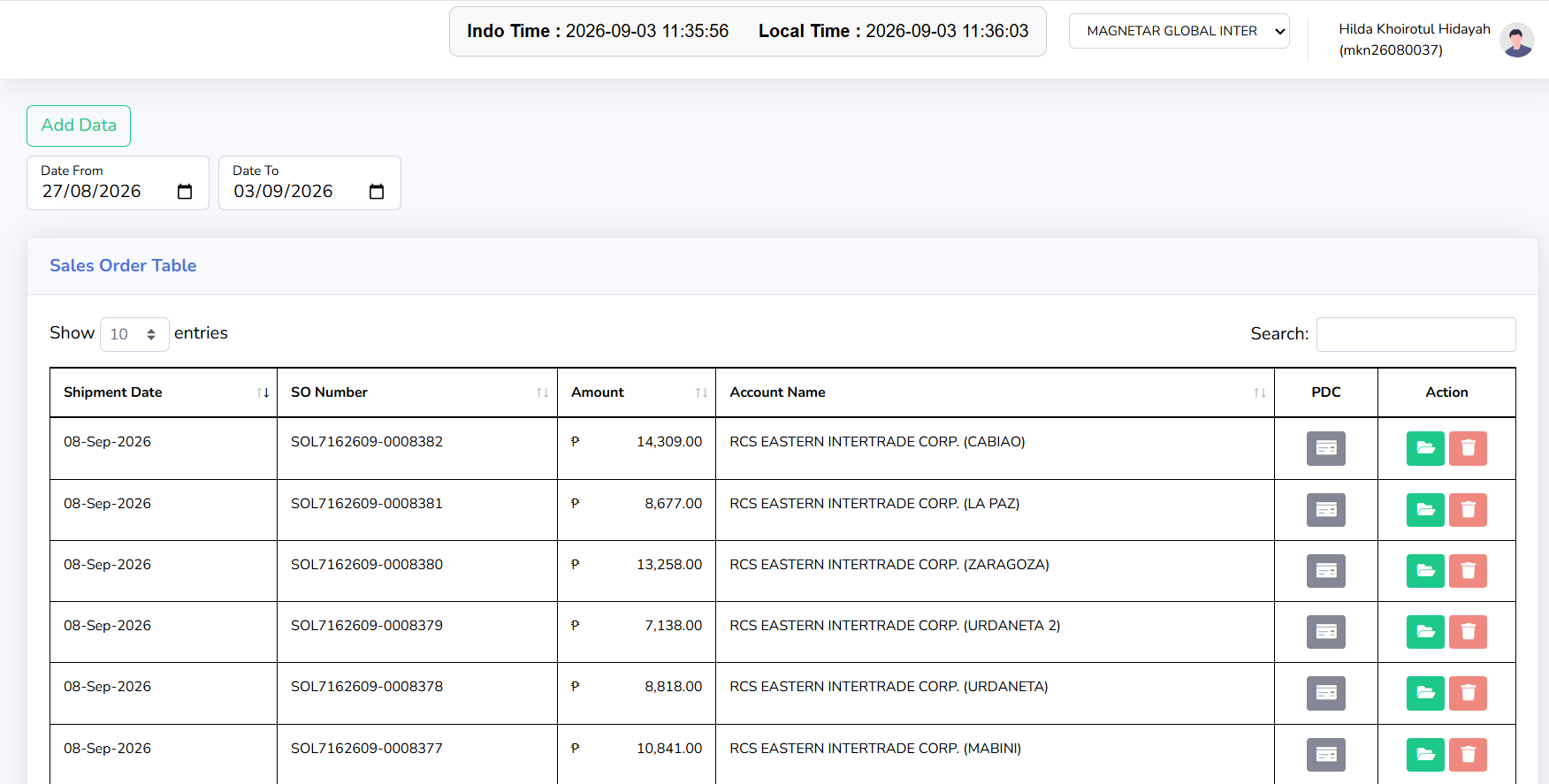
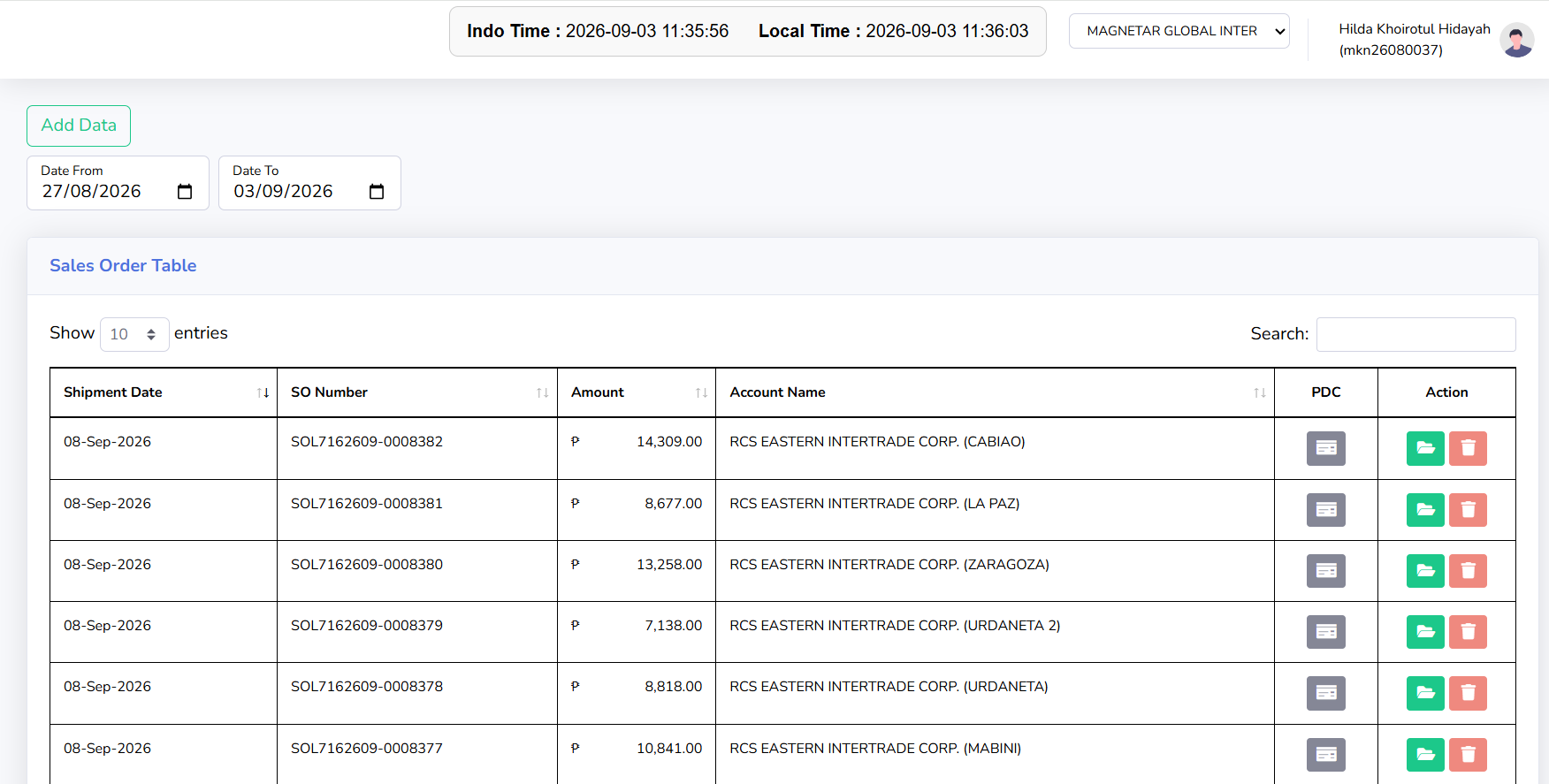
The Sales Order main page displays all Sales Order data based on the selected company and date range. This page is used to view and search for Sales Order data, create new Sales Orders, monitor Sales Order shipping status, and view the PDC status related to Sales Orders. The data displayed in the table will adjust based on the Company, Date From, and Date To selected by the user.
-
Screen Overview
At the top of the page are the Company selector, the Add Data button, date filters, and the Sales Order Table.
-
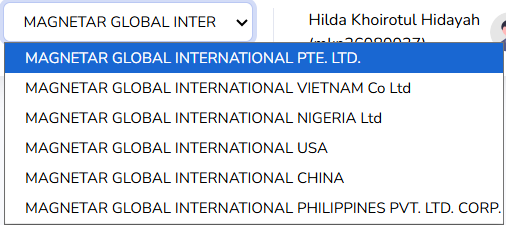
Company:
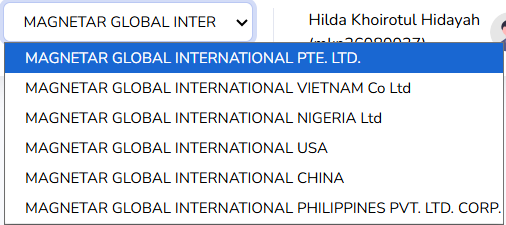
The Company dropdown is located in the upper-right corner of the page and is used to select the company to be processed. The Sales Order data displayed will adjust according to the selected company.
- Add data
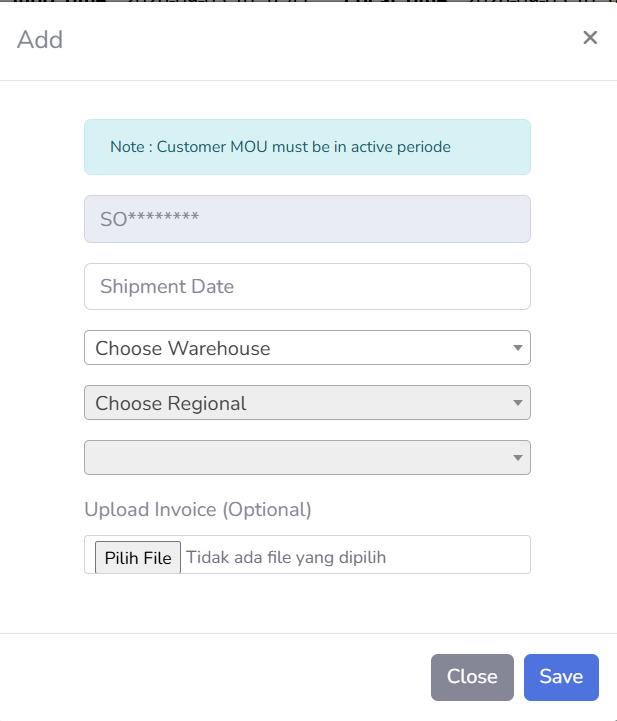
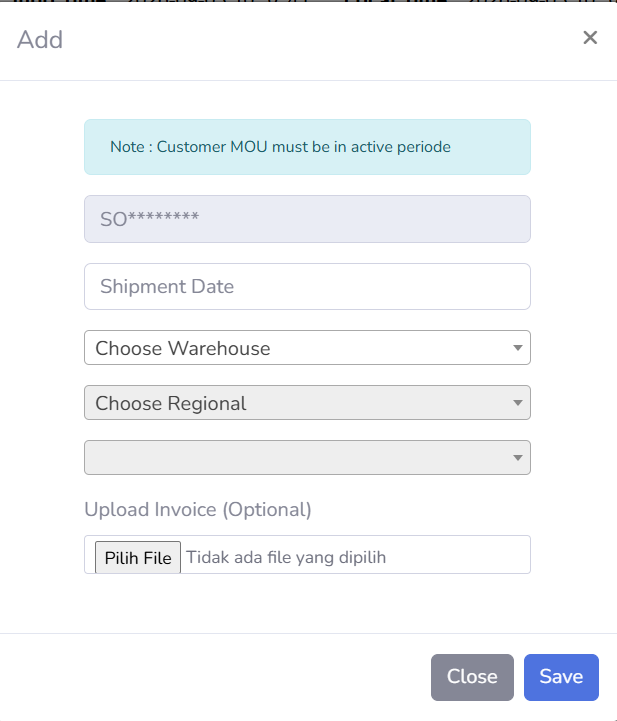
The Add Data button is used to create a new Sales Order. Click the Add Data button to open the Sales Order creation form.
- Date Filter
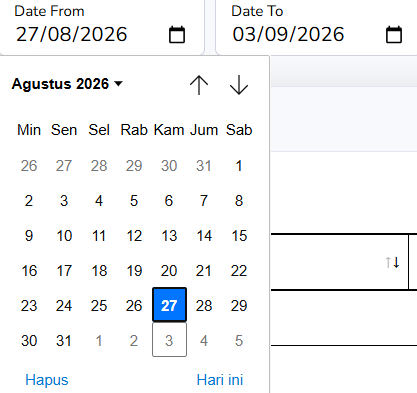
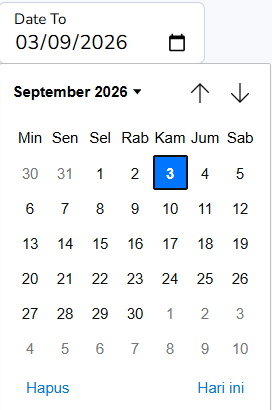
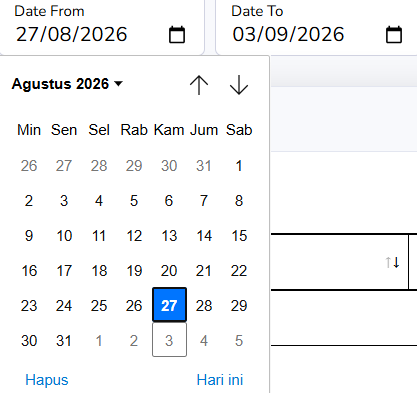
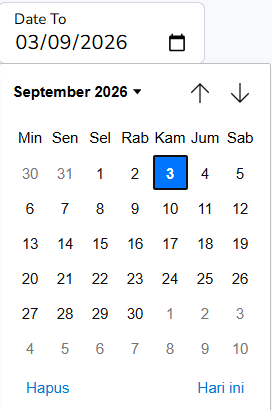
The “Date From” and “Date To” filters are used to specify the Sales Order period to be displayed in the table.
-
Date From: Specifies the start date of the search.
-
Date To: specifies the end date of the search
Once the date range is specified, the table will display Sales Orders that fall within that range.
-
- Show Entries
Show Entries is used to specify the number of Sales Order records displayed per page. For example, if you select 10 entries, a maximum of 10 records will be displayed on a single page of the table.
- Search
The Search field is used to search for specific data in the Sales Order Table. Enter an appropriate keyword to narrow down the displayed results.
- Previous dan Next
The Previous and Next buttons are used to navigate between pages when the number of Sales Orders exceeds the limit for a single page.
-
-
Sales Order Table
The Sales Order Table displays sales order information based on the selected company and date range. The available columns include:
-
Shipment Date: Displays the shipment date recorded on the sales order.
-
SO Number: Displays the sales order number, which serves as the identifier for each sales order document.
-
Amount: Displays the value or total amount of the transaction on the sales order.
-
Account Name: Displays the name of the account or customer associated with the sales order.
-
PDC: Displays the PDC status of the sales order.
- Action: Displays the actions that can be taken on the sales order based on the document’s status.
-
-
Sales Order Status Descriptions
At the bottom of the Sales Order Table, there is a color legend used to indicate the status of a Sales Order.
-
SO has been sent
Indicates that the Sales Order has been sent. This status is marked with a green icon.

-
SO not yet sent
Indicates that the Sales Order has not yet been sent. This status is marked with a blue icon.

-
SO has been canceled
Indicates that the Sales Order has been canceled. This status is marked with a red icon.

-
-
PDC Status Information
In addition to the Sales Order status, this page also displays PDC status information. Available PDC statuses include:
-
PDC Has Been Picked
Indicates that the PDC has been picked. This status is marked with a green icon.

-
PDC Has Been Uploaded
Indicates that the PDC has been uploaded to the system. This status is marked with a blue icon.

-
PDC Has Been Rejected
Indicates that the PDC has been rejected. This status is marked with a red icon.

-
-
Tips & Important Notes
-
Make sure the Company is correct before creating or searching for a Sales Order.
-
Use “Date From” and “Date To” to display Sales Orders based on a specific period.
-
Make sure the Shipment Date is correct before continuing the process.
-
Ensure that the Sales Forecast for the selected warehouse, period, and region is available before creating a Sales Order.
-
Double-check the customer and all Sales Order information before saving or submitting.
-
Pay attention to the icon colors in the table to determine the Sales Order status.
-
Check the PDC status to determine the status of the PDC document associated with the Sales Order.
-
Use the Search function to find specific Sales Orders more quickly.
-






No comments to display
No comments to display