
Matrix Item
Settings Module Guide
Module Location:
soApp > Settings > Matrix Item
The Item List module is used to manage the relationship between items owned by the company and the item codes used by customers. The information stored includes the customer, item name, Magnetar Item Code, and Customer Item Code. This is important because the same product can have a company-internal code and a different code in the customer’s system.
-
Matrix List page view
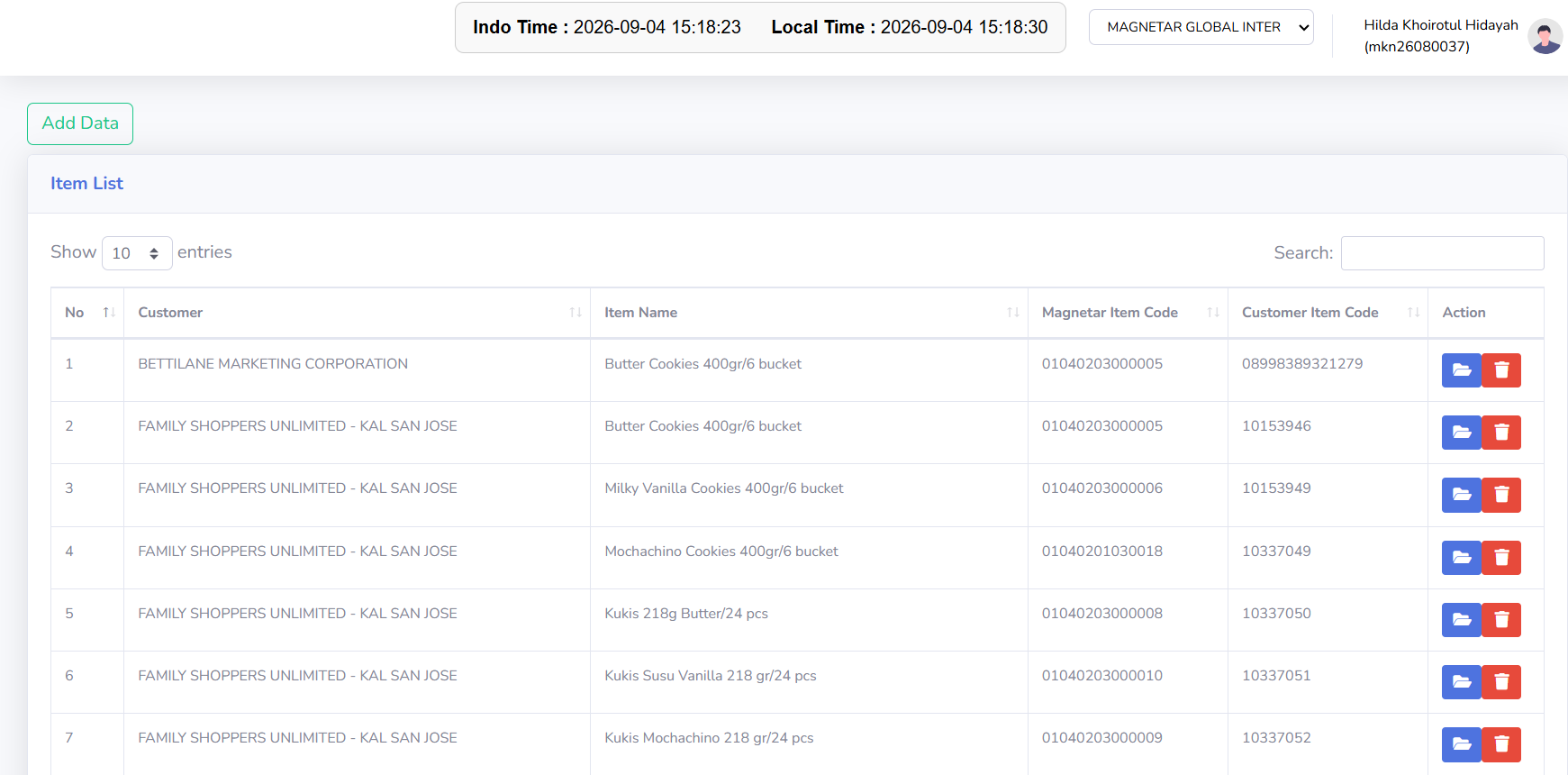
The Item List page displays a list of items along with their internal codes and customer item codes. At the top, there is an Add Data button for adding new item mappings.
-
Coloum Description
No Displays the sequential number of the data in the table.
Customer Displays the name of the customer using that item.
Item Name Displays the name or description of the product.
Magnetar Item Code Displays the internal item code used in the Magnetar/KOKOLA system.
Customer Item Code Displays the item code used by the customer for that product.
-
Tips & Important Notes
-
Make sure the selected customer is correct before adding or changing an item mapping.
-
Make sure the selected Item Name matches the product used by the customer.
-
Double-check the Magnetar Item Code to ensure it matches the internal item code used in the system.
-
Ensure the Customer Item Code matches the item code used by the customer for that product.
-
Avoid creating duplicate mappings for customers and items that have already been registered.
-
Double-check all information before saving the data to avoid item mapping errors.
-
Be aware of the difference between the Magnetar Item Code and the Customer Item Code, as a single product may use different codes in the internal system and the customer’s system.
-
If an item code mismatch occurs during a transaction, first check the mapping data in the Item Matrix.
-
Use “Add Data” only to add new item mappings that are not yet available.
-
Ensure that changes to item mappings are made carefully, as this data may be used as a reference in transactions involving the customer.
-
If a customer uses a new item code or experiences a code change, ensure that the Customer Item Code data is updated according to the latest information.
-
Double-check the customer, item, and both item codes after the data has been successfully saved.
-
No comments to display
No comments to display