
BC 1.6
Customs Documents Module Guide
Module Location:
CEISA > Customs Documents > BC 1.6
Purpose
How to Access
- Log in to the CEISA Loka application.
- Select the Customs Documents menu.
- Click BC 1.6.
- The system displays the BC 1.6 Document List page.
Page View
The BC 1.6 page generally consists of:
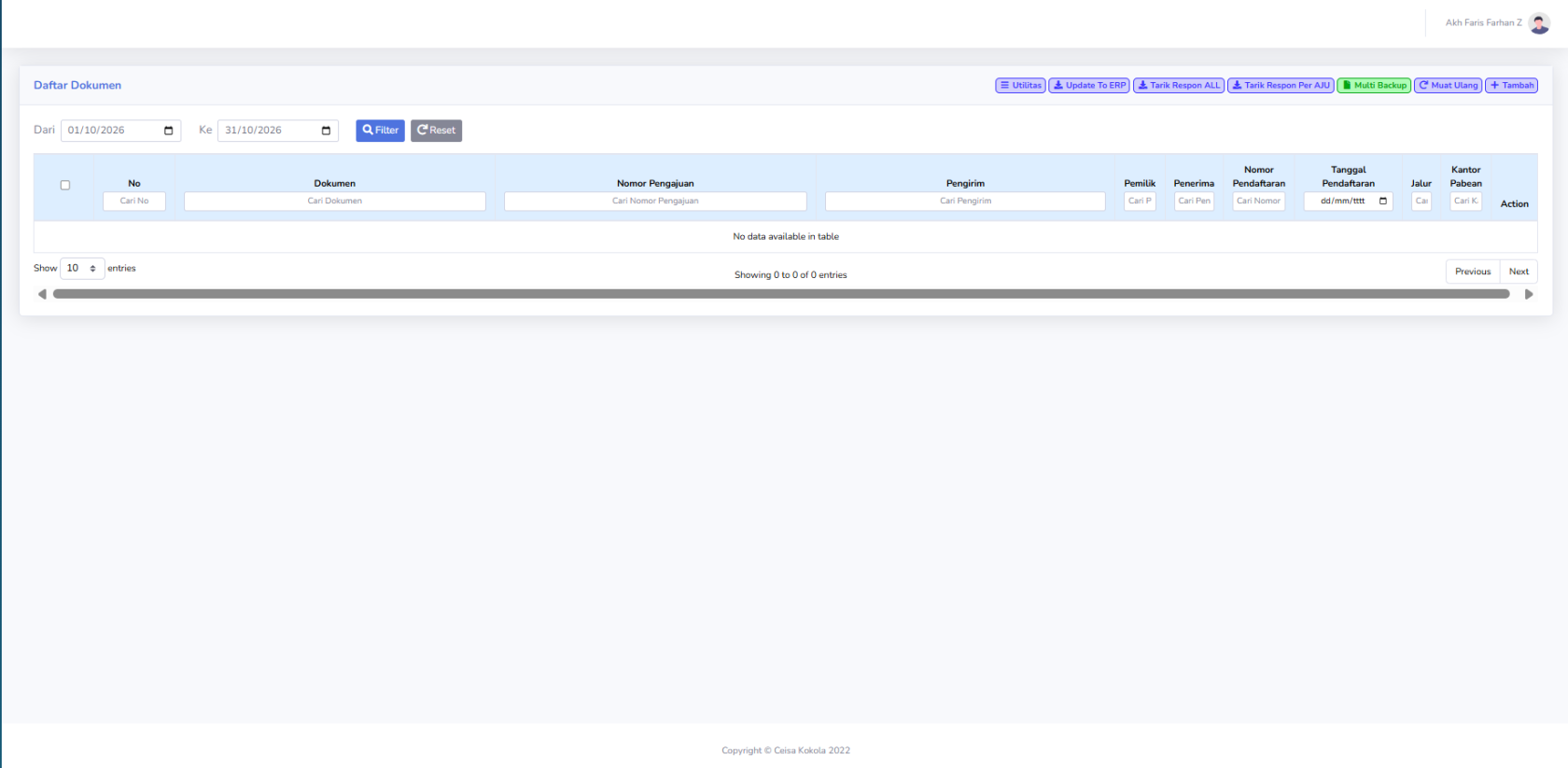
- Period Filter: Used to specify the document period.
- Document List Displays available BC 1.6 documents.
- Search Column: Used to search for documents based on specific information.
- Utility Menu: Used for additional processes such as synchronization or retrieving responses.
Column Descriptions
| No | Displays the sequential number of the data. |
| Dokumen | Displays the document type, namely BC 1.6. |
| Nomor Pengajuan |
Displays the document submission identification number. |
| Pengirim/Pemilik | Displays the party associated with the goods. |
| Penerima | Displays the recipient, if available. |
| Nomor Pendaftaran | Displays the registration number received from the customs system. |
| Tanggal Pendaftaran |
Displays the document’s registration date. Customs Office Displays the Customs and Excise Office handling the document. |
Button Descriptions
- Filter: Displays documents based on the From and To dates.
- Reset: Clears the applied filters.
- Retrieve ALL Responses: Retrieves the latest responses for multiple documents.
- Retrieve Responses by Application Number: Retrieves responses for a single application number.
- Reload: Refreshes the data on the page.
- Add: Used to create a new document, if available.
No comments to display
No comments to display