
APPLICATION CHANGES
Access Requisition Module Guide
Module Location:
Access Requisition > Requisition > Application Change
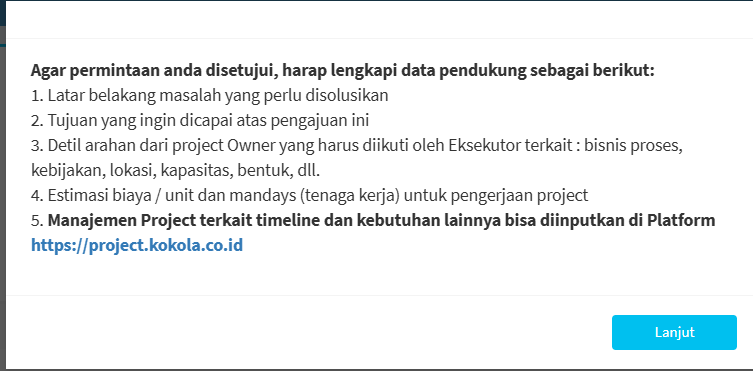
The Application Change Menu is used to submit requests related to application requirements, including requests for new applications or changes, based on the options available in the system. Before submitting a request, users must prepare supporting information that explains the requirements, objectives, project guidelines, and implementation needs so that the request can be understood and processed by the relevant parties.
-
Main View
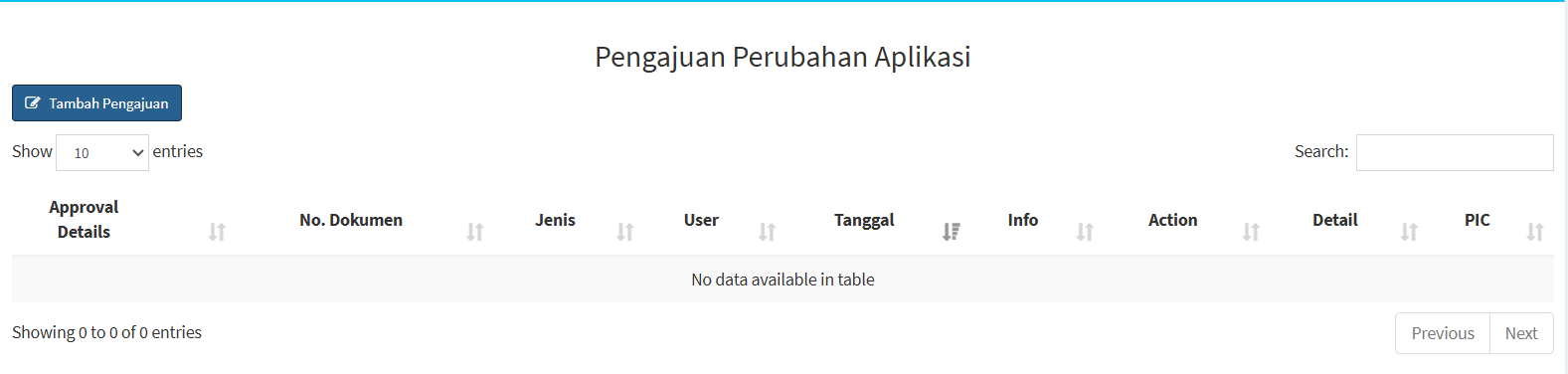
The Application Change Request page is used to view a list of requests that have been submitted and to create new requests. This page features an “Add Request” button, a table listing requests, a search feature, and settings to adjust the number of records displayed.
-
Screen Description
| Section | Description |
|---|---|
| Add Submission | Used to create a new Application Change submission. |
| Show Entries | Used to specify the number of records displayed in the table. |
| Search | Used to search for submissions based on specific keywords. |
| Approval Details | Displays information about the approval process or details of the submission. |
| Dokumen No. | Displays the submission document number. |
| Type | Displays the type of application or submission selected. |
| User | Displays the user associated with the application. |
| Date | Displays the date the application was created or recorded in the system. |
| Info | Displays information regarding the status of the application. |
| Action | Displays the actions that can be taken on the application. |
| Detail | Used to view detailed information about the application, if available. |
| PIC | Displays the PIC associated with the application process, if specified. |
-
Submitting an Application Change Request
To create a new request, click the button:
“Add Request”
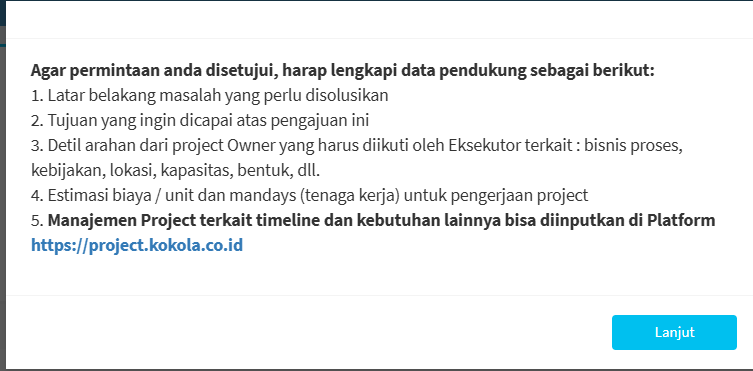
Before proceeding to the application selection form, the system will display information regarding the supporting documents that need to be prepared.
-
Selecting an Application Request
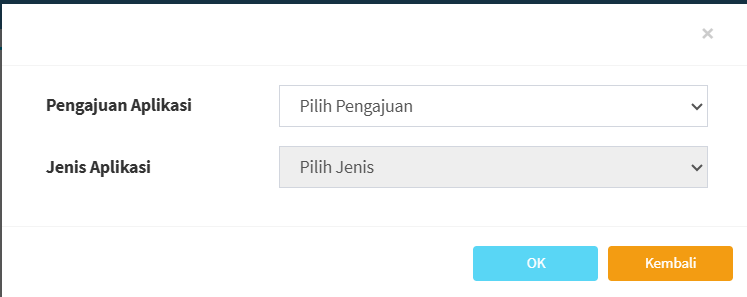
After the Next button is selected, the system displays the application form.
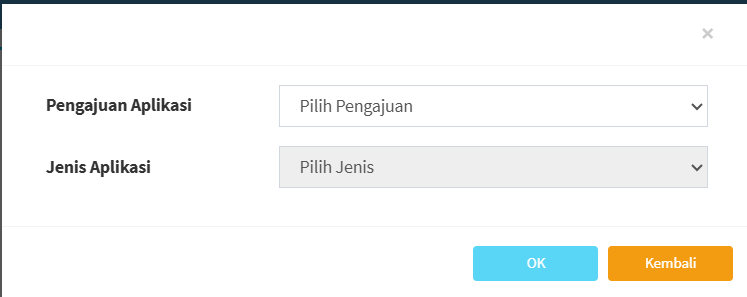
The form contains two main fields:
Field
Description
Application Submission
Used to specify the type of application submission to be made.
Application Type
Used to specify the application associated with the submission.
OK
Used to continue the process after a selection has been made.
Back
Used to go back or cancel the process at that stage.
X
Used to close the form.
-
Used to close the form.
In the Application Submission field, select the type of submission that best suits your needs. In the example screenshot, the option selected is:
“New”
This means that the submission being created is a new application submission, as per the options available in the system.
-
Selecting the Submission Type
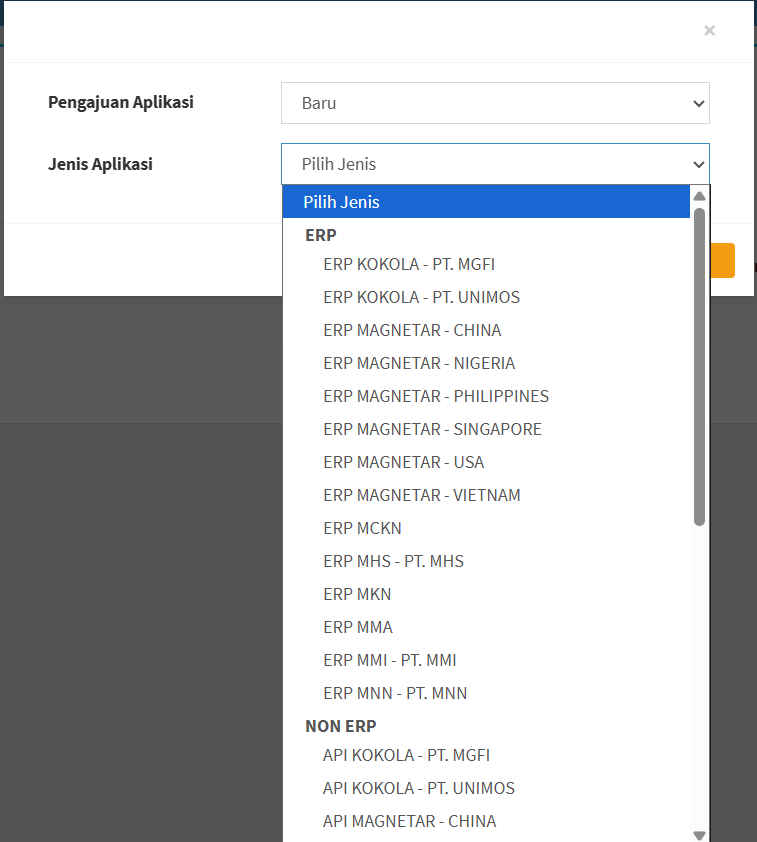
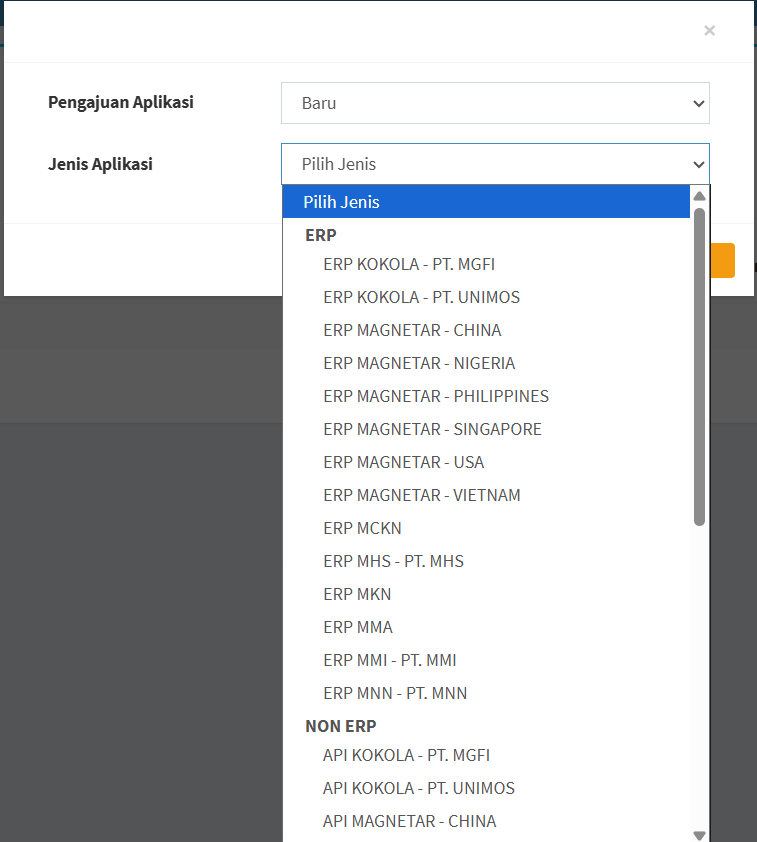
After selecting “Submit Application,” choose an application from the “Application Type” field. Applications in the system are grouped by category, such as:
- Selecting the Appropriate Application
-
Ensure that the selected application aligns with:
company → system/application → submission requirements
-
Pay attention to the company name in the application options, as the same application may be available for multiple companies or different units.
For example:
ERP KOKOLA - PT. MGFI
is different from:
ERP KOKOLA - PT. UNIMOS
even though both use ERP KOKOL
-
- Continuing the Submission Process
After selecting the Application Submission and Application Type, click the button:
“OK”
The system will proceed to the next step based on the selected application type and submission.
If the user does not wish to continue, click:
“Back”
No comments to display
No comments to display