
BC 4.0
Customs Documents Module Guide
Module Location:
CEISA > Customs Documents > BC 4.0
Page Display
Displays a list of submissions for goods entering the TPB.
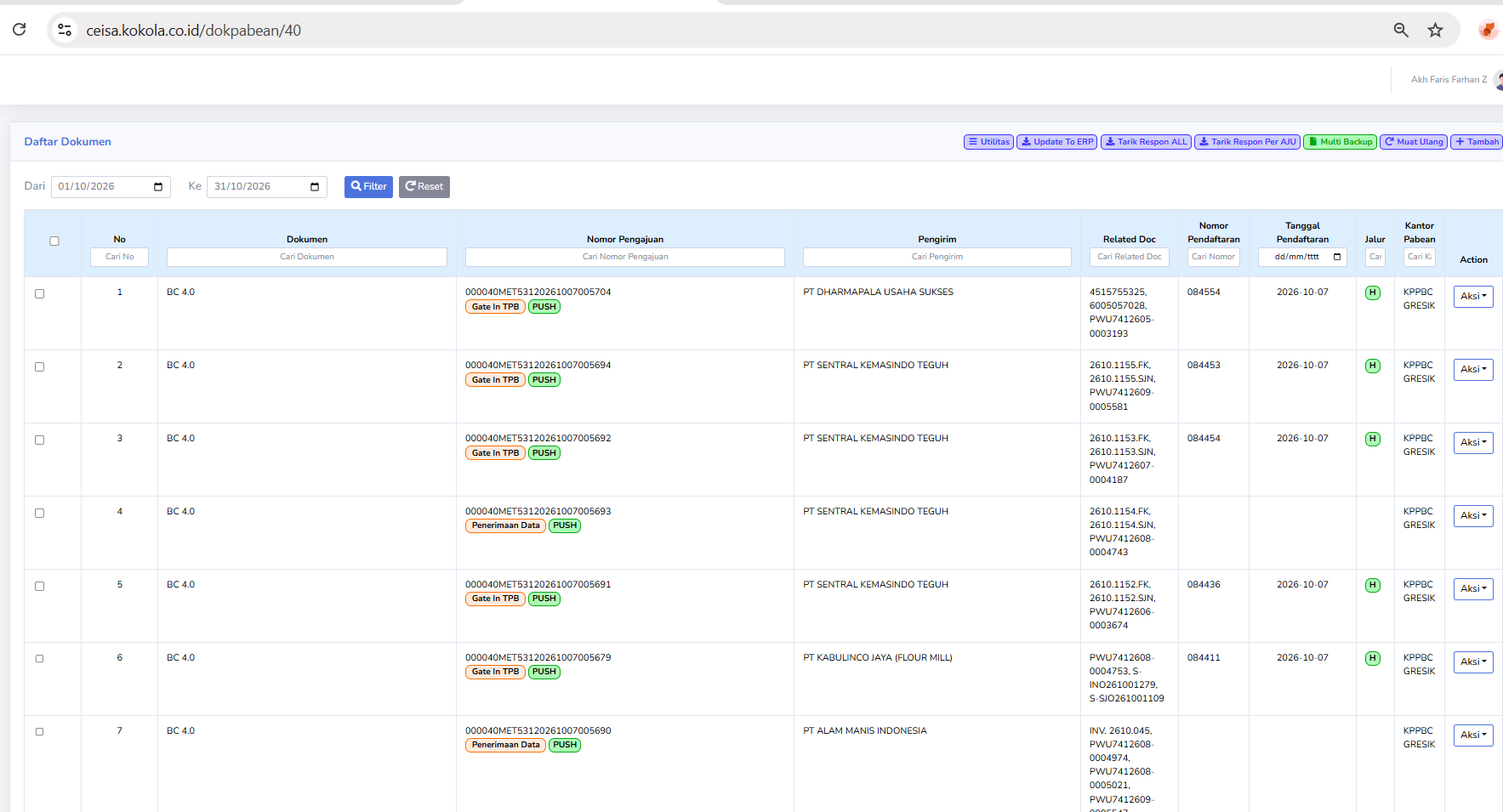
Column Descriptions
The available columns include:
- No.: Displays the document’s sequential number in the list.
- Document: Displays the type of customs document, namely BC 4.0.
- Submission Number: Displays the AJU number as the document submission identifier.
- Sender: Displays the name of the company or party sending the goods.
- Related Doc: Displays the reference document number related to the submission, such as an invoice or shipping document.
- Registration Number: Displays the document registration number assigned through the customs process.
- Registration Date: Displays the date the document was registered.
- Lane: Displays the customs service lane indicator, such as Green Lane or Red Lane.
- Customs Office: Displays the Customs Office handling the document.
- Action: Displays options for further actions on the selected document.
Button Descriptions
- Utilities: Opens a menu of additional features for document management.
- Update to ERP: Used to update or synchronize document data with the company’s ERP system.
- Retrieve ALL Responses: Used to retrieve or update customs responses for a number of documents.
- Retrieve Response by AJU: Used to retrieve responses based on a specific submission number.
- Multi Backup: Used to back up multiple documents at once.
- Reload: Refreshes the document list view.
- Add: Used to create a new BC 4.0 document submission.
- Filter: Displays documents based on the selected date range.
- Reset: Restores the search filter to its default settings.
Usage Steps
- Select a period.
- Click Filter.
- Search for a declaration.
- Check the shipper and consignee.
- Retrieve the latest response.
- Check the registration number.
- Perform follow-up actions.