Skip to main content
Item Transaction Report
Report Module Guide: Item/Service Transaction Report
Module Location
Sales > Reports > Item Reports > Item Transaction Report
Module Objective
The Item/Service Transaction Report module is used to generate a report that resembles a "stock card," which is to say it displays a detailed transaction history for each item or service. This report is very flexible as it can display transactions from both the Sales and Purchasing sides, thereby providing a complete overview of an item's movement.
1. Report Parameters (Filter)
The main page of this module is a form containing various parameters to customize the report that will be generated.
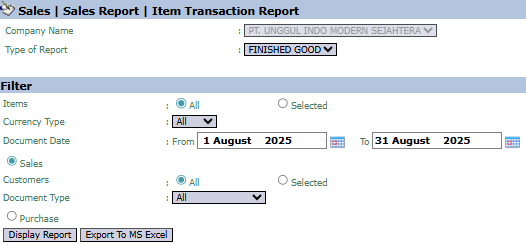
Here is an explanation for each parameter:
-
Item:
-
Select All to display transactions for all items, or Selected to choose specific items.
-
Document Date:
-
Specify the From and To date range to define the period of transactions to be displayed (e.g., August 1, 2025, to August 31, 2025).
-
Transaction Type Filter:
-
Use these radio buttons to define the type of transaction you wish to see. You can select Sales or Purchasing.
-
Customer:
-
Filter transactions by All customers or a Selected customer.
2. Steps to Generate the Report
Step 1: Set Report Parameters
Select all the parameters you need, especially defining the Document Date range and the transaction type (Sales or Purchasing).


Step 2: Generate the Report
After all parameters are set, click one of the two buttons in the bottom-left section of the page:
-
Display Report: To preview the item transaction report directly on your screen. 
-
Export To MS Excel: To download the report data in an Excel file format.

3. Example of the Report View
After you click, the system will generate a detailed report like the following, which will detail the transactions under each item name.
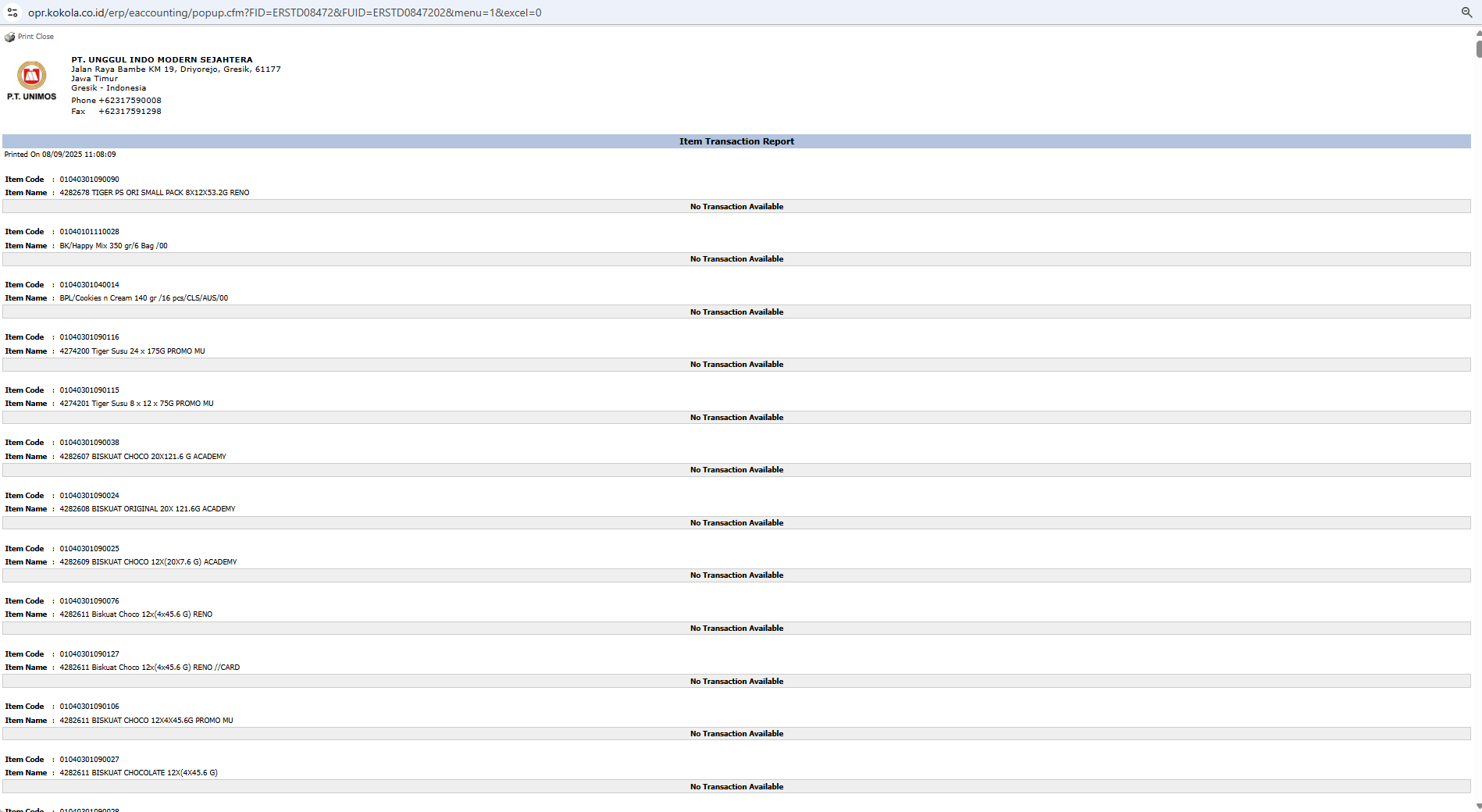
Report Explanation: The report will display a list of the products you selected. Under each product, there will be a detailed list of every transaction (sales or purchase) that occurred within the selected period. In this example, no transactions were found ("Tidak Ada Transaksi").
Content: This report will contain details such as the transaction date, document number, quantity, and value for each item movement.
Tips & Important Notes
-
Use this report to trace the complete history of a product, both from the purchasing side (goods in) and the sales side (goods out).
-
This report is very useful for the Inventory and PPIC (Production Planning and Inventory Control) teams for stock movement analysis.
-
By choosing between Sales and Purchasing, you can get a complete 'in-out' picture for an item.
