
BC 2.6.2
Customs Documents Module Guide
Module Location:
CEISA > Customs Documents > BC 2.6.2
The BC 2.6.2 form is used to manage notification documents for the re-entry of goods that were previously temporarily released from a Bonded Warehouse (TPB) to Another Location Within the Customs Territory (TLDDP) using the BC 2.6.1 form. This document is used to record the process of returning goods to the BW after they were previously temporarily released, for example, for subcontracting activities or other activities approved in accordance with customs regulations.
BC 2.6.2 is a document related to BC 2.6.1, which is the document for the temporary release of goods from a Bonded Warehouse with a guarantee. Through this menu, users can view a list of submissions, search for documents, check registration information, monitor the status of goods re-entry, update customs responses, and manage document data via the Edit page.
How to Access
- Log in to the CEISA Kokola application.
- Select the Customs Documents menu.
- Click the BC 2.6.2 submenu.
- The system displays the Document List page.
Page Display
The main page displays a list of BC 2.6.2 document submissions used for re-importing goods into a Temporary Storage Facility (TPB). Each row displays information such as document type, submission number, shipper, registration number, registration date, route, customs office, and document processing status. At the top, there are period filters, document management buttons, and a button to create a new submission.
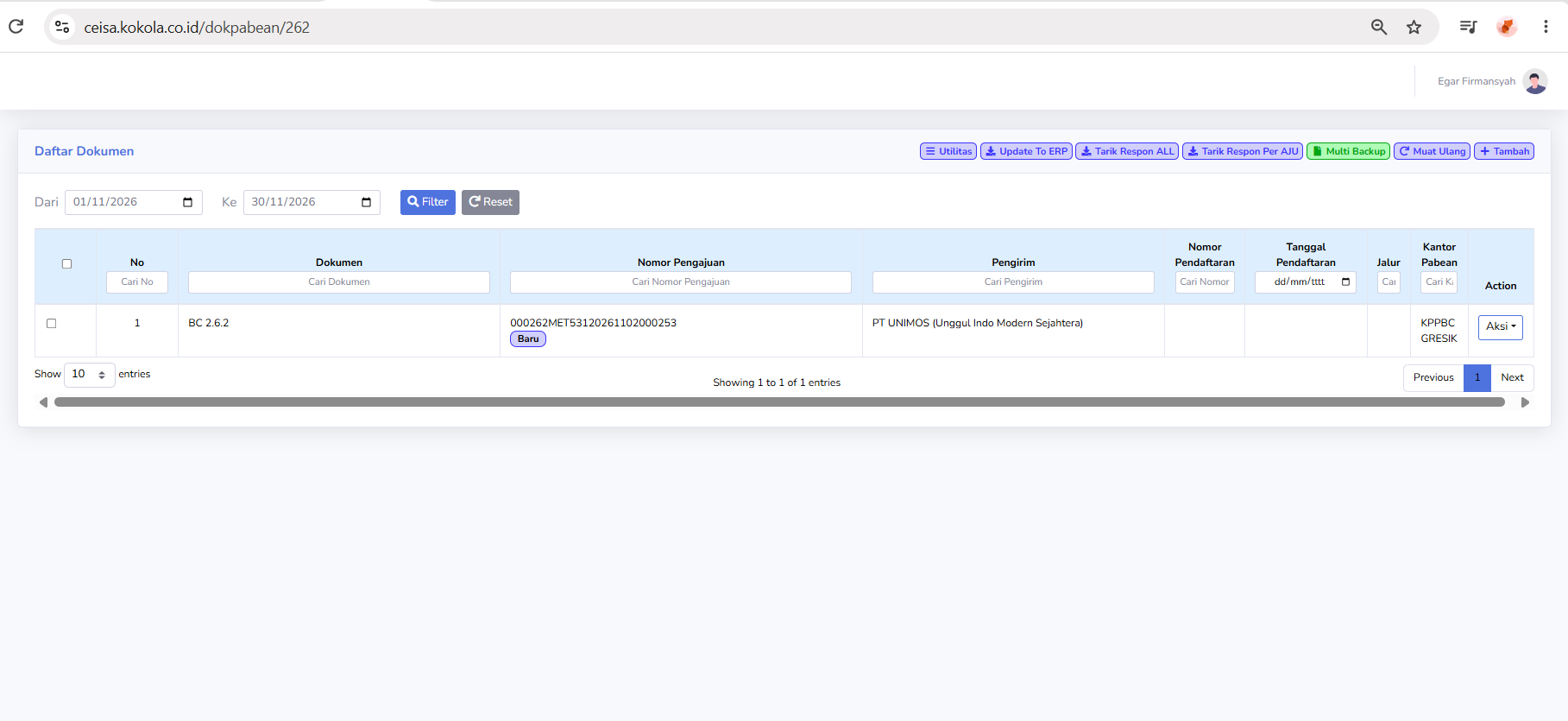
At the top, you’ll find a date range filter, document management buttons, and a button to create a new submission.
Column Descriptions
The available columns include:
-
Checkbox: Used to selected one or more documents when bulk actions are avsilable
-
No: Displays the document's sequential number in the list.
-
Document: Displays the type of customs documnet, namely BC 2.62.
-
Submission Number: Displays the AJU number as the document submission identifier
-
Sender: Display the name of the company or party sending the goods
-
Registration Number: Displays the document registration number issue through the customs process
-
Registration Date: Displays the date the document was registered
-
Channel: Displays the customs service or supervision channel indicator, if available.
-
Customs Office: Display the customs and excise office handling the document.
-
Action: Displays option for further action regarding the selected documents.
Additionally, a search field is available to help users find documents based on the application number, sender, or other information.
Button Descriptions
-
Filter: Displays documents based on teh seleted date range
-
Reset: restores the filter settings to their default state
-
Utilies: Opens a menu of additional fuctions for documen management
-
Update To ERP: Used to update or synchronize document data with the company's ERP system
-
Retrieve ALL Responses: Used to retrieve or update customs responses for a number of documents.
-
Retrieve Response by AJU: Use to retrieve responses baes on a spesific submissin name
-
Multi Backup: Used to back up multiple document at once
-
Reload: Refreshes the document list view
-
Add: Used to create a new BC. 2.6.2 documents submission
-
Action: Opens a menu of action for the selected document
Status and Path Explanation
In the Application Number column, there is an indicator showing the document processing stage. The status shown in the screenshot is:
Other statuses that may be related to the process of submitting and re-entering goods include:
-
Gate In TPB: Related to the recording of goods entry activities through the TPB gate
-
Data Receipt: Relates to the system;s receipt of document data
-
PUSH: An application indicator believed to be related to the data transmission or synchronization process.
In the “Route” column, the system may display indicators for customs service routes, such as the Green Lane or Red Lane, once the route assignment is available.
Note: In the screenshot, the document still has a “New” status, while the Registration Number, Registration Date, and Lane fields are not yet filled in. This indicates that this information is not yet available in the list. The actual status should be verified through the details or an official response from CEISA.
Table Navigation Explanation
The following features are available at the bottom of the page:
-
Show Entries: Sets the number of documents displayed on each page
-
Previous: Go to the previous list page
-
Next: Go to the next list page
-
Showing Entries: Displays the number of documents currently shown and the total number of documents.
-
Scrollbar Horizontal: Scroll the table view to see columns that are not visible on the screen
Document Edit Page
When a user opens a document via the Actions > Edit menu, the system displays the BC 2.6.2 document details page. This page is used to view, complete, and update information regarding the return of goods that were previously temporarily removed from the TPB.
At the top of the Edit page, the following buttons are available:
-
Back: return to the previous page
-
Print: Print the BC 2.6.2 document
-
Validate: Check the completeness accuracyof the document data through the application.
-
Show History: Display the recorded history of changes or activities for the document
The Edit page consists of ten navigation tabs:
-
Header
-
Entity
-
Document
-
Carrier
-
Packaging & Container
-
Transaction
-
Goods
-
Guarantee
-
Levies
-
Statement
At the bottom of each tab, there is a “Previous” button to return to the previous tab and a “Next” button to proceed to the next tab.
Header Tab Explanation
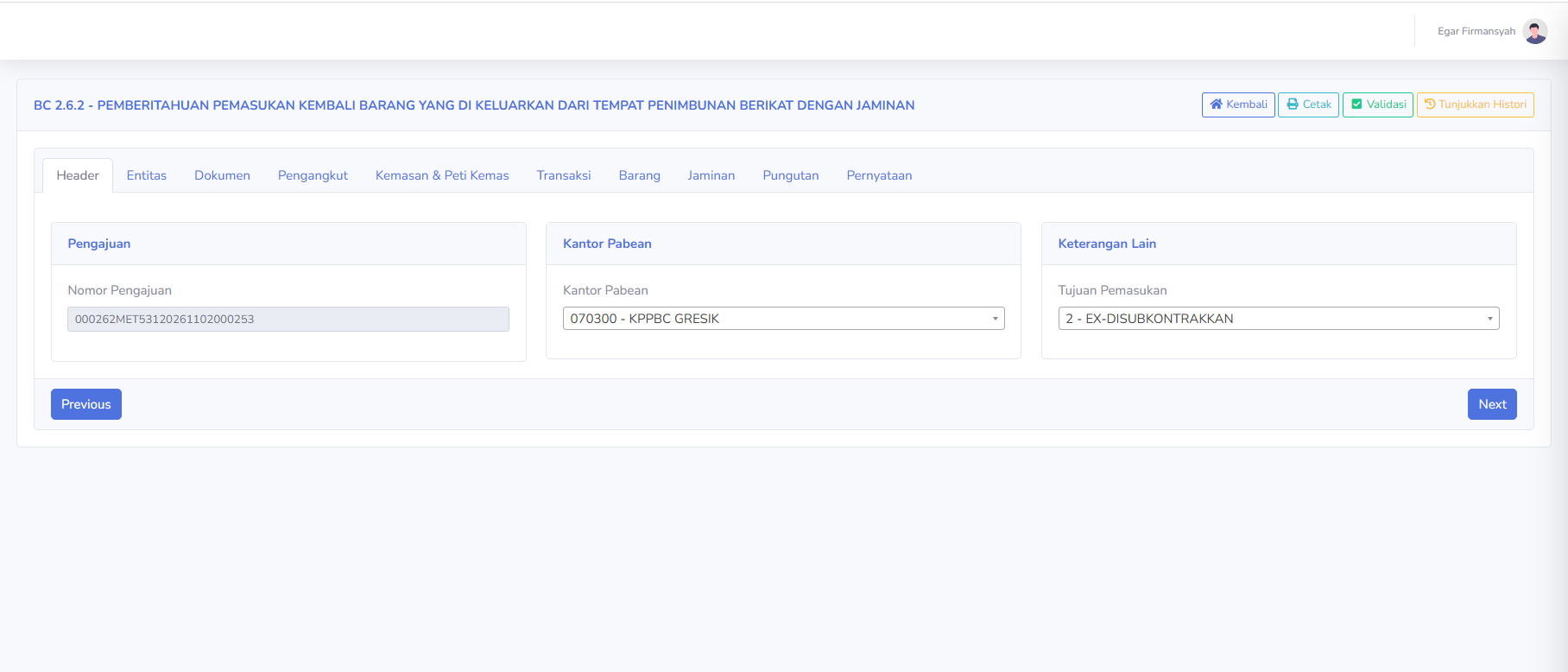
The Header tab is used to display and manage basic information about BC 2.6.2 document submissions. The available sections include:
Submission
-
Submission: Displays the identification number of the BC 2.6.2 document submission.
Customs Office
-
Customs Office: Displays the code and name of the customs office handling the document.
Additional Information
-
Purpose of Re-entry: Displays the purpose of re-entering goods into the TPB
In the screenshot, the selected purpose of re-entry is:
2 - EX-DISUBKONTRAKKAN
This selection indicates that the re-entered goods are related to subcontracting activities previously conducted outside the TPB.
This tab is used to ensure that the declaration information, customs office, and purpose of re-entry are consistent with the transaction document.
Entity Tab Description
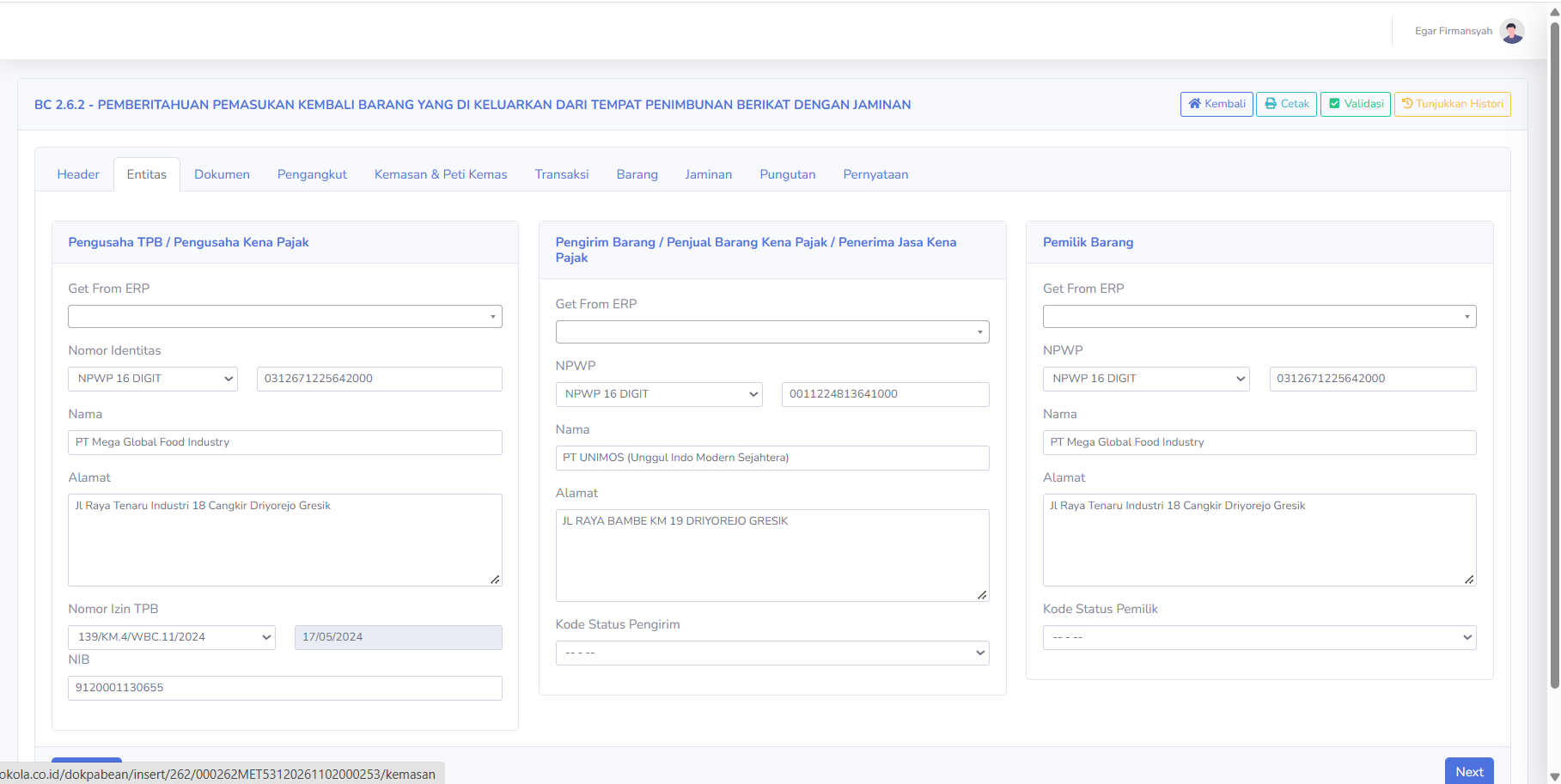
TabThe EntitasEntity digunakantab untukis mengisiused danto mengelolaenter identitasand paramanage pihakthe yangidentities terkaitof dalamthe prosesparties pemasukaninvolved kembaliin barangthe keprocess of re-importing goods into the TPB. TerdapatThere tigaare bagianthree utama:main sections:
PengusahaTPB TPBOperator / PengusahaTaxable KenaBusiness PajakEntity
-
Get From ERP:
MengambilRetrievesatauormemilihselects company dataperusahaanfromdarithesistemERPERP.system -
NomorIdentificationIdentitas:Number:MenampilkanDisplaysjenisthedantypenomorandidentitasnumberperusahaan,ofsepertithe company's identification, such as the NPWP. -
Nama:Name:MenampilkanDisplaysnamatheperusahaannamepengusahaofTPB.the TPB operator's company -
Alamat:Address:MenampilkanDisplaysalamattheperusahaan.company's address -
NomorTPBIzinLinceseTPB:Number:MenampilkanDisplaysnomortheizinTPBfasilitasfacilityTPB.license number. -
TanggalLinceseIzin:Date:MenampilkanDisplaystanggaltheizinTPBTPB.license date. -
NIB:
MenampilkanDisplaysNomortheIndukbusinessBerusaha.identification number (NIB)
Pengirim BarangShipper / PenjualSeller Barangof KenaTaxable PajakGoods / PenerimaRecipient Jasaof KenaTaxable PajakServices
-
Get From ERP: Retrieve or select shipper data from the ERP system
-
NPWP: Displays the sender's Taxpayer Identifiction Number
-
Name: Dispalys the name of the comapny or the sender of the goods
-
Address: Displays the sender's address
-
Sender status Code: Displays the sender's status code options according to the application's reference.
Owner of the Goods
-
Get From ERP:
Mengambilretrievesatauthememilihowner'sdatainformationpihakfrompengirimthedariERPERP.system. -
NPWP:
MenampilkanDisplaysNomorthePokokowner'sWajibTaxPajakIDpihakNumber.pengirim. -
Nama:Name:MenampilkanDisplaysnamatheperusahaannameatauofpihakthepengirimcompanybarang.or party owning the goods. -
Alamat:Address: Displays the owner's address.Menampilkan alamat pihak pengirim. -
Kode Status Pengirim:Menampilkan pilihan kodeOwner statuspihakcode:pengirimDisplayssesuaiareferensiselectionaplikasi.of owner status codes based on the application's reference
PemilikThis Barang
- is
- used
Shipper,GettoFromensureERP:thatMengambiltheinformasiidentitiespemilikofbarangthedariTPBsistemOperator,ERP.and - Owner
NPWP:ofMenampilkanGoodsNomormatchPokoktheWajib Pajak pemilik barang. Nama:Menampilkan nama perusahaan atau pihak pemilik barang.Alamat:Menampilkan alamat pemilik barang.Kode Status Pemilik:Menampilkan pilihan kode status pemilik barang sesuai referensi aplikasi.
Tab ini digunakan untuk memastikan bahwa identitas Pengusaha TPB, Pengirim, dan Pemilik Barang telah sesuai dengansubmission data pengajuanand sertasupporting dokumen pendukung.documents.
PenjelasanDocument Tab DokumenDescription
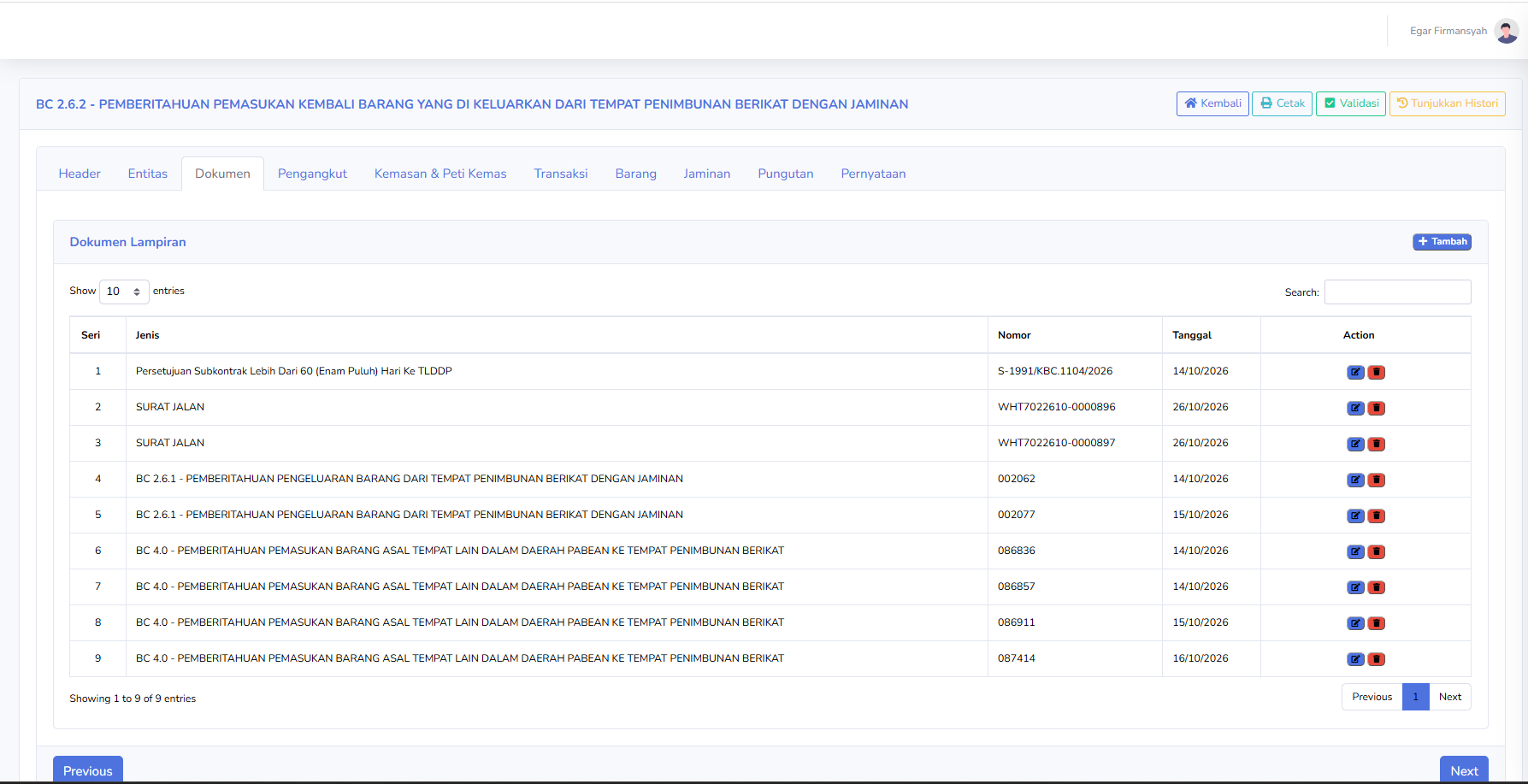
TabThe DokumenDocument digunakantab untukis mengelolaused dokumento lampiranmanage yangsupporting mendukungdocuments prosesfor pemasukanthe kembaliprocess barangof kereturning goods to the TPB. KolomThe yangcolumns tersediaavailable padain tabelthe meliputi:table include:
-
Seri:Series:MenampilkanDisplaysnomortheurutsequentialdokumennumberlampiran.of the supporting document -
Jenis:Type:MenampilkanDisplayjenisthedokumentypependukung.of supporting document. -
Nomor:Number:MenampilkanDisplaysnomortheidentifikasidocumentdokumen.identification number. -
Tanggal:Date:MenampilkanDisplaytanggalthepenerbitandocument'sdokumen.issuance date. -
Action:
MenampilkanDisplaysikoniconsuntukformengediteditingatauormenghapusdeleting document datadokumen.
ContohExamples dokumenof yangdocuments terlihatshown padain the screenshot:
-
PersetujuanApprovalSubkontrakofLebihSubcontractsDariExceeding 60 (EnamSixty)Puluh)DaysHaritoKeTLDDP:TLDDP:AnDokumenapprovalpersetujuandocumentyangrelatedberkaitantodengansubcontarctingkegiatanactivities.subkontrak. -
Surat Jalan:Waybill:DokumenSupportingpendukungdocumentpengangkutanforatauthepengirimantransportationbarang.or shipment of goods. -
BC 2.6.1:
DokumenDocumentpengeluaranforsementarathebarangtemporarydarirelease of goods from the TPBdenganwithjaminan.a guarantee. -
BC 4.0:
DokumenNotificationpemberitahuandocumentpemasukanforbarangtheasalentry of goods originating from the TLDDPkeintoTPBtheyangTPB,tercantumlistedsebagaiasreferensi.a reference.
-
Tambah:Add:MenambahkanAdddokumenalampirannewbaru.attached document -
Edit:
MengubahModifiesdataattachmentlampiran.data. -
Delete: Deletes the selected attached document.
Menghapus dokumen lampiran yang dipilih. -
Search:
MencariSearchesdokumenforberdasarkanthekatadocumentskunci.by keywords -
Show Entries:
MengaturSetsjumlahthedokumennumberyangofditampilkan.documents displayed. -
Previous / Next:
BerpindahNavigateantarhalamanbetweendaftarpageslampiran.of the attchment list.
PadaThe screenshot terdapatshows sembilannine dokumenrecorded lampiranattached yang tercatat.documents.
Catatan:Note: DokumenDocument BC 2.6.1 merupakanis referensian pentingimportant dalamreference pemasukanfor kembalithe barangreturn eksof pengeluarangoods sementara.that Pastikanwere nomorpreviously pengajuan,temporarily nomorreleased. pendaftaran,Ensure danthat rincianthe barangapplication yangnumber, dikembalikanregistration sesuainumber, denganand dokumendetails pengeluaranof sebelumnya.the returned goods match those in the previous release document.
PenjelasanCarriage Tab PengangkutDescription
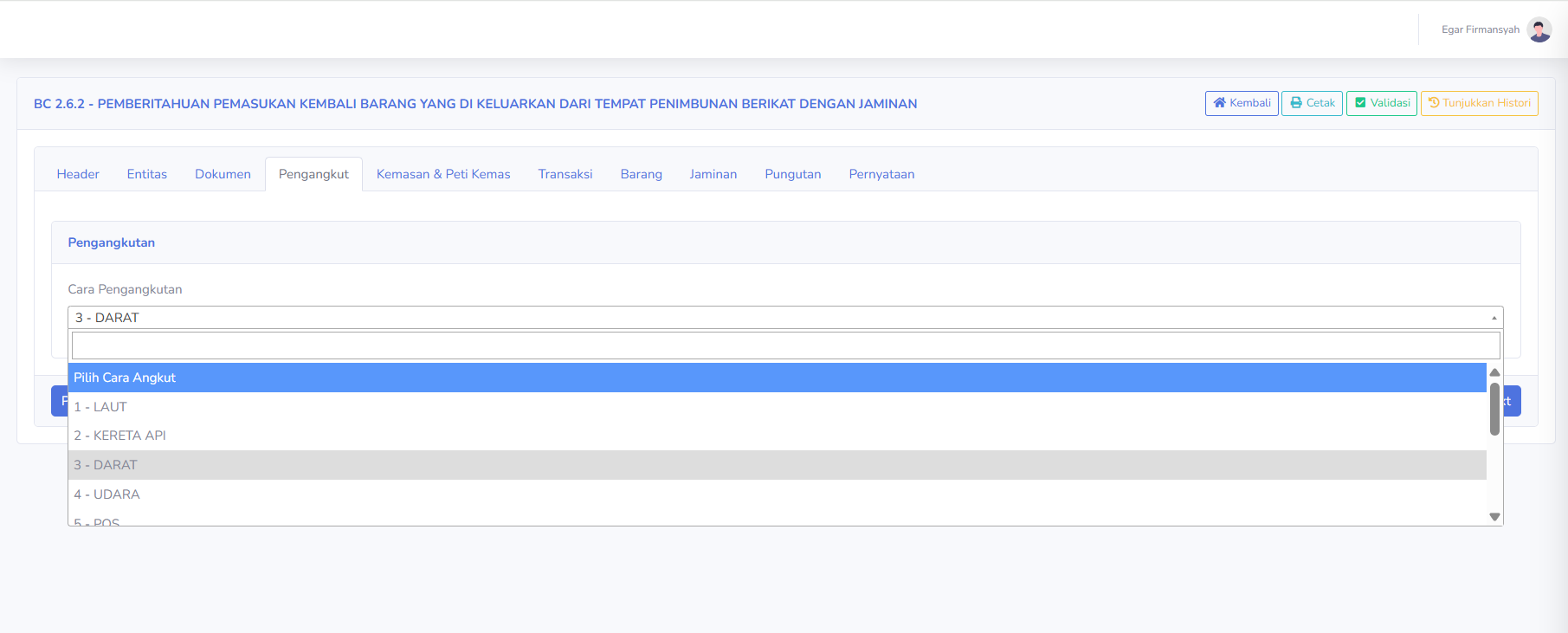
TabThe PengangkutCarriage digunakantab untukis menentukanused carato pengangkutanspecify barangthe yangmethod dimasukkanof kembalitransporting kegoods that are returned to the TPB. BagianThe yangavailable tersediasections meliputi:include:
CaraTransportation PengangkutanMethod
MenampilkanDisplays pilihanoptions modafor atauthe metodemode pengangkutanor barang.method of transporting goods.
BeberapaSome pilihanof yangthe terlihatoptions antaradisplayed lain:include:
-
1 -
LAUT:SEA:PengangkutanTransportationmenggunakanviasaranaSEAtransportasi laut. -
2 -
KERETA API:RAIL:PengangkutanTransportationmenggunakanviakeretaRAILapi. -
3 -
DARAT:LAND:PengangkutanTransportationmenggunakanviasaranaLANDtransportasi darat. -
4 -
UDARA:AIR:PengangkutanTransportationmenggunakanviapesawatAIRudara. -
5 -
POS:MAIL:PengangkutanTransportationmelaluivialayananportalpos.service.
PadaIn the screenshot, carathe pengangkutanselected yangmode dipilihof adalahtransportation is 3 - DARAT.LAND.
PenggunaUsers perlumust memilihselect carathe pengangkutanmode sesuaiof dengantransportation saranabased yangon digunakanthe dalammeans prosesused pemasukanin kembalithe barang.process of re-importing the goods.
PenjelasanExplanation Tabof Kemasanthe Packaging & PetiContainer KemasTab
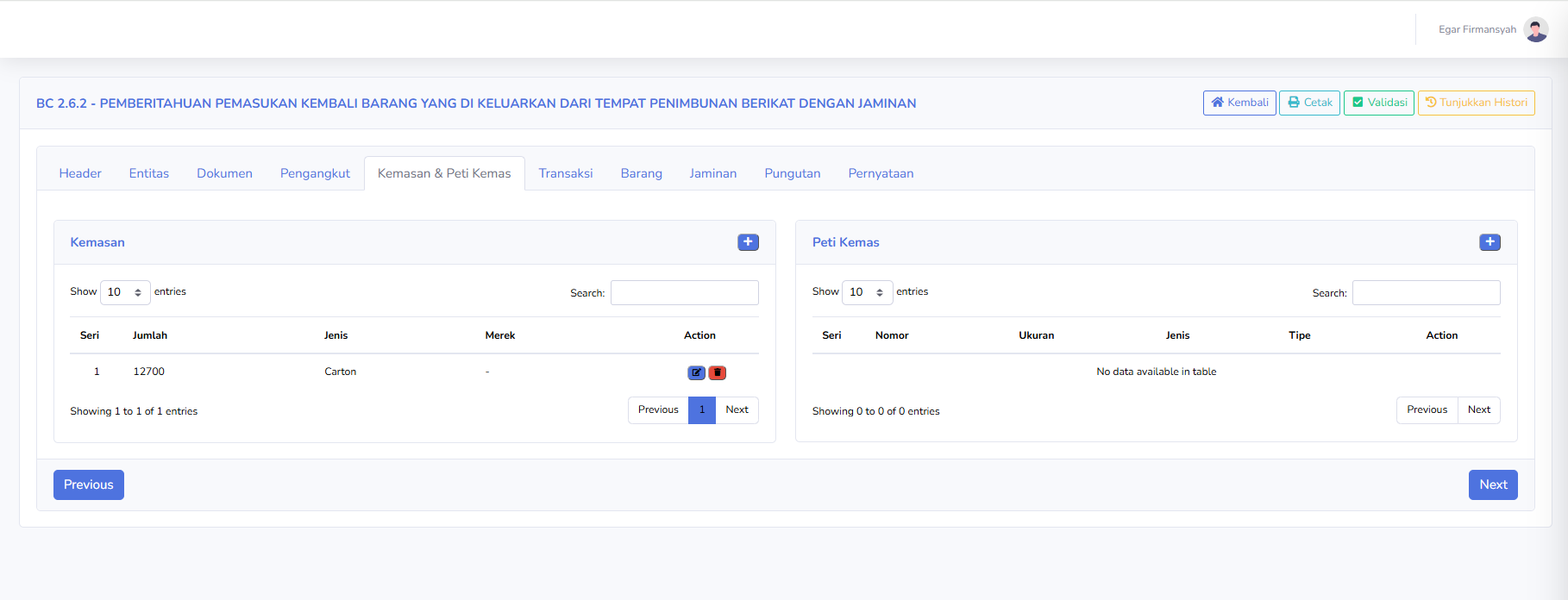
TabThe KemasanPackaging & PetiContainer Kemastab digunakanis untukused mencatatto informasirecord kemasanpackaging danand peticontainer kemasinformation yangrelated berkaitanto dengangoods barangbeing yangreturned dimasukkanto kembali kethe TPB. TerdapatThere duaare bagiantwo utama:main sections:
KemasanPackaging
-
Seri:Series:MenampilkanDisplaysnomortheurutsequentialkemasan.number of the package -
Jumlah:Quantity:MenampilkanDisplaysjumlahthekemasannumberbarang.of packages of goods -
Jenis:Type:MenampilkanDisplaysjenisthekemasan.packaging type. -
Merek:Brand:MenampilkanDisplaysmerektheataubrandtandaorkemasanpackagingapabilalabel,tersedia.if available. -
Action:
MenampilkanDisplayspilihanoptionsuntuktomengediteditatauormenghapusdeletedatapackagingkemasan.data.
PadaThe screenshot terlihatshows contohan example of the data:
-
Jumlah:Quantity: 12.700 -
Jenis:Type: Carton
Peti KemasContainer
-
Seri:Series:MenampilkanDisplaysnomortheurutcontainer'spetiserialkemas.number. -
Nomor:Number:MenampilkanDisplaysnomortheidentitasshippingpeticontainer'skemas.identification number. -
Ukuran:Size:MenampilkanDisplaysukuranthepetishippingkemas.of container's dimensions -
Jenis:Type:MenampilkanDisplaysjenisthepetishippingkemas.container type. -
Tipe:Type:MenampilkanDisplaystipethepetipackagingkemas.type. -
Action:
MenampilkanDisplayspilihanoptionsuntuktomengediteditatauormenghapusdeletedatapackagingpetidata.kemas.
PadaIn the screenshot, tabelthe PetiPackaging Kemastable menampilkandisplays keteranganthe message “No data available in table,” yangwhich berartimeans belumthere adais no packaging data petirecorded kemasin yangthat tercatatdocument pada dokumen tersebut.yet.
PenjelasanTransaction Tab TransaksiDescription
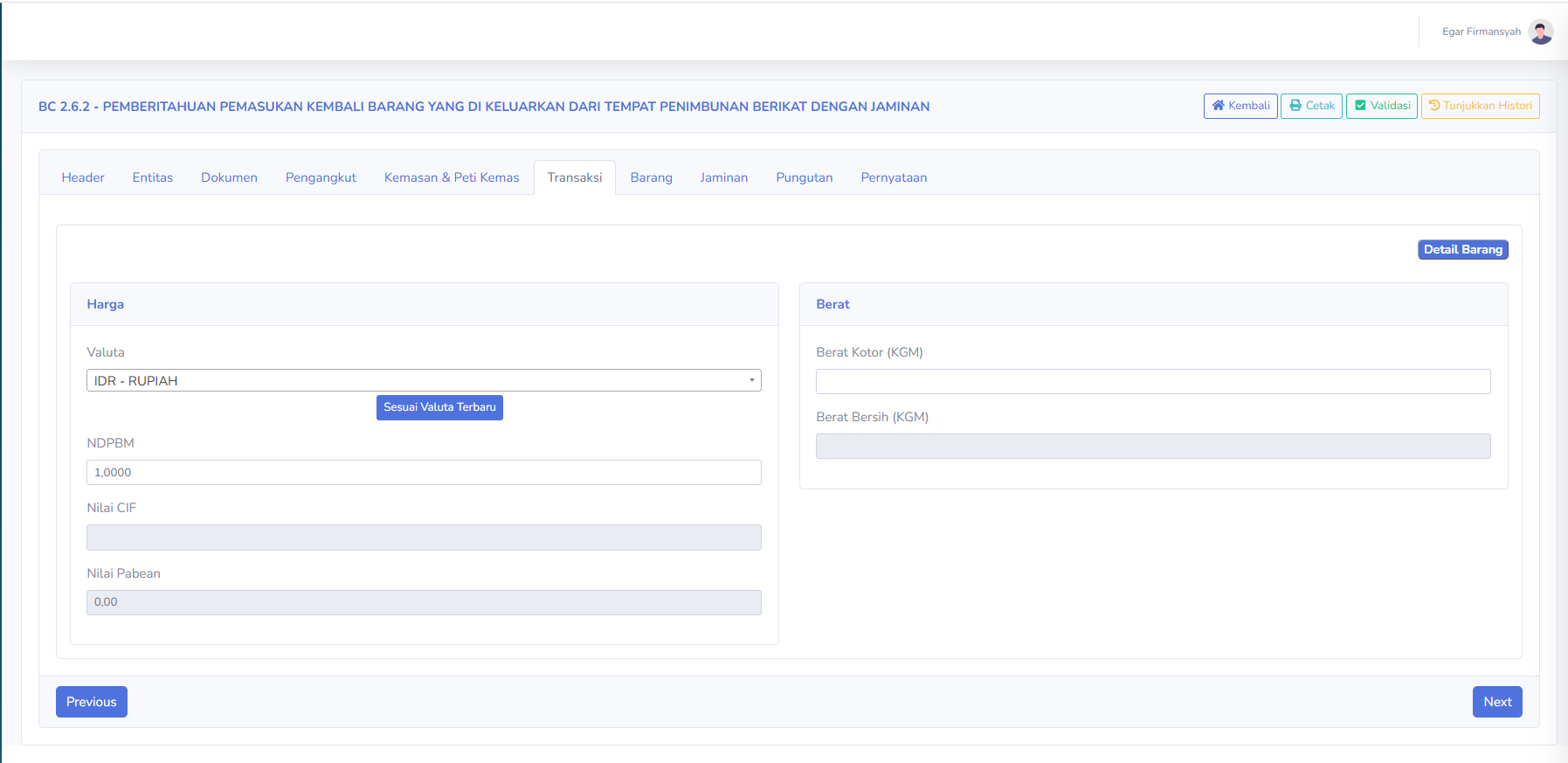
TabThe TransaksiTransaction digunakantab untukis menampilkanused danto mengeloladisplay informasiand nilaimanage transaksiinformation sertaregarding berattransaction barangvalues yangand dimasukkanthe kembaliweight keof goods re-entered into the TPB. TerdapatThere duaare bagiantwo utama:main sections:
HargaPrice
-
Valuta:Currency:MenampilkanDisplaysmatatheuangcurrencyyanguseddigunakanindalamthetransaksi,transaction,misalnyaforIDRexample-IDR-Rupiah. -
NDPBM:
MenampilkanDisplaysNilaitheDasarbasePerhitunganvalueBeaforMasuk.Import Duty Calculation. -
NilaiCIFCIF:Value:MenampilkanDisplaysnilaithebarangvalueberdasarkanofkomponenthe goods based on the Cost, Insurance, and Freightapabilacomponents,berlaku.if applicable. -
NilaiCustomsPabean:Value:MenampilkanDisplaysnilaitheyangvaluedigunakanuseduntukforkeperluancustomskepabeananpurposesesuaiinketentuan.accordance with regulations.
-
SesuaiUpdateValutatoTerbaru:Latest Currency Rate:DigunakanUseduntuktomemperbaruiupdateatauormenyesuaikanadjustnilaithevalutacurrencyberdasarkanvaluereferensibasedyangontersediareferencesdalamavaibleaplikasi.in application.
BeratWeight
-
BeratGrossKotorWeight (KGM):MenampilkanDisplaysberatthebarangweighttermasukofkemasantheyanggoods,diperhitungkan.including packaging, as calculated. -
BeratNetBersihWeight (KGM):MenampilkanDisplaysberatthebarangweighttanpaofkemasan.the goods without packaging.
SelainAdditionally, itu,the tersediafollowing tombol:button is available:
-
Detail
Barang:Items:MembukaOpensrincianthebarangitemyangdetailsberkaitanassociateddenganwithdokumen.the document
PenggunaUsers perlumust memastikanensure bahwathat nilaithe transaksitransaction danvalue beratand barangthe telahweight sesuaiof denganthe dokumengoods pendukung.match the supporting documents.
PenjelasanItem Tab BarangDescription
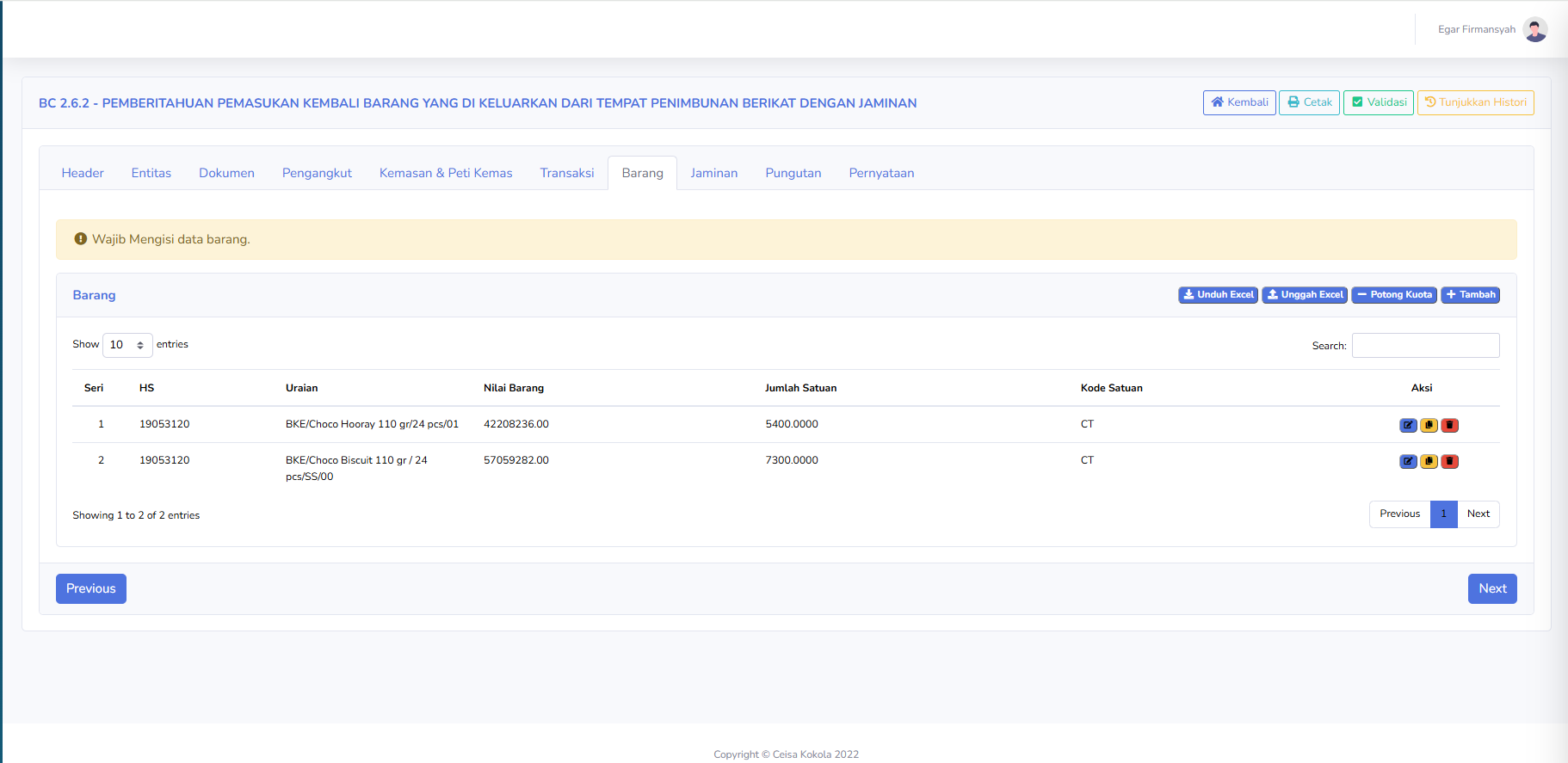
TabThe BarangItem digunakantab untukis mengelolaused daftarto barangmanage yangthe dimasukkanlist kembaliof keitems re-entered into the TPB. KolomThe yangavailable tersediacolumns meliputi:include:
-
Seri:Series:MenampilkanDsiplaysnomortheurutitem'sbarang.serial number. -
HS: Menampilkan kode Harmonized System sebagai klasifikasi barang.
-
Uraian:Description: Menampilkan nama, jenis, atau deskripsi barang. -
NilaiItemBarang:Value: Menampilkan nilai setiap barang. -
Jumlah Satuan:Quantity: Menampilkan jumlah barang berdasarkan satuan yang digunakan. -
KodeUnitSatuan:Code: Menampilkan kode satuan barang. -
Aksi:Action Menampilkan pilihan tindakan seperti mengedit, menyalin, atau menghapus data barang sesuai ikon aplikasi.
Tombol yang tersedia:
-
UnduhDownload Excel: Mengunduh data atau format Excel yang disediakan aplikasi. -
UnggahUpload Excel: Mengunggah data barang melalui file Excel. -
Quota Deduction:
Potong Kuota:: Menjalankan fitur yang berkaitan dengan pengelolaan kuota sesuai sistem. -
Tambah:Add: Menambahkan data barang baru.
Pada screenshot terlihat dua baris barang dengan kode HS yang sama, tetapi uraian dan jumlah satuannya berbeda.
Pada bagian atas juga terdapat notifikasi:
Wajib Mengisi data barang.
Notifikasi tersebut mengingatkan pengguna agar memastikan rincian barang telah diisi dengan lengkap dan sesuai.
Pengguna perlu mencocokkan uraian, jumlah, nilai, serta referensi barang dengan dokumen BC 2.6.1 yang digunakan saat pengeluaran sementara.
Penjelasan Tab Jaminan
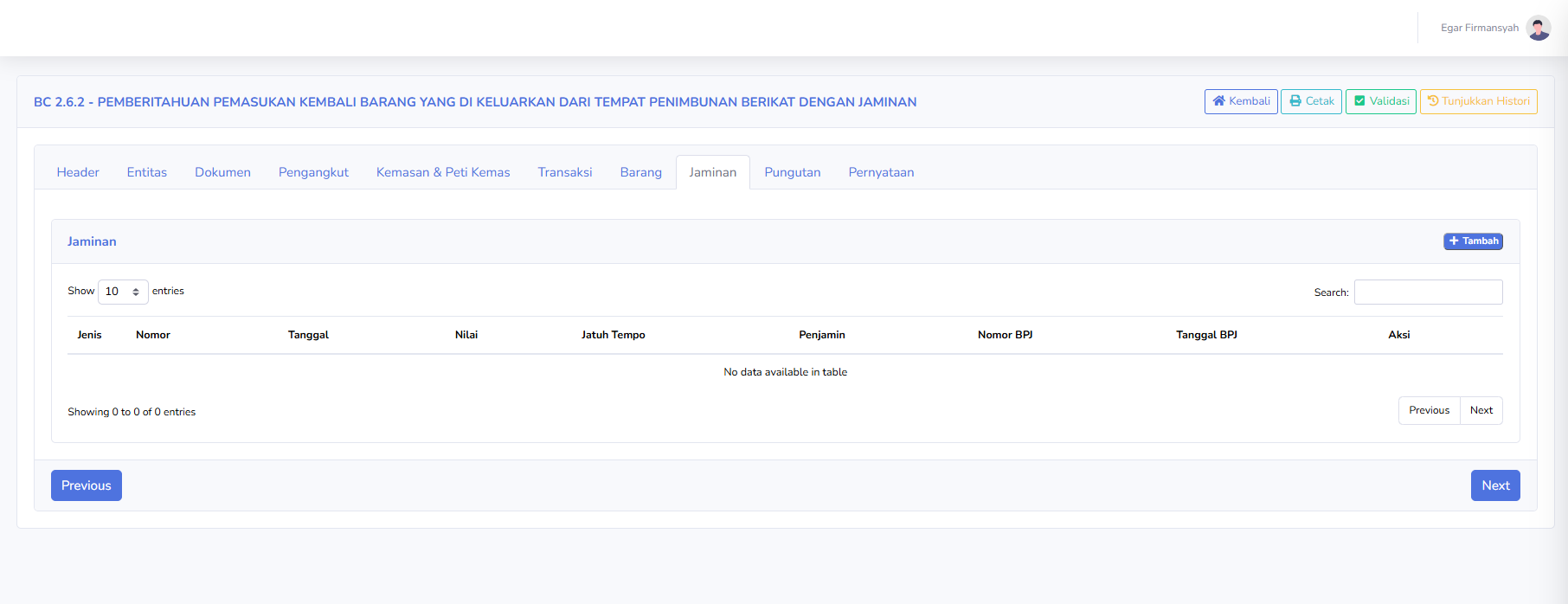
Tab Jaminan digunakan untuk mencatat informasi jaminan yang berkaitan dengan proses pemasukan kembali barang eks pengeluaran sementara. Kolom yang tersedia meliputi:
-
Jenis: Menampilkan jenis jaminan yang digunakan.
-
Nomor: Menampilkan nomor dokumen jaminan.
-
Tanggal: Menampilkan tanggal dokumen jaminan.
-
Nilai: Menampilkan nominal jaminan.
-
Jatuh Tempo: Menampilkan batas waktu berlaku atau jatuh tempo jaminan.
-
Penjamin: Menampilkan pihak yang memberikan jaminan.
-
Nomor BPJ: Menampilkan nomor Bukti Penerimaan Jaminan.
-
Tanggal BPJ: Menampilkan tanggal Bukti Penerimaan Jaminan.
-
Aksi: Menampilkan pilihan tindakan terhadap data jaminan.
Tombol yang tersedia:
-
Tambah: Menambahkan data jaminan baru.
Pada screenshot, tabel Jaminan masih kosong dan menampilkan keterangan No data available in table.
Tab ini membantu pengguna mengelola informasi jaminan yang terkait dengan dokumen pemasukan kembali barang.
Penjelasan Tab Pungutan
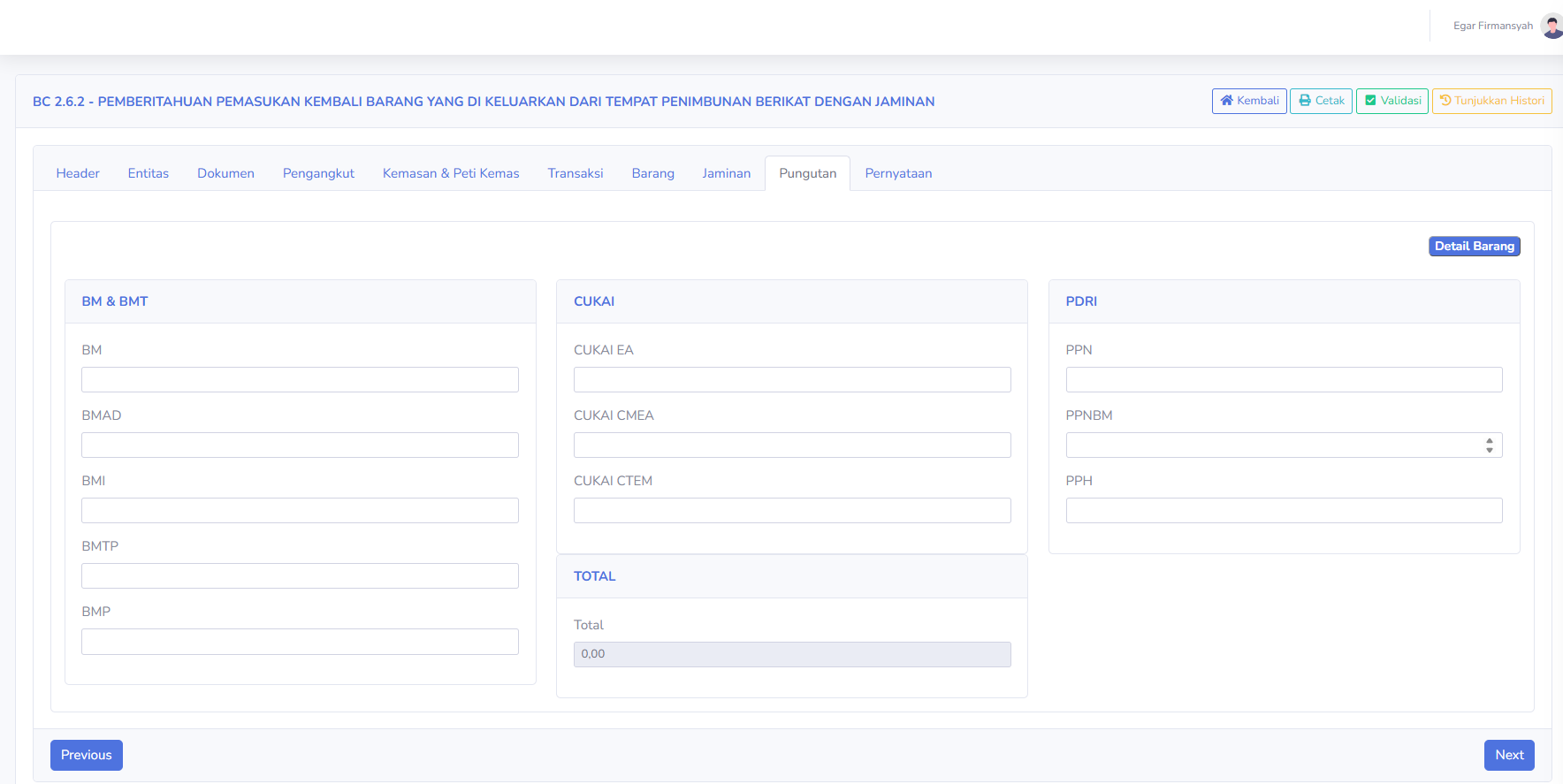
Tab Pungutan digunakan untuk menampilkan informasi komponen pungutan kepabeanan dan perpajakan yang berkaitan dengan dokumen BC 2.6.2. Bagian yang tersedia meliputi:
BM & BMT
-
BM: Bea Masuk.
-
BMAD: Bea Masuk Anti-Dumping.
-
BMI: Bea Masuk Imbalan.
-
BMTP: Bea Masuk Tindakan Pengamanan.
-
BMP: Bea Masuk Pembalasan.
CUKAI
-
Cukai EA: Komponen cukai etil alkohol.
-
Cukai CMEA: Komponen cukai minuman mengandung etil alkohol.
-
Cukai CTEM: Komponen cukai hasil tembakau.
PDRI
-
PPN: Pajak Pertambahan Nilai.
-
PPnBM: Pajak Penjualan atas Barang Mewah.
-
PPh: Pajak Penghasilan yang berkaitan dengan kegiatan impor apabila berlaku.
TOTAL
-
Total: Menampilkan jumlah hasil perhitungan komponen pungutan.
Selain itu, tersedia tombol Detail Barang untuk melihat informasi rincian barang.
Pada screenshot, nilai Total yang ditampilkan adalah 0,00. Nilai tersebut perlu diperiksa kembali berdasarkan status pengisian, perhitungan, dan ketentuan dokumen.
Penjelasan Tab Pernyataan
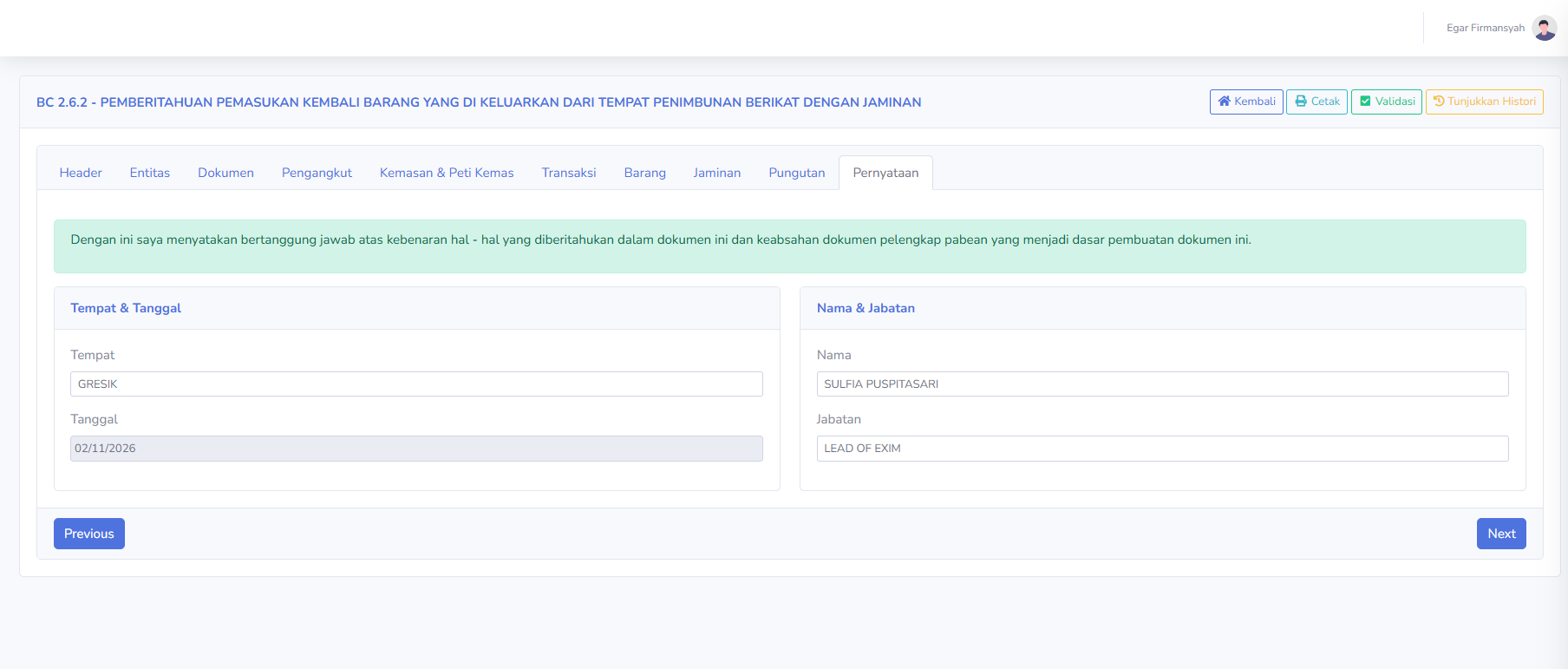
Tab Pernyataan digunakan untuk melengkapi informasi penanggung jawab dokumen BC 2.6.2. Pada bagian atas terdapat pernyataan tanggung jawab atas kebenaran data yang diberitahukan dan keabsahan dokumen pelengkap pabean.
Bagian yang tersedia meliputi:
Tempat & Tanggal
-
Tempat: Menampilkan lokasi pembuatan atau penandatanganan pernyataan.
-
Tanggal: Menampilkan tanggal pernyataan dokumen.
Nama & Jabatan
-
Nama: Menampilkan nama penanggung jawab dokumen.
-
Jabatan: Menampilkan jabatan penanggung jawab dalam perusahaan.
Pengguna perlu memastikan bahwa nama, jabatan, tempat, dan tanggal telah sesuai dengan data pihak yang berwenang.
Penjelasan Fitur Tunjukkan Histori
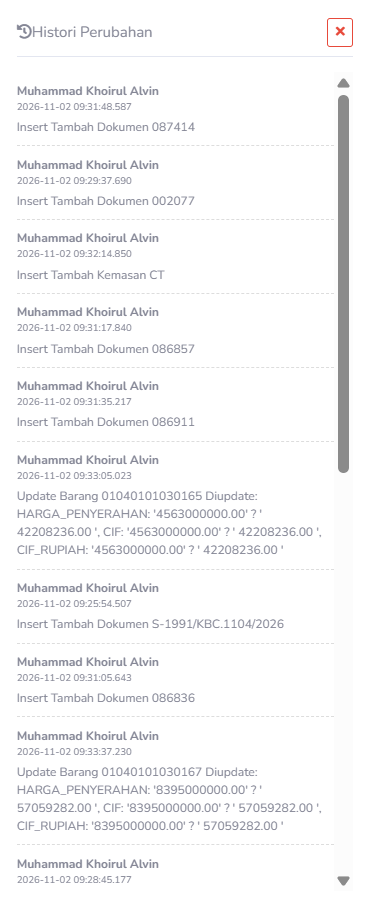
Fitur Tunjukkan Histori digunakan untuk menampilkan riwayat aktivitas atau perubahan data dokumen yang tercatat dalam sistem CEISA Kokola. Ketika tombol diklik, aplikasi menampilkan panel Histori Perubahan.
Informasi yang tersedia meliputi:
-
Nama Pengguna: Menampilkan pengguna yang melakukan aktivitas pada dokumen.
-
Tanggal dan Waktu: Menampilkan waktu aktivitas atau perubahan dilakukan.
-
Jenis Aktivitas: Menampilkan proses yang dilakukan, seperti penambahan dokumen, perubahan data barang, atau penambahan kemasan.
-
Detail Perubahan: Menampilkan informasi data yang ditambahkan atau diperbarui apabila dicatat oleh sistem.
Contoh aktivitas yang terlihat pada screenshot:
-
Insert Tambah Dokumen: Menunjukkan aktivitas penambahan dokumen lampiran.
-
Insert Tambah Kemasan: Menunjukkan aktivitas penambahan data kemasan.
-
Update Barang: Menunjukkan aktivitas perubahan informasi barang, termasuk nilai transaksi yang diperbarui.
Pada panel tersedia tombol X untuk menutup tampilan histori.
Fitur ini membantu pengguna melakukan penelusuran perubahan data, pemeriksaan aktivitas pengguna, dan pengecekan riwayat pengelolaan dokumen.
Catatan: Histori Perubahan pada aplikasi merupakan catatan aktivitas internal sistem. Tidak semua aktivitas yang tercatat di dalamnya merupakan respons resmi dari Bea Cukai.
Langkah Penggunaan
Catatan
-
BC 2.6.2 digunakan untuk pemasukan kembali barang yang sebelumnya dikeluarkan sementara dari TPB.
-
Dokumen BC 2.6.2 berkaitan dengan BC 2.6.1 yang digunakan pada proses pengeluaran sementara.
-
Pastikan referensi BC 2.6.1 telah sesuai dengan barang yang dimasukkan kembali.
-
Periksa dokumen persetujuan dan dokumen pendukung sebelum pengajuan.
-
Gunakan Nomor Pengajuan untuk mempermudah pencarian dokumen.
-
Nomor Pengajuan dan Nomor Pendaftaran memiliki fungsi berbeda.
-
Pastikan identitas pihak pengirim, pemilik, dan pengusaha TPB telah sesuai.
-
Periksa jumlah kemasan, rincian barang, kode HS, nilai, dan satuan barang.
-
Pastikan dokumen jaminan telah dicantumkan sesuai persyaratan transaksi.
-
Nilai pungutan yang belum terisi atau menunjukkan 0,00 perlu diperiksa sebelum pengajuan.
-
Periksa bagian Pernyataan agar data penanggung jawab telah sesuai.
-
Status Baru menunjukkan dokumen berada pada tahap awal berdasarkan indikator aplikasi.
-
Validasi aplikasi tidak otomatis berarti dokumen telah memperoleh persetujuan resmi Bea Cukai.
-
Pastikan respons kepabeanan telah diterima sebelum menyimpulkan proses pemasukan kembali selesai.
-
Gunakan fitur Histori Perubahan untuk menelusuri aktivitas pengelolaan dokumen.
-
Gunakan fitur internal seperti Update To ERP, Multi Backup, dan Potong Kuota sesuai prosedur perusahaan.