
BC 2.5
Customs Documents Module Guide
Module Location:
CEISA > Customs Documents > BC 2.5
How to Access
- Log in to the CEISA Kokola application.
- Select the Customs Documents menu.
- Click the BC 2.5 submenu.
The system displays the Document List page.
Page Display
Displays a list of BC 2.5 document submissions for the release of goods from a BWF. Each row displays document information, such as submission number, owner, consignee, SPMB, registration number, registration date, route, customs office, and document processing status.
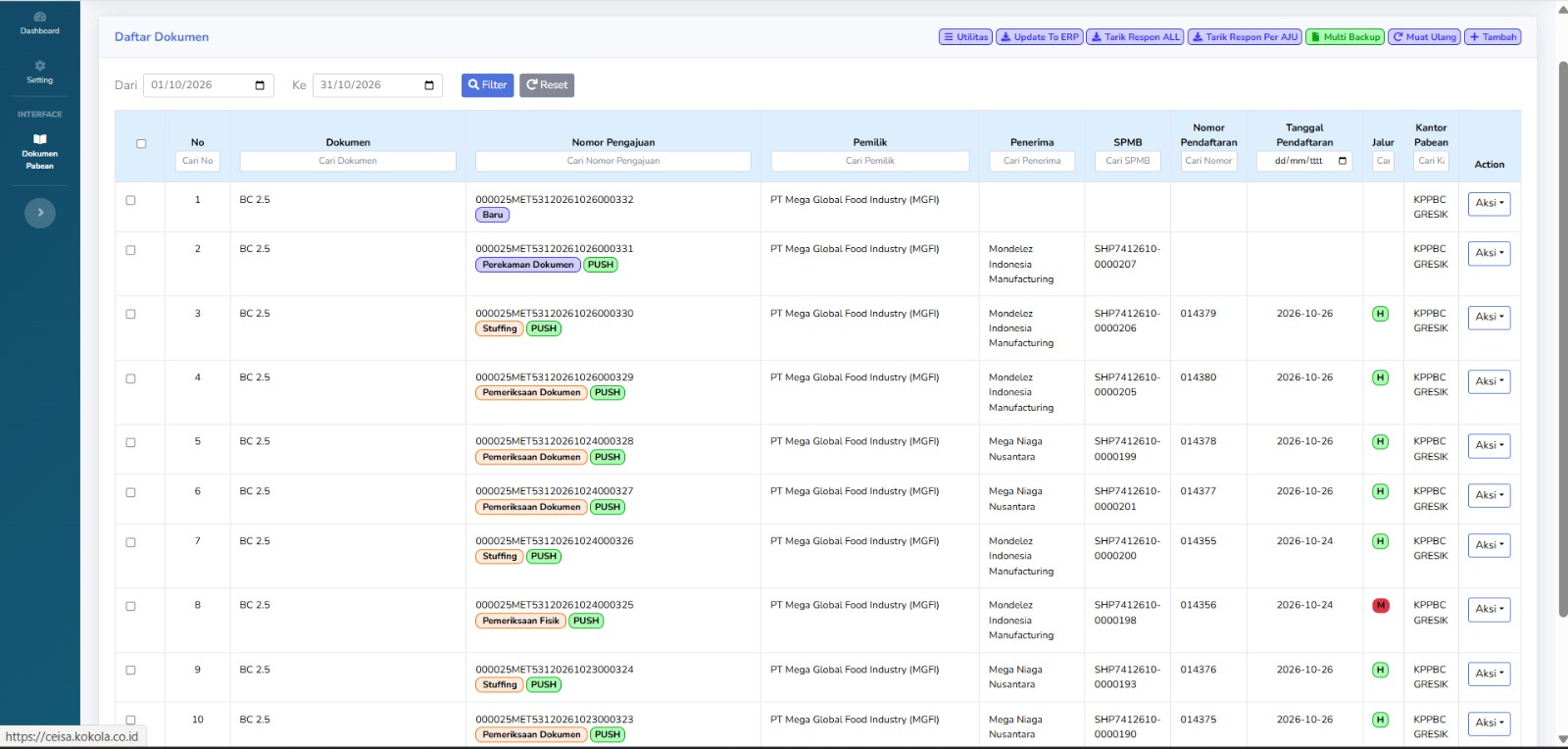
Column Descriptions
The available columns include:
- No.: Displays the document’s serial number in the list.
- Document: Displays the type of customs document, namely BC 2.5.
- Application Number: Displays the AJU number, which identifies the customs document application.
- Owner: Displays the name of the company or party owning the goods.
- Recipient: Displays the name of the company or party receiving the goods.
- SPMB: Displays the SPMB reference number associated with the goods release transaction.
- Registration Number: Displays the document registration number issued through the customs process.
- Registration Date: Displays the date the document was registered.
- Lane: Displays the customs service lane indicator, such as Green Lane or Red Lane.
- Customs Office: Displays the Customs office handling the document.
- Action: Displays options for further actions on the selected document.
- Additionally, there is a checkbox to select documents and a search field to find specific data.
Button Descriptions
- Utilities: Opens a menu of additional features for document management.
- Update to ERP: Used to update or synchronize document data with the company’s ERP system.
- Retrieve ALL Responses: Used to retrieve or update customs responses for a number of documents.
- Retrieve Response by AJU: Used to retrieve responses based on a specific application number.
- Multi Backup: Used to back up multiple documents at once.
- Reload: Refreshes the document list view.
- Add: Used to create a new BC 2.5 document submission.
- Filter: Displays a list of documents based on the selected date range.
- Reset: Resets search settings to their default state.
Status and Process Explanation
In the Application Number column, there are several indicators that show the document processing stages:
- New: Indicates that the document is in the initial stage or has just been created.
- Document Entry: Indicates that the document is in the data entry stage.
- Document Review: Indicates the document review or investigation stage.
- Physical Inspection: Indicates the stage related to the physical inspection of goods.
- Stuffing: Indicates the stage of loading or arranging goods into a transport vehicle.
- PUSH: An application indicator believed to be related to the data transmission or synchronization process.
In the Lane column, the following indicators are displayed:
- H (Green): Believed to indicate the Green Lane, which is a service lane that generally does not require routine physical inspection, except under certain conditions.
- M (Red): Believed to indicate the Red Lane, which is a service lane that requires physical inspection in accordance with customs regulations.
Note: Statuses such as New, Stuffing, PUSH, and Document Inspection are labels displayed in the CEISA Kokola application. The technical meaning of each status must be aligned with the processes implemented in the system.
Table Navigation Explanation
At the bottom of the document list, the following navigation features are available:
- Show Entries: Sets the number of documents displayed on each page.
- Previous: Go to the previous page of the list.
- Next: Go to the next page of the list.
- Showing Entries: Displays the number of documents currently shown and the total number of available documents.
- Horizontal Scrollbar: Scroll the table view to see columns that are not visible on the screen.
Usage Steps
Tips & Important Notes
- Make sure the search period matches the document you wish to check.
- Use the Application Number to facilitate the search for a specific document.
- The Application Number and Registration Number serve different purposes.
- Check the names of the owner and recipient to ensure the transaction is correct.
- Check the document status to determine the stage of the application process.
- Ensure the document meets customs requirements before releasing the goods.
- The Green or Red Lane indicator does not always mean that the goods release process is complete.
- Check the customs response to confirm the document’s processing outcome.
- Use the Action button and ERP synchronization features as needed and in accordance with company procedures.